42
USER GUIDE
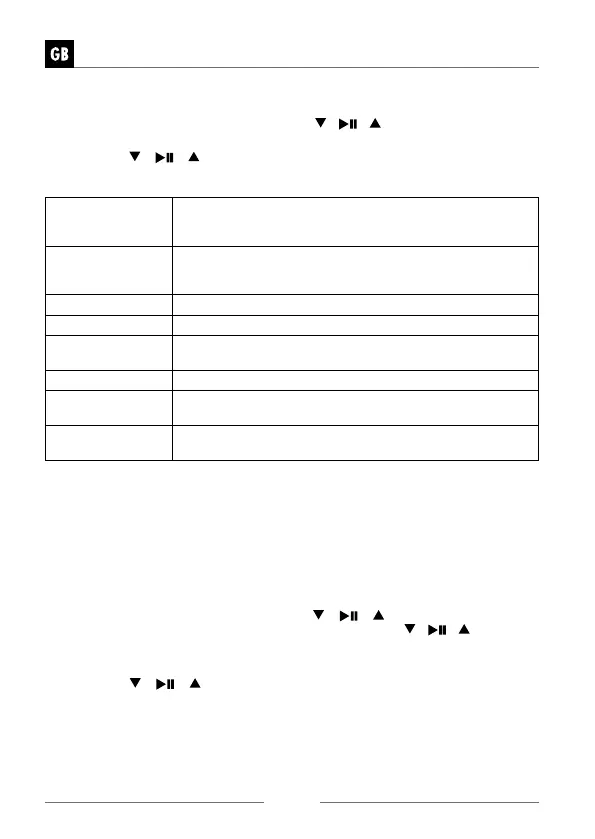
Network
1. During System Settings mode, press the / /
buttons to select Network
and press the SELECT button to confirm.
2. Press the
/ /
buttons to select from the following settings, and then
press the SELECT button to confirm.
Network wizard SSID – select the desire wireless network. Rescan – Scan
for available networks. Manual config – select wireless
network with DHCP enable/disable.
PBC Wlan setup
Press the WPS button on the modem device that you wish to
connect with. Then press the VOLUME/SELECT/SNOOZE
dial on unit or SELECT button on remote control to continue.
View settings Display the setting on the unit.
Manual settings Select DHCP enable/disable.
NetRemote
PIN Setup
To define a PIN number to be entered before being able to
connect to the unit remotely over a network
Network profile View the connected network.
Clear network
settings
To delete the connected network memory in Network
profile.
Keep network
connected
To define whether remains connected to its network in
Standby mode and when not in Network radio mode.
3.
Press the BACK button on unit or remote control to return back to the previous menu.
Time/Date
The Time/Date can be automatically set once it has been connected to the Inter-
net, DAB or FM radio station with time/date information. You may also adjust the
Time/Date manually.
• Press the CLOCK button to access Set Time/Date.
Alternatively,
• During System settings mode, press the
/ /
buttons to select Time/
Date and press the SELECT button to confirm. Press the / /
buttons to
select Set Time/Date and press the SELECT button to confirm.
1. The date digits will flash on the display.
2. Press the
/ /
buttons to adjust the day and then press the SELECT
button to confirm.
3. Repeat above Step (2) to set the Month/Year/Hour/Minute.
4. The date and time settings are now complete.


 To Next Page