SD-MA-031
16
7.13 QR Code
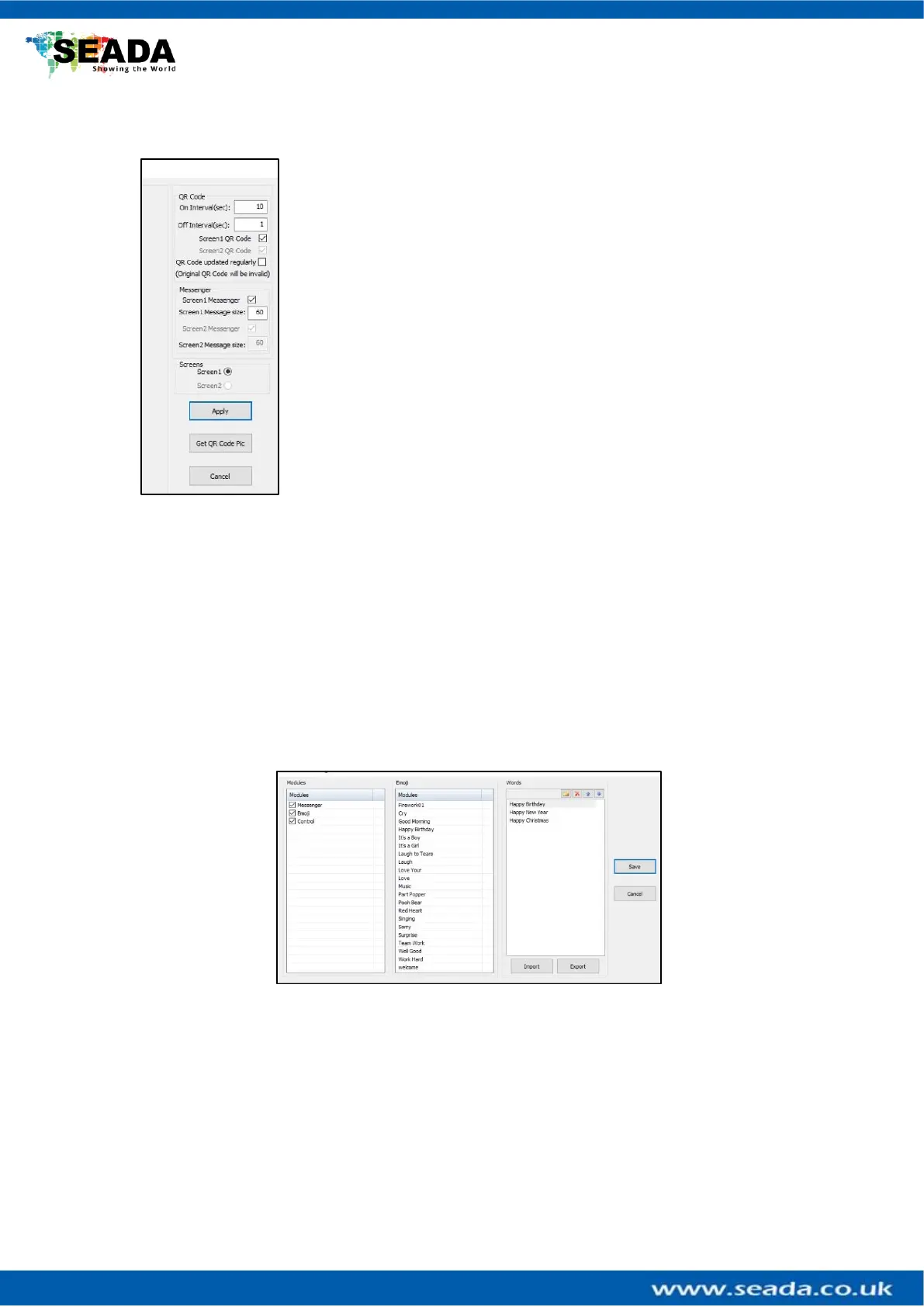
To set up the QR code which enables the features of sending images,
message, greetings, and emoji from smart phone via Cloud and control
the GM9 using phone within local network. This feature is option.
Please press ‘Apply’ to enable the changes.
1) QR Code
i. On Interval: QR code display on screen period
ii. Off Interval: QR code off screen period
iii. Screen1 QR Code: Enable the QR code on video wall 1
iv. Screen 2 QR Code: Enable the QR code on video wall 2
v. QR Code Updated Regularly: QR code will change every 24 hours or when
unit being power off/on
2) Messenger
It enables/disables the message and greeting ability on Cloud management.
3) Screens
Choose which video wall the QR is on
4) Get QR Code Pic
To get the QR code picture. If users want to keep the Cloud management feature from the
pubic, they can disable the QR code shown on video wall and keep the QR code picture by
themselves.
7.14 Cloud Settings
Users can enable or disable the Messenger, Emoji and Control feature from the Cloud
management and manage the greetings on the cloud.
7.15 Layout Lock
It will lock the current layout away from any movement.
8、Help
Shows the software version detail.



 To Next Page