SD-MA-031
1
i. Set up connection
1. Set up the static IP address on control PC
The default IP address of GM9 is 192.168.1.136. The control PC needs to be at the same
range of controller to connect to the GM9
• Open the ‘Ethernet Properties’ windows on the Control PC
• Highlight the TCP/IPv4 in Networking and click the Properties button to
open the TCP/IPv4 Properties window
• Change the ‘Obtain an IP address automatically’ to ‘Use the following IP
address to set up a static IP address
➢ IP address: any address between 192.168.1.1 and 192.168.1.253
except the address which has been taken by the GM9
➢ Subnet mask: 255.255.255.0, Default Gateway: 192.168.1.254.
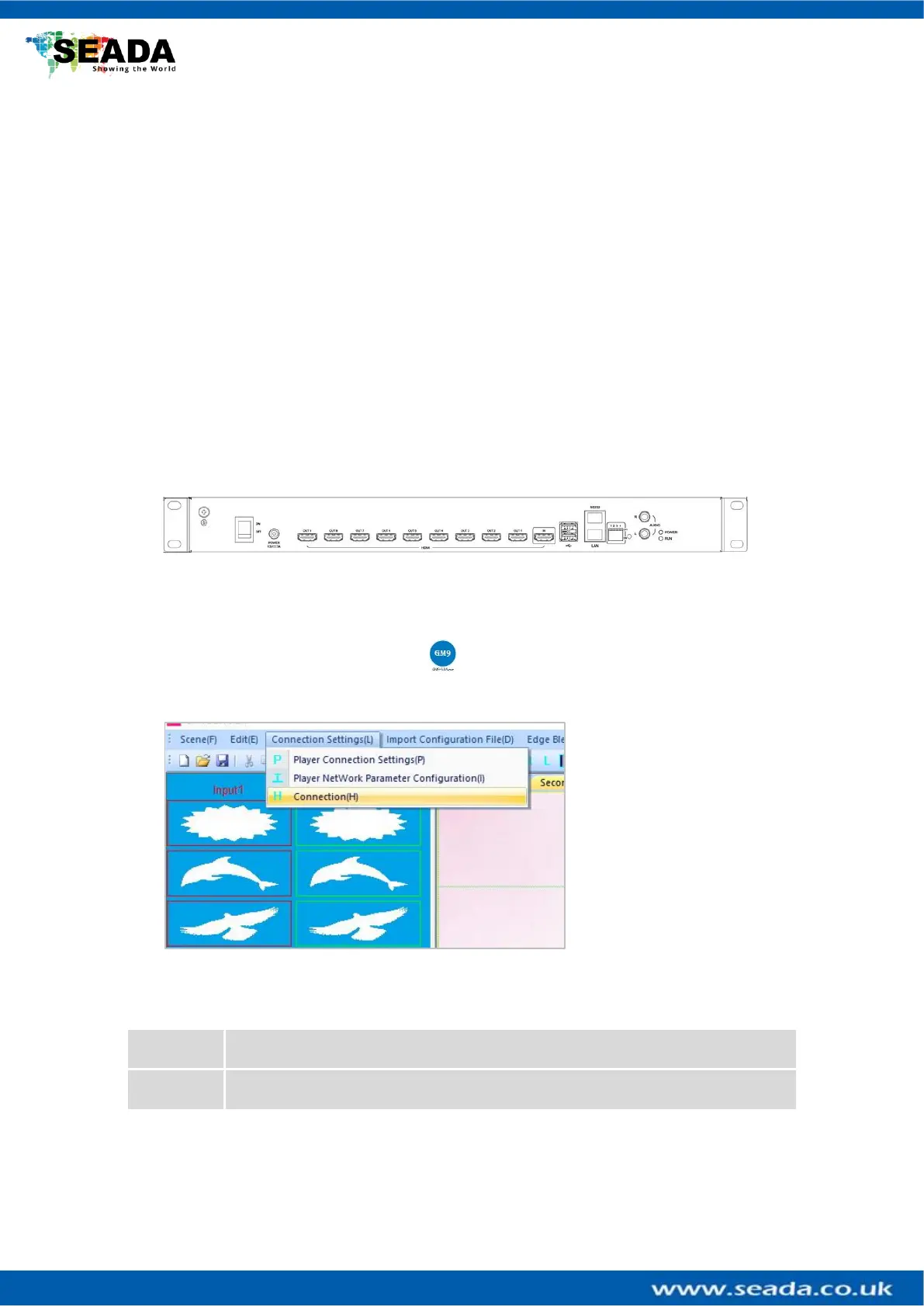
2. Connect GM9 to screens and other devices, Ensure the ‘LAN’ port on GM9 is
connected, not the ‘RS232’ port
3. Connect the control PC to powered up GM9 with network port. Ensure
the ‘LAN’ port on GM9 is connected, not the ‘RS232’ port since both of them use
RJ45 connection.
4. Open the GM9 software and click ‘Player Connection Settings’ or ‘P’
button on toolbar to open the connection dialog box.
In this dialog box, all the
GM9 units connecting to
this control PC will be
shown in the list. Highlight
GM9 to be connected and
then press ‘Connect’
button to connect. A
‘connected’ message will
be shown once the
connection is established.
Note:
if the GM9 software can not be run on the control PC



 To Next Page