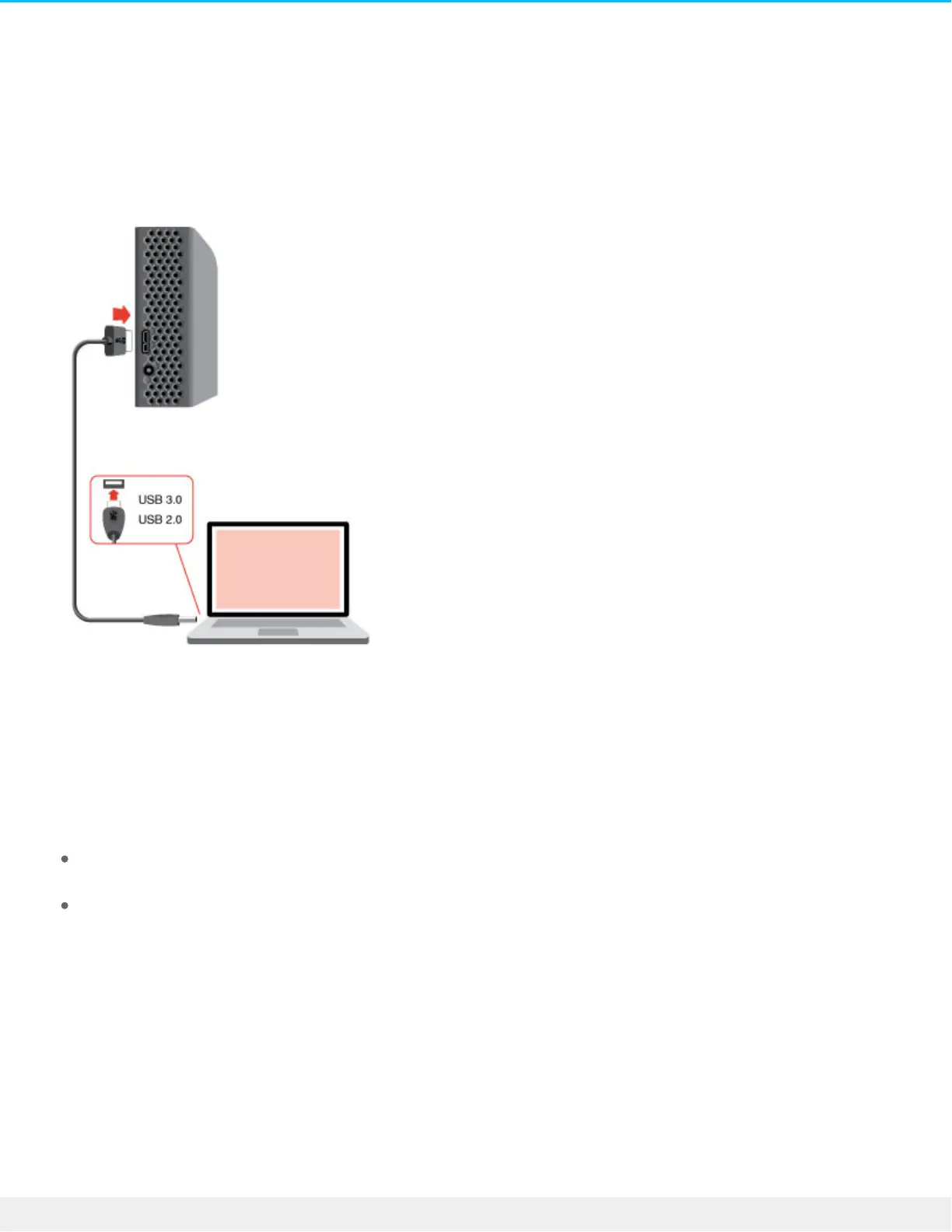
Step 2 – Connect to your computer
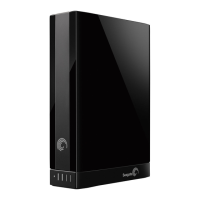
Attach the USB Micro-B end of the included USB cable to Backup Plus Desktop.
Attach the USB Type A end of the included USB cable to a compatible port on your computer.
Step 3 – Registraon and soware
Register your Seagate Backup Plus Desktop to receive the latest news regarding your device. You can
register your device and install Seagate software in a few simple steps.
Software included with your Backup Plus Desktop:
Lyve–Automatically collect photos and videos stored on all your devices and display them in one
organized view. For details, visit Lyve.
Dashboard–Backup software for your Windows computers, mobile devices and social media. For
details, see Dashboard.
1. Open the Seagate Backup Plus Desktop volume in Windows Explorer. Launch the installer by double
clicking Start_Here_Win.
2. Follow the on-screen instructions to register your hard drive and install Seagate software.
If you have questions regarding setup or would like to learn more about your hard drive, visit Seagate Backup
Plus Desktop support.



 To Next Page