Reviewer’s Guide: Seagate BlackArmor NAS 440
10
Volumes and RAID
A volume is data storage space that can be composed of part of one or more disk drives,
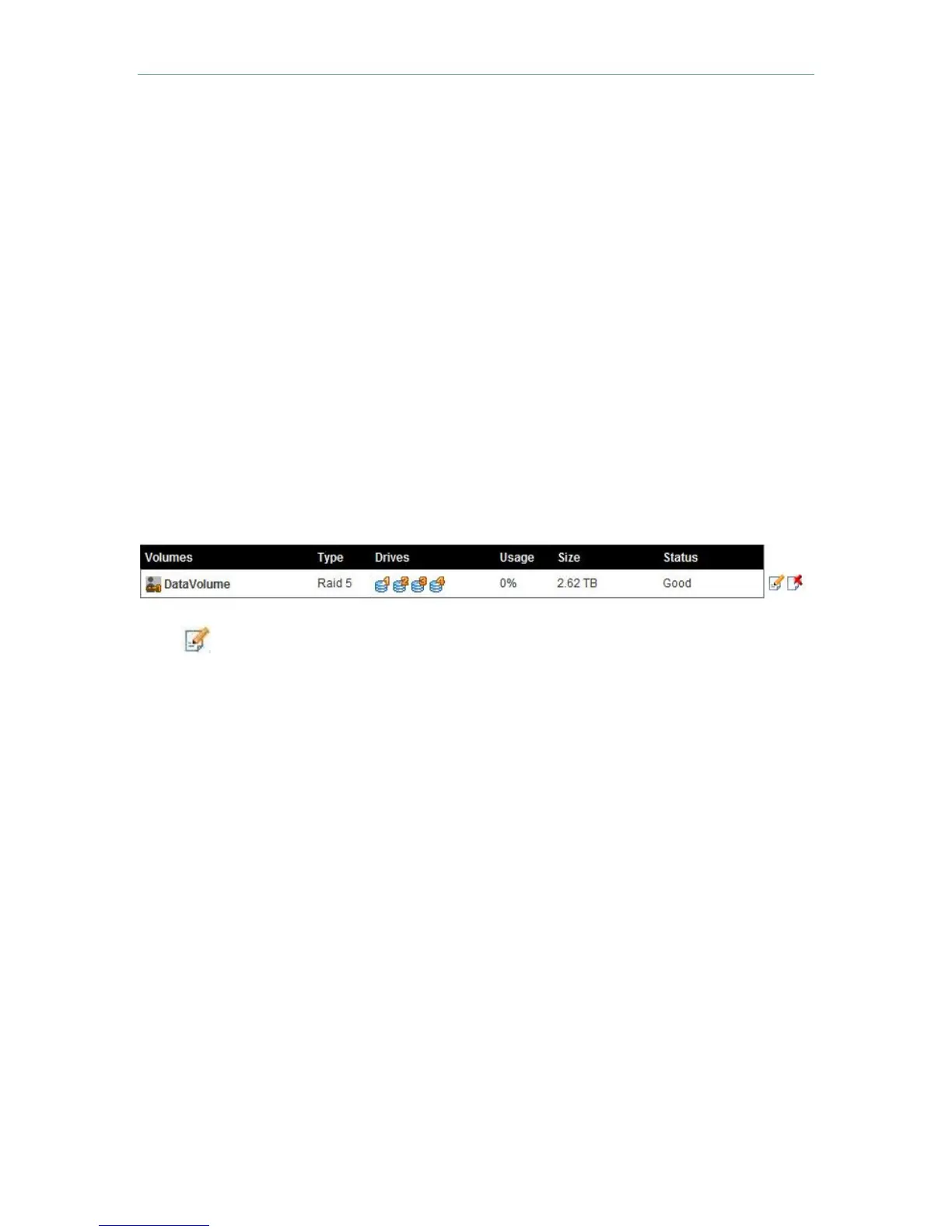
or only part of a single disk drive. The four-drive BlackArmor NAS ships with its four
drives defined as one large volume, suitable for a majority of businesses. However, a
business can choose to divide the NAS 440 storage space into as many as four
volumes. Each one can be a different size.
For example, you could create three volumes that each contain different types of data:
•
Volume A: Business Files
•
Volume B: Backup File Storage
•
Volume C: Media Files
Volumes are created and managed through the Web browser administrative interface.
Under the “Storage” pull-down menu, select “Volumes.”
Click to modify the volume structure.
For details on creating new volumes, see page 17 of the BlackArmor User Guide.
By default, the available storage space in your BlackArmor NAS 440 is configured into
one volume protected by RAID 5. The unit supports RAID levels 0, 1, 5, 10; and JBOD
(Just a Bunch of Disks), which is not RAID protected. Seagate strongly recommends
RAID 5, since it provides the best level of protection. However, each volume you create
can be defined with different RAID levels.
The BlackArmor NAS 440, 420 and 400 have the ability to migrate from one RAID level
to another, without the need to reformat. For more information about RAID migration,
see the BlackArmor PDF User manual.
Shares, Public and Private
A share is simply a folder in a volume that is accessible by several people. Shares store
and protect backup files, or can be used as primary storage for files that many people
use. The BlackArmor NAS has two shares already defined: “Download” and “Public.”
Use the BlackArmor Manager Web interface to define and create additional custom
shares. Reasons to create a custom share might be to store files by category, such as
client files, project files, or financial archive files. A small business might set up shares
by department, for the marketing, accounting, and sales groups, for example. Access to
shares is controlled through access rights.





 To Next Page