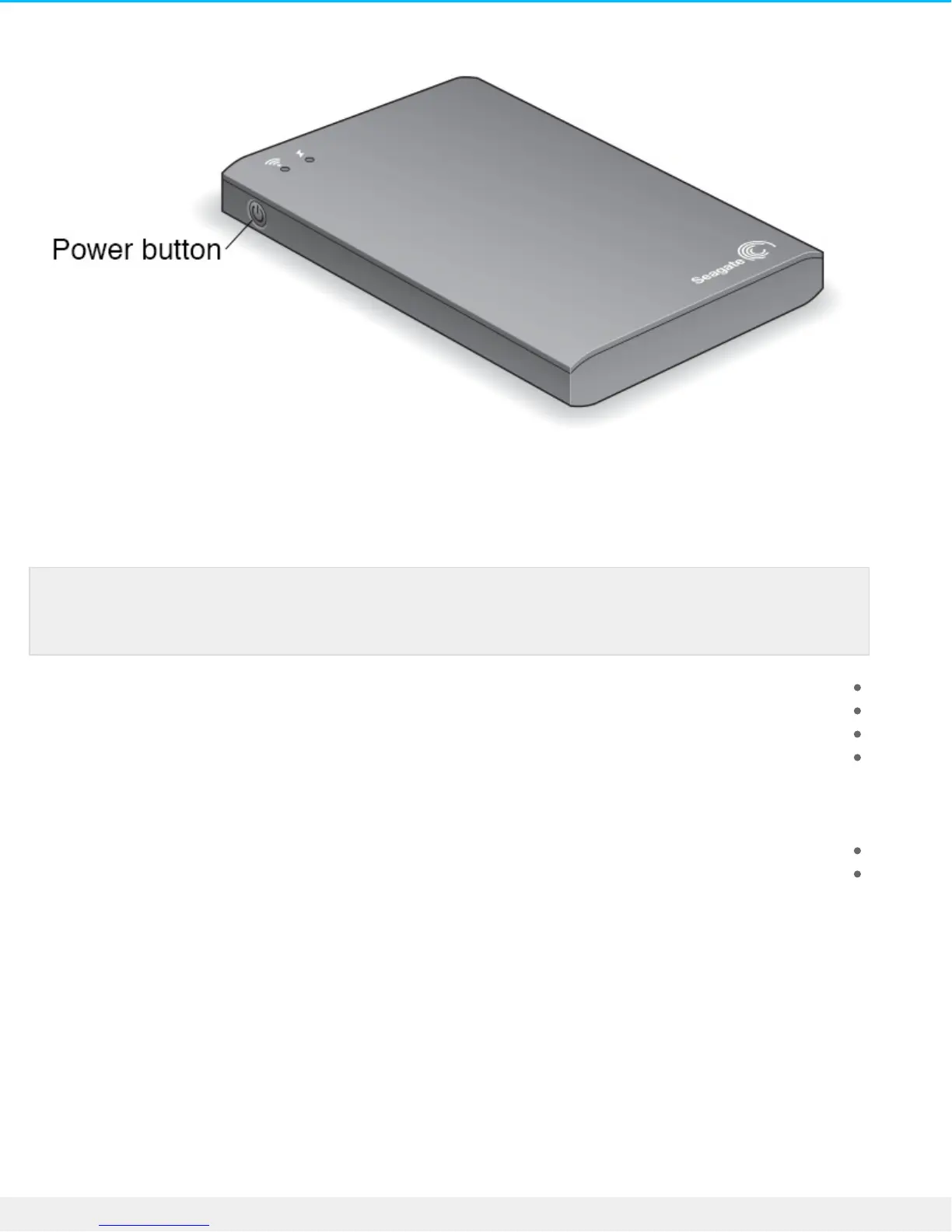
The Wi-Fi LED blinks as the device starts up. When the Wi-Fi light is solid blue, your device is Wi-Fi
.enabled and ready to accept other device connections
.Open the network or wireless settings on your computer or mobile device .2
.Apple devices—choose Settings > Wi-Fi
.Android devices—choose Settings > Wireless & Networks > Wi-Fi
.Mac Computer—select Apple > System Preferences and then select Network
.PC—enable the wireless connection
.Select Seagate Wireless from the list of networks .3
.This establishes a wireless connection between your device and the Seagate Wireless Plus
.Open the Seagate Media app .4
.On the home page of your mobile device, tap the Seagate Media app icon
On your computer, open a browser and type “www.seagatewirelessplus.com” or any other URL in the
.address bar
.The Seagate Wireless Plus main page appears with the Getting Started tutorial ready for viewing
Follow the steps in the Getting Started tutorial to verify that you can view a video and connect to the .5
.Internet
.Your devices are now ready to stream the sample media packaged with your Seagate Wireless Plus
Loading Media onto the Seagate Wireless Plus
Connect the supplied USB 3.0 cable to the Seagate Wireless Plus and the USB 3.0 or 2.0 port on your .1
.computer
Note: See the user documentation for your computer or mobile device for the most up-to-date
.instructions on connecting to a wireless network



 To Next Page