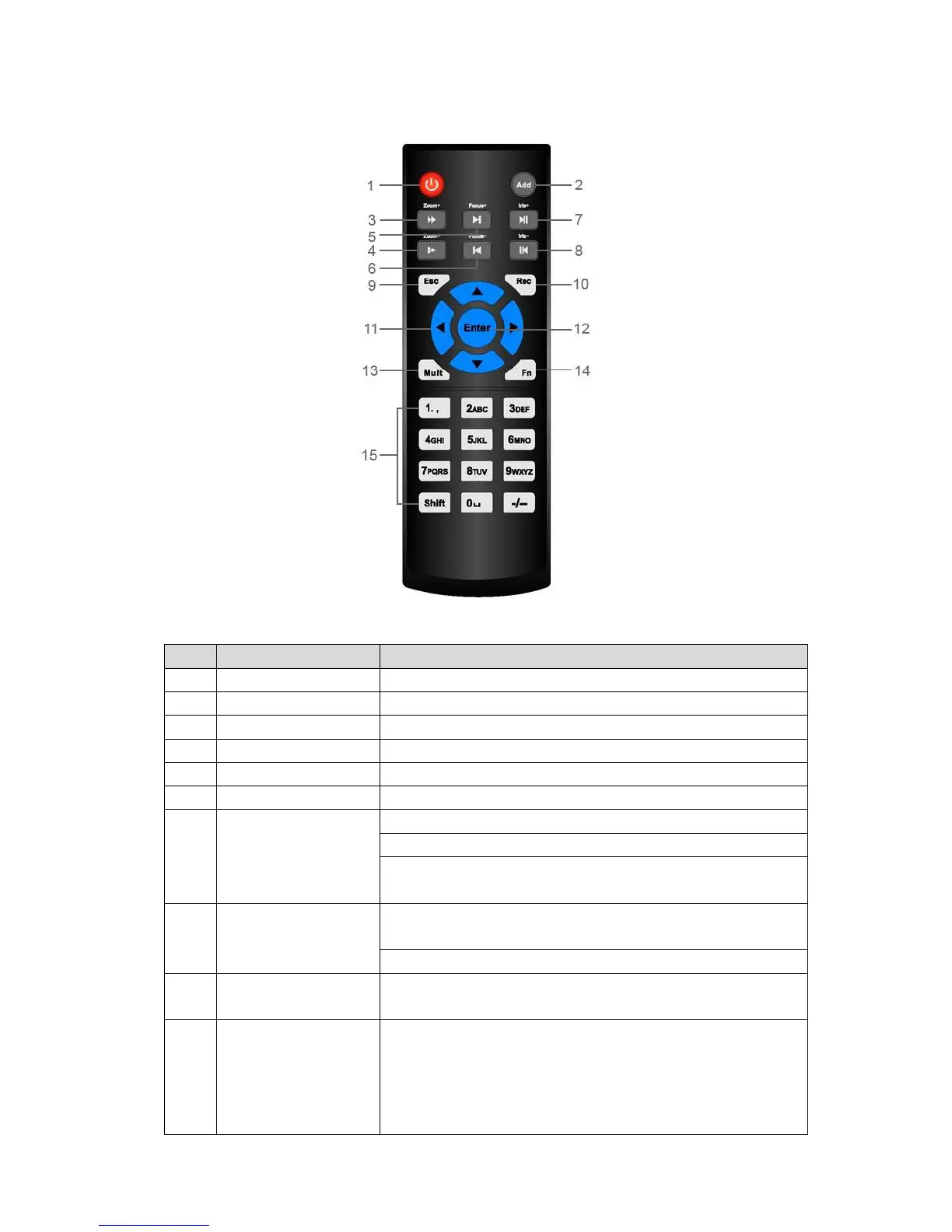
Figure 2-99
SN Name Function
1 Power button Click it to boot up or shut down the device.
2 Address Click it to input device number, so that you can control it.
3 Forward Various forward speeds and normal speed playback.
4 Slow play Multiple slow play speeds or normal playback.
5 Next record In playback mode, playback the next video.
6 Previous record In playback mode, playback the previous video.
7 Play/Pause In pause mode, click this button to realize normal playback.
In normal playback click this button to pause playback.
In real-time monitor mode, click this button to enter video
search menu.
8 Reverse/pause Reverse playback pause mode, click this button to realize
normal playback.
In reverse playback click this button to pause playback.
9 Esc. Go back to previous menu or cancel current operation (close
upper interface or control)
10 Record Start or stop record manually
In record interface, working with the direction buttons to
select the record channel.
Click this button for at least 1.5 seconds, system can go to
the Manual Record interface.
2.4 Remote Control
The remote control interface is shown as in Figure 2-99.
Please note remote control is not our standard accessory and it is not included in the
accessory bag.



 To Next Page