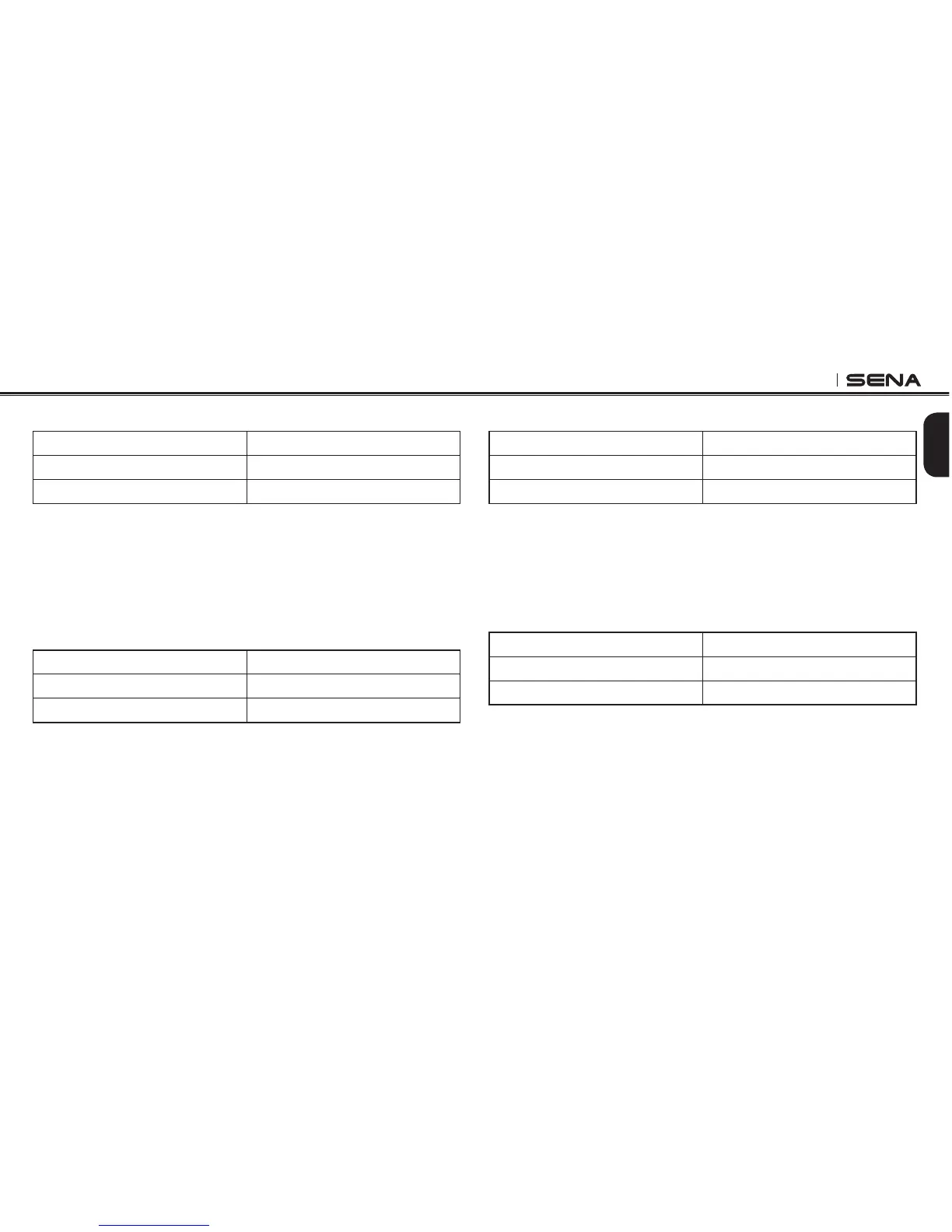
SRL
43
English
23.7 Remote Control Pairing
Voice Prompt
“Remote control pairing”
Factory Default N/A
Execute Tap the Center Button
To enter into Remote Control Pairing mode, tap the (+) Button or the (-)
Button until you hear a voice prompt, “Remote control pairing”. Then
tap the Center Button to enter into Remote Control Pairing mode. The
headset will automatically exit from the conguration menu. Please
refer to
section 19
for details on remote control pairing.
23.8 Universal Intercom Pairing
Voice Prompt
“Universal intercom pairing”
Factory Default N/A
Execute Tap the Center Button
To enter into Universal Intercom Pairing mode, tap the (+) Button or the
(-) Button until you hear a voice prompt, “Universal intercom pairing”.
Then tap the Center Button to enter into Universal Intercom Pairing
mode. The headset will automatically exit from the conguration menu.
Please refer to
section 17
for details on Universal Intercom.
23.9 Factory Reset
Voice Prompt
“Factory reset”
Factory Default N/A
Execute Tap the Center Button
To restore factory default settings on the SRL, tap the (+) Button or the
(-) Button until you hear a voice prompt, “Factory reset”, and tap the
Center Button to conrm. The SRL powers off with a voice prompt,
“Headset reset, good-bye”.
23.10 Exit Voice Conguration Menu
Voice Prompt
“Exit conguration”
Factory Default N/A
Execute Tap the Center Button
To exit voice conguration menu and get back to stand-by mode, tap
the (+) Button or the (-) Button until you hear a voice prompt, “Exit
conguration”, and tap the Center Button to conrm.


 To Next Page