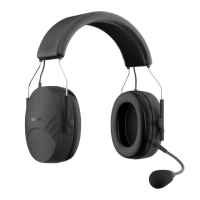
Tufftalk
18
5.2 Second Mobile Phone Pairing - Second Mobile
Phone and SR10
Typical Bluetooth headsets can connect with only one Bluetooth
device, but a second mobile phone pairing allows the headset to
connect with another Bluetooth device such as a second mobile
phone, an MP3 Player, or the Sena SR10, the Bluetooth adapter.
1. To pair the second mobile phone, press and hold the Jog Dial for
5 seconds until the red LED ashes rapidly and you hear a voice
prompt, “Intercom pairing”.
2. Within 2 seconds, tap the Phone Button again, then the LED
ashes blue rapidly and you will hear a voice prompt, “Second
mobile phone pairing”.
3. Search for Bluetooth devices on your mobile phone. Select the
Sena Tufftalk in the list of the devices detected on the mobile
phone.
4. Enter 0000 for the PIN. Some mobile phones may not ask for the
PIN.
5. The mobile phone conrms that the pairing has completed and
the Tufftalk is ready to use. You will hear a voice prompt, “Your
headset is paired”.
Note:
1. If you have two audio (A2DP) devices connected to your headset then
the audio from one device will interrupt the audio from the other device.
For example, if you are playing music from the primary mobile phone,
then it can be interrupted by playing music from the secondary mobile
phone and vice versa.
2. The Sena SR10 is a Bluetooth two-way radio adapter for group
communication, and uses Hands-Free Profile. The incoming audio from
the two-way radio via SR10 is heard in the background while having an
intercom conversation or a mobile phone call.



 To Next Page