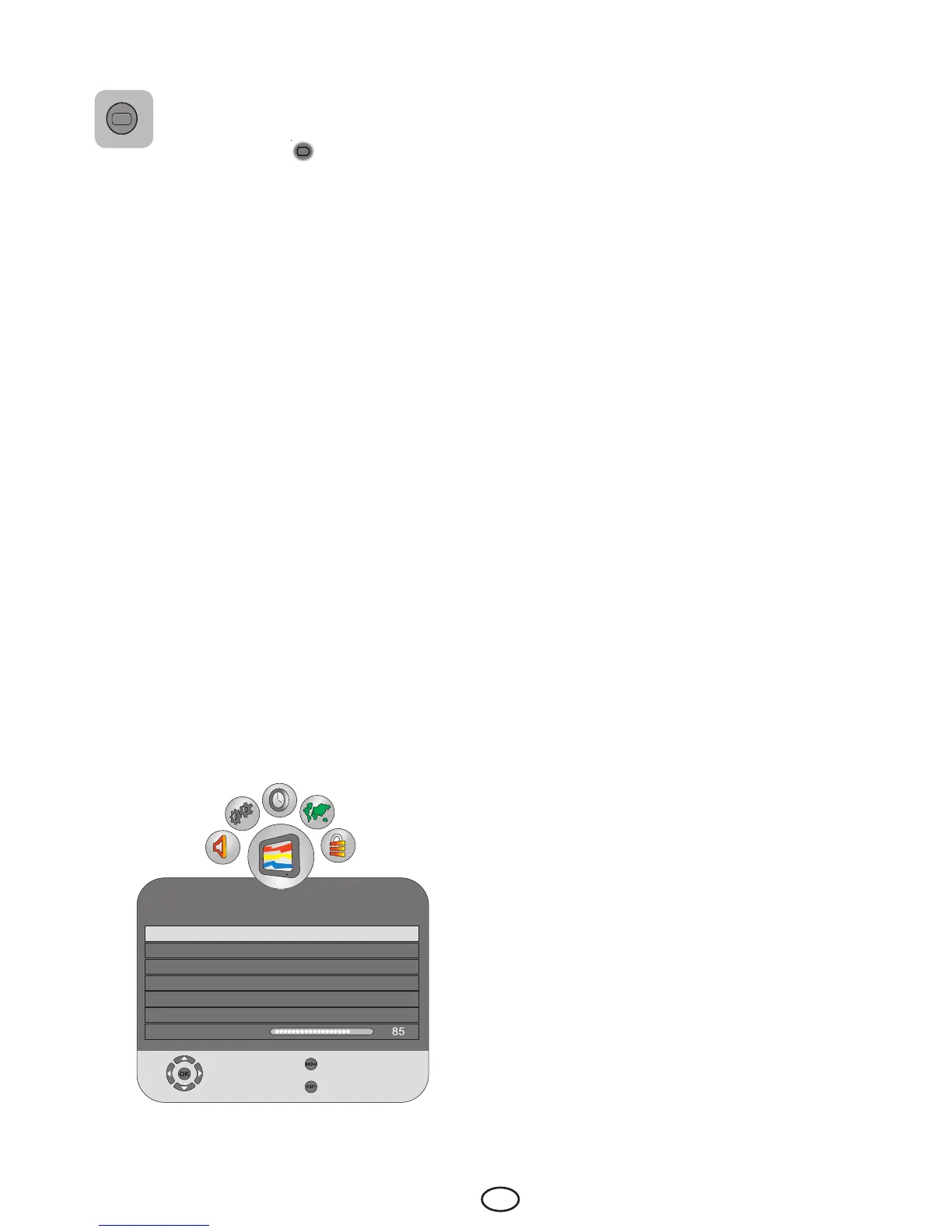
7.2.2-Picture Mode
You can select either one of the
four non-adjustable settings in the
memory or one of the user options
by pressing the (
) button on your
remote control. Vivid, Natural, Cinema and
Sports are default values; USER represents
the values you stored in memory.
7.2.3-Color Temperature
Color intensity of the picture can be adjusted
with this feature. Select Color Temperature
tab from the picture menu by pressing the
Up/Down buttons to activate this feature
and then select one of the Cool, Normal or
Warm options by pressing the Right/Left
buttons.
7.2.4-Tint
WhenNTSCvideoisinputviaScart,youmay
make Hue settings. The tint option is not seen
in the menu when you have not input this type
ofavideo.WhenaNTSCvideoisconnected
via the Scart, this option becomes active and
it is available in the menu.
7.2.5-Advanced Picture Features
You can adjust advanced picture features
of your television from the Advanced Picture
Settings menu under Picture menu.
7.2.5.1-DNR (Noise reduction)
You may reduce interference and noise
formed in the picture by using this feature.
Select DNR tab with the Up/Down
movement buttons to activate this feature and
select one of the Off, Low, Normal, High
or Auto options with Right/Left movement
buttons.
Note:Noisereductionfunctionisonly
effective in weak broadcasts.
7.2.5.2-MPEG NR
You can remove the artifacts that appear in
the picture as square shaped blocks by using
this feature. Select Mpeg NR tab with the
Up/Down movement buttons to activate this
feature and select one of the Off, Low, Mid
or High options with Right/Left movement
buttons.
7.2.5.3- Vibrant Color
With this feature you can automatically adjust
color saturation according to the scene. To
do this, select Vibrant Color tab with the
Up/Down movement buttons and select
one of the Off, Low, Mid or High options
with Right/Left movement buttons. With
the ‘High’ option you can obtain the most
saturated colors.
7.2.5.4- Perfect Clear
With this feature you can automatically adjust
black level of the picture according to the
scene. To do this, select Perfect Clear tab
with the Up/Down movement buttons and
select one of the Off, Low, Mid or High
options with the Right/Left movement
buttons.
7.2.5.5-Dynamic Contrast
This feature allows making brightness settings
according to the picture. A brighter or dimmer
picture can be sent to the screen according
to the brightness level of the picture. Thus, a
wider effect is obtained in terms of contrast.
Select Dynamic Contrast tab with the Up/
Down movement buttons to activate this
feature and select one of the Off, Low, Mid
or High options with Right/Left movement
buttons.
PHOTO
DNR
High
MPEGNR
High
Vibrant Colour High
Perfect Clear
High
Dynamic Contrast
High
Dynamic Backlight Off
Backlight
Select
Back
Exit



 To Next Page