E - 25
DVD PROGRAMMABLE MEMORY
PROGRAMMABLE MEMORY
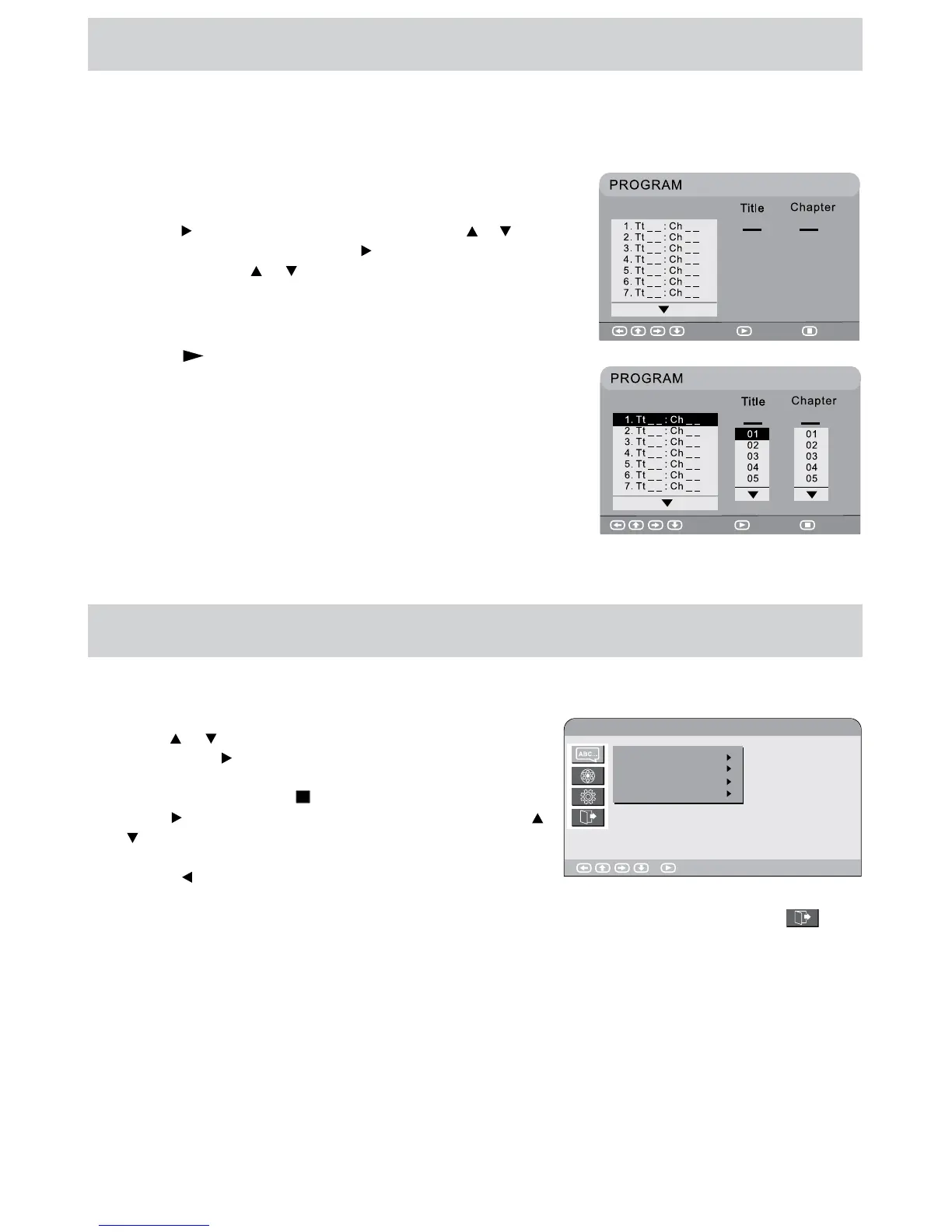
The two types of programmed playback provided by this unit is title/chapter programmed playback.
TITLE/CHAPTER PROGRAMMED PLAYBACK (DVD)
1. Press the MEMORY button in PLAY mode. A screen will be shown
as right.
2. Press the
button to highlight the Title. Press the or button to
choose the desired title. Press the button again to highlight the
Chapter. Press the or button to choose the desired Chapter.
Press the ENTER button to conrm. The highlight bar will move
to the next item automatically.
3. Repeat step 2 to add additional titles and chapters.
4. Press the
PLAY button to start the programmed playback.
LANGUAGE SETUP
1. In Stop mode, press the SETUP button.
2. Use the or button to select the option Language Setup,
then press the button to move the highlight bar on OSD
Language. (Note that Audio, Subtitle and DVD Menu can be
activated by pressing the STOP button twice.)
3. Use the button to move the highlight bar, then use the
or button to select your preferred language, and press the
ENTER button to conrm.
4. Press the button to go back to the previous menu. Repeat
steps 2 and 3 to adjust other options.
5. To exit the SETUP MENU and return to the normal screen, highlight the Exit Setup Mode ( ) and
press the ENTER button.
CUSTOMIZING THE DVD FUNCTION SETTINGS
NOTE
• Some DVDs may not play in the audio language selected. A prior language may be programmed on the
disc.
• Some DVDs may be set to display subtitles in a language other than the one selected. A prior subtitle
language may be programmed on the disc.
• Some DVDs allow you to change subtitle selections via the disc menu only. If this is the case, press the
DVD MENU button and choose the appropriate subtitle from the selection on the disc menu.
• Some DVDs may not include your pre-selected language. In this case, the DVD player automatically
displays disc menus consistent with the disc’s initial language setting.
Select Play Clear
Select Play Clear
Language Setup
: Select
OSD Language
Audio
Subtitle
DVD Menu


 To Next Page