EasyManua.ls Logo

Shark ION ROBOT - User Manual

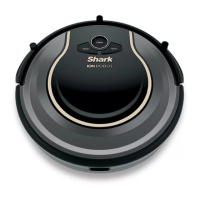
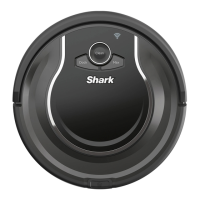
Shark ION ROBOT
2 pages
Print Icon
To Next Page IconTo Next Page
Loading...
STEP 2
INSTALL THE SIDE BRUSHES
STEP 3
CHARGE YOUR ROBOT
Please be sure to read the enclosed Shark® Owners Guide prior to using your robot.
Don’t forget to register your robot at registeryourshark.com
For assistance, contact us at 800-798-7398 or visit us online at sharkclean.com
AV700_QSG_MP_Mv1
ION
ROBOT
®
EASE OF A ROBOT. PERFORMANCE OF A SHARK.®
CONGRATULATIONS ON YOUR
NEW SHARK ION ROBOT
© 2020 SharkNinja Operating LLC EASE OF A ROBOT. PERFORMANCE OF A SHARK., SHARK, and SHARK ION ROBOT are registered trademarks of SharkNinja Operating
LLC. AUTO-SENSE and SHARKCLEAN are trademarks of SharkNinja Operating LLC. AMAZON, ALEXA, and all related logos are trademarks of Amazon.com, Inc. or its al
-
iates. APPLE, the Apple logo and iPhone are trademarks of Apple Inc., registered in the U.S. and other countries. APP STORE is a service mark of Apple Inc., registered in the
U.S. and other countries. GOOGLE, GOOGLE ASSISTANT, GOOGLE PLAY, the Google Play logo, and Android are trademarks of GOOGLE LLC.
Snap the 2 included side
brushes onto the posts on
the bottom of the robot.
Place with its back against the wall
in an open, central location. Connect
charger cord to port on back, then
plug in cord.
Note: Placing your dock in a central
location with a wide view to your home
will improve your robot’s ability to
return to the dock.
NOTE: Power switch must be ON to charge.
3h
Charging
Time
Turn the power switch on
and place your robot on the
dock. When all 3 indicator
lights illuminate steadily in
blue, charging is complete.
Press Clean to send the
robot into action.
With Auto-Sense™ Navigation
technology, your robot maneuvers
around obstructions and navigates
its way out of tight spaces as it
cleans. To help your robot complete its
mission, prep your floor by removing
all obstacles, such as loose power cords,
clothes, toys, and low-hanging drapes.
Robot Traps Robot Friendly
Download the easy-to-use SharkClean app on your
iPhone™ or Android™schedule or start cleaning from
anywhere. Just search SharkClean in the app store.
• Tips, Tricks, and FAQs
• Troubleshooting
Voice control setup for the Google
Assistant and Amazon Alexa
STEP 1
SET UP YOUR CHARGING DOCK
STEP 4
PREP YOUR HOME FOR CLEANING
STEP 5
DOWNLOAD THE SHARKCLEAN™ APP
5 ft.
3 ft.
3 ft.
CAN’T CONNECT?
Restart your phone
Reboot your robot
Lift the robot o the dock, and turn
o the power switch on the side of
the robot. After 10 seconds, turn
the power back on and return the
robot to the dock.
Reboot your router
Unplug the router’s power cable
for 10 seconds, then plug it back
in. Allow several minutes for your
router to completely reboot and for
your robot to reconnect.
Question and Answer IconNeed help?

Do you have a question about the Shark ION ROBOT and is the answer not in the manual?

Summary

Set Up Your Charging Dock

Install the Side Brushes

Charge Your Robot

Prepare Your Home for Cleaning

Download the SharkClean App

Tips, Tricks, and FAQs

Access helpful information, common issues, and frequently asked questions for the SharkClean app.

Troubleshooting

Find solutions to common problems encountered with the robot or app connectivity.

Voice Control Setup

Learn how to connect your robot to voice assistants like Google Assistant and Amazon Alexa.

Connectivity Troubleshooting

Reboot Robot and Router

Steps to resolve connection issues by rebooting the robot and your home router.

Summary

Set Up Your Charging Dock

Install the Side Brushes

Charge Your Robot

Prepare Your Home for Cleaning

Download the SharkClean App

Tips, Tricks, and FAQs

Access helpful information, common issues, and frequently asked questions for the SharkClean app.

Troubleshooting

Find solutions to common problems encountered with the robot or app connectivity.

Voice Control Setup

Learn how to connect your robot to voice assistants like Google Assistant and Amazon Alexa.

Connectivity Troubleshooting

Reboot Robot and Router

Steps to resolve connection issues by rebooting the robot and your home router.

Overview

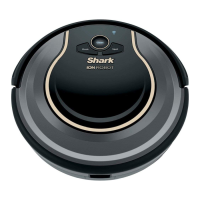
The Shark ION ROBOT is an autonomous robotic vacuum cleaner designed to provide convenient and efficient floor cleaning. It leverages "Auto-Sense™ Navigation technology" to maneuver around obstacles and navigate tight spaces, ensuring comprehensive coverage of your home. The robot is part of the Shark brand, emphasizing "EASE OF A ROBOT. PERFORMANCE OF A SHARK.®"

Function Description:

The primary function of the Shark ION ROBOT is to autonomously clean floors by vacuuming dust, dirt, and debris. Users can initiate cleaning directly from the robot or remotely via the SharkClean™ app. The robot is designed to return to its charging dock automatically when its battery is low or when a cleaning cycle is complete. Its navigation system allows it to adapt to various home environments, avoiding common household obstacles.

Important Technical Specifications:

While specific technical specifications like battery capacity, motor power, or dustbin volume are not explicitly detailed in the provided manual, the manual does highlight several operational aspects:

  • Charging Time: The robot requires approximately 3 hours (3h) to fully charge, indicated by three steady blue lights on the robot.
  • Charging Dock Placement: The charging dock should be placed with its back against a wall in an open, central location, with at least 3 ft (approximately 0.9 meters) of clear space to the left and right, and 5 ft (approximately 1.5 meters) of clear space in front. This optimal placement improves the robot's ability to return to the dock.
  • Connectivity: The robot is designed to connect to Wi-Fi, allowing control via the SharkClean™ app on both iPhone™ and Android™ devices. It also supports voice control through the Google Assistant and Amazon Alexa.

Usage Features:

The Shark ION ROBOT offers several features to enhance user experience and cleaning effectiveness:

  • Easy Setup: The setup process involves three simple steps:
    1. Set Up Your Charging Dock: Place the dock in an optimal location and plug it in.
    2. Install the Side Brushes: Snap the two included side brushes onto the posts on the bottom of the robot.
    3. Charge Your Robot: Turn the power switch on, place the robot on the dock, and wait for the indicator lights to turn solid blue.
  • App Control (SharkClean™ App): The dedicated SharkClean™ app allows users to:
    • Schedule cleaning sessions.
    • Start or stop cleaning from anywhere.
    • Access tips, tricks, and FAQs.
    • Troubleshoot issues.
    • Set up voice control with Google Assistant and Amazon Alexa.
  • Auto-Sense™ Navigation Technology: This intelligent navigation system enables the robot to:
    • Maneuver around obstructions.
    • Navigate out of tight spaces.
    • Ensure thorough cleaning coverage.
  • Prep Your Home for Cleaning: To optimize the robot's performance, users are advised to remove common obstacles such as loose power cords, clothes, toys, and low-hanging drapes. This helps the robot complete its cleaning mission without getting stuck or tangled.
  • Direct Robot Control: Users can press the "Clean" button on the robot itself to initiate a cleaning cycle once it's fully charged.

Maintenance Features:

While detailed maintenance instructions are typically found in the full owner's guide, the quick start guide provides troubleshooting steps related to connectivity and robot operation:

  • Restart Your Phone: For connectivity issues, restarting the phone is a basic troubleshooting step.
  • Reboot Your Robot: If the robot cannot connect, users are instructed to:
    1. Lift the robot off the dock.
    2. Turn off the power switch on the side of the robot.
    3. Wait 10 seconds.
    4. Turn the power back on.
    5. Return the robot to the dock.
  • Reboot Your Router: For persistent connectivity problems, rebooting the home Wi-Fi router is recommended:
    1. Unplug the router's power cable for 10 seconds.
    2. Plug it back in.
    3. Allow several minutes for the router to completely reboot and for the robot to reconnect.

The Shark ION ROBOT aims to simplify home cleaning through its autonomous operation, smart navigation, and app-based control, making it a convenient addition to modern households.

Shark ION ROBOT Specifications

General IconGeneral
BrandShark
ModelION ROBOT
CategoryUltrasonic Jewelry Cleaner
LanguageEnglish

Related product manuals