EasyManua.ls Logo

Sharp Aquos LC-65D90U - User Manual

Sharp Aquos LC-65D90U
90 pages
Print Icon
To Next Page IconTo Next Page
Loading...
LIQUID CRYSTAL TELEVISION
TÉLÉVISEUR ACL
TELEVISOR CON PANTALLA DE CRISTAL LÍQUIDO
TELEVISOR DE CRISTAL LÍQUIDO
OPERATION MANUAL
MODE D’EMPLOI
MANUAL DE OPERACIÓN
MANUAL DE OPERAÇÃO
LC-65D90U
SHARP ELECTRONICS CORPORATION
Sharp Plaza, Mahwah, New Jersey 07430-2135
SHARP CORPORATION
LC-65D90U
Printed in Japan
Imprimé au Japon
Impreso en Japón
Impresso no Japão
TINS-C075WJN1
05P10-JA-KG
OPERATION MANUAL
MANUAL DE OPERACIÓN
MODE D’EMPLOI
MANUAL DE OPERAÇÃO
ENGLISH
ESPAÑOL
FRANÇAIS
PORTUGUÊS
Printed on 100% post-consumer recycled paper.
Imprimé sur 100% de papier recyclé.
Impreso en 100% de papel reciclado de postconsumo.
Papel 100% Reciclado - Cuidado do Meio Ambiente.

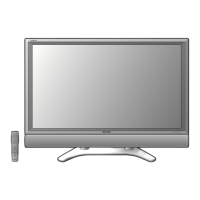
Table of Contents

Questions and Answers

  • T
    Tanya StevensAug 14, 2025
    What to do if my Sharp Aquos LC-65D90U has no power?
    • I
      Isabel MccarthyAug 14, 2025
      First, check if you have pressed the TV POWER button on the remote control. If the indicator on the TV is off, press the POWER button on the TV itself. Also, ensure that the AC cord is properly connected.
  • J
    jenniferbatesAug 17, 2025
    Why does my Sharp Aquos LC-65D90U remote control not operate?
    • D
      Diane LesterAug 17, 2025
      Check that the FUNCTION is set correctly to the TV position. Ensure that the batteries are inserted with the correct polarity (+ and -). Replace the batteries if they are worn out. Strong or fluorescent lighting near the remote control sensor might also interfere with operation.
  • S
    Scott DavisAug 20, 2025
    What to do if my Sharp LCD TV suddenly turns off?
    • P
      Patricia SmithAug 20, 2025
      Check if the sleep timer is set. Review the power control settings. Also, the unit's internal temperature may have increased; remove any objects blocking the vents or clean the vent.
  • C
    Cameron GentryAug 25, 2025
    Why is there no sound on my Sharp LCD TV?
    • H
      howardchoiAug 25, 2025
      Check if the volume is set too low. Also, verify if 'Variable' is selected in 'Output Select'.
  • B
    Brad MackAug 27, 2025
    What to do if my Sharp Aquos LC-65D90U shows no picture?
    • D
      Dr. Stacy JohnsonAug 27, 2025
      Verify that the connections to other components are correct. Ensure the correct input signal source is selected after connection and that the correct input is selected. Check if a non-compatible signal is being input. Make sure the picture adjustment is correct and that 'On' is selected in 'Audio Only'. If using a CableCARD security module, try removing and reinserting it.
  • V
    Victoria MccormickAug 30, 2025
    How to adjust picture if it is cut off on Sharp Aquos LC-65D90U LCD TV?
    • G
      Glenn GravesAug 30, 2025
      Check if the image position is correct. Also, verify that the screen mode adjustments, such as picture size, are made correctly.
  • M
    Matthew LongSep 3, 2025
    What to do if my Sharp Aquos LC-65D90U displays 'Upgrade' continuously?
    • K
      Kerry OwensSep 3, 2025
      Verify that your antenna cable is connected properly. Reinsert the CableCARD security module. If the issue persists after these steps, contact your Cable Provider Company.
  • K
    Kyle WalkerSep 6, 2025
    What to do if my Sharp LCD TV unit cannot be operated?
    • J
      Jimmy BarkerSep 6, 2025
      External factors like lightning or static electricity may cause improper operation. Try turning the TV off and then on again, or unplug the AC cord, wait 1 or 2 minutes, and then plug it back in.
  • J
    Jill WhiteSep 9, 2025
    Why does my Sharp LCD TV have strange color?
    • J
      Jennifer LeonSep 9, 2025
      Adjust the picture tone. If the room is too bright, the picture may appear dark. Check the input signal setting.

Summary

Important Information and Safety Precautions

General Safety Warnings

Covers warnings regarding rain, moisture, electric shock, and product enclosure.

Compliance and Environmental Notes

Details FCC regulations, declaration of conformity, and environmental considerations for disposal.

Important Safety Instructions

Handling and Installation Precautions

Provides guidelines on product placement, ventilation, heat sources, cord protection, and accessories.

Operational and Environmental Safety

Covers antenna grounding, fire prevention, liquid spill precautions, cleaning, and display care.

Quick Reference and Initial Setup

Unpacking, Ventilation, and Cleaning

Instructions for safely removing the TV, ensuring proper ventilation, and cleaning the screen.

Remote Control and Battery Information

Details on replacing remote control batteries and cautions regarding battery usage.

Supplied Accessories

Included Items Checklist

Lists all accessories provided with the television, including remote, cables, and manual.

Part Names Identification

TV Front and Rear Panel Identification

Identifies buttons, indicators, and terminals on the front and rear of the TV.

Remote Control Identification

Details all buttons and their functions on the remote control unit.

Preparation and Basic TV Operation

Remote Control Usage and Antenna Setup

Guidance on using the remote control and connecting antennas for optimal reception.

Powering the TV On;Off and Status Indicators

Instructions for turning the TV on and off, and understanding the status indicator lights.

TV Guide On Screen Setup

Initial Setup and Device Connection

Overview of TV Guide On Screen, IR sensor identification, and G-LINK cable connection.

Configuring Location and Services

Setting up location, cable service, antenna connection, and VCR control for TV Guide On Screen.

Using TV Guide On Screen

Key Features and Screen Layout

Explains the interactive program guide features and screen components.

Initial Setup and Reminder Screens

Details the initial setup process, reminder screen, and information icons.

Configuring TV Guide On Screen Settings

Step-by-step guide for setting up location, cable, antenna, and VCR for TV Guide On Screen.

Setting Up Program Recordings and Reminders

Instructions for setting up one-touch recordings, reminders, and using episode options.

Searching and Managing Programs

Guide to searching programs by category or keyword, and managing search history.

Scheduled Programs and Manual Setup

Using the SCHEDULE function to manage recordings/reminders and setting up manual entries.

Watching TV and Adjusting Audio

Changing Channels and Input Sources

Methods for changing channels and selecting input sources for various devices.

Audio Settings and Modes

Adjusting volume, mute, Dolby Virtual, MTS/SAP stereo, and digital audio modes.

Connecting Digital Cable Module

CableCARD Setup and Management

Instructions for connecting, pairing, removing a CableCARD, and disconnecting the antenna.

Basic Adjustment Settings

EZ Setup and Channel Management

Guides through initial EZ setup, antenna configuration, and channel searching.

Picture Adjustment Options

Covers general picture settings like backlight, contrast, brightness, color, tint, and sharpness.

Sound Adjustment Options

Allows adjustment of treble, bass, balance, and Dolby Virtual sound settings.

Power Control and Digital Setup

Settings for energy saving via power control and digital broadcast image configuration.

Using External Equipment

Connecting External Devices (DVD, VCR, STB, HDMI, PC)

Details connections for DVD players, VCRs, digital TV STBs, HDMI, and PCs.

i.LINK Connectivity and Control

Explains i.LINK technology, device connections, setup, and operational control.

Useful Adjustment Settings

Picture and Image Positioning Adjustments

Covers adjusting image position, auto sync, and fine sync for PC input.

Noise Reduction and Audio Modes

Features for reducing video noise and enabling audio-only playback.

Caption and Parental Control Settings

Adjusting closed caption appearance and setting up V-Chip parental controls.

Managing Secret Number and Ratings

Procedures for changing/clearing the secret number and setting parental rating systems.

Other Viewing Options

Program Information and Remote Presets

Viewing program details, capturing still images, and presetting remote control functions.

Manufacturer Codes and Control Buttons

Lists remote control manufacturer codes and explains cable/SAT/VCR/DVD button functions.

Notice and Emergency Alert System

Important notices regarding address changes and the Emergency Alert System (EAS).

Appendix

Hardware Removal and Mounting

Instructions for removing the speaker unit and stand, and wall mounting precautions.

Troubleshooting Common Issues

Provides solutions for common problems like no power, picture issues, and sound problems.

PC Compatibility and RS-232 C Control

Details PC compatibility chart and RS-232C serial port communication specifications.

Specifications

Technical Specifications Overview

Lists key technical details including LCD panel, inputs, power, dimensions, and accessories.

Dimensional Drawings

TV Dimensions and Factory Reset

Provides physical dimensions of the TV and instructions for resetting to factory presets.

Service, Warranty, and Contact Information

Consumer Limited Warranty

Details the terms and conditions of the consumer limited warranty for the product.

Canadian Limited Warranty

Specific warranty information and exclusions applicable to products sold in Canada.

Sharp Aquos LC-65D90U Specifications

General IconGeneral
BrandSharp
ModelAquos LC-65D90U
CategoryLCD TV
LanguageEnglish

Related product manuals