EasyManua.ls Logo

Sharp AR-122E N - User Manual

Sharp AR-122E N
80 pages
Print Icon
To Next Page IconTo Next Page
Loading...
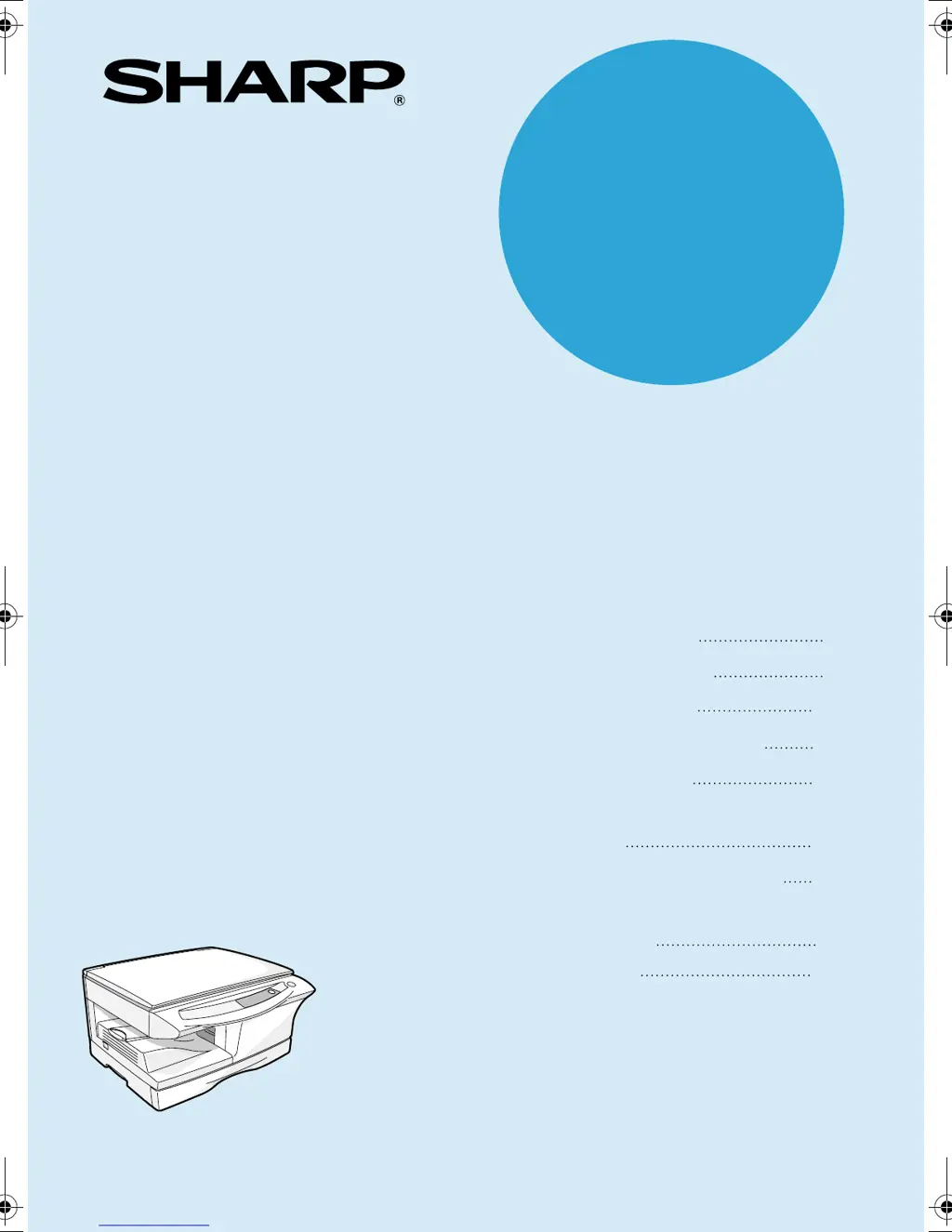
DIGITAL LASER COPIER/PRINTER
OPERATION MANUAL
AR-122E N / AR-123E
AR-122E N
AR-123E
MODEL
Page
INTRODUCTION
4
LOADING PAPER
MAKING COPIES
SPECIAL FUNCTIONS
MAINTENANCE
TROUBLESHOOTING
THE UNIT
7
11
18
21
26
67
OPTIONAL EQUIPMENT
32
APPENDIX
INSTALLING THE
SOFTWARE
38
AR-122EN_123E.book 1 ペー 2002年8月7日 水曜日 午前8時55分

Table of Contents

Other manuals for Sharp AR-122E N

Questions and Answers

  • B
    Brittany SmithJul 29, 2025
    What to do if images rub off the copy easily on my Sharp All in One Printer?
    • C
      Carol HernandezJul 29, 2025
      If images rub off the copy easily, it might be because the paper is too heavy. Use paper within the specified range. Also, check if the paper is damp. Replace it with dry paper, and if the unit isn't used for a long time, remove the paper from the tray and store it in its wrapper in a dry location.
  • S
    Stephanie SteinAug 2, 2025
    How to fix striped copies from my Sharp AR-122E N All in One Printer?
    • S
      Stephanie GarrettAug 3, 2025
      If you're getting striped copies from your Sharp All in One Printer, the transfer charger may need cleaning. Clean the transfer charger.
  • M
    molinahannahAug 7, 2025
    What causes dust, dirt, and smudges to appear on copies from my Sharp All in One Printer?
    • A
      Andrew LynchAug 7, 2025
      Dust, dirt, or smudges on your copies can be caused by a dirty original table or original cover. Clean them regularly. It can also be caused by smudged or blotchy original. Use a clean original.
  • C
    Carrie MckenzieAug 11, 2025
    How to resolve blank copies from Sharp AR-122E N All in One Printer?
    • J
      James FullerAug 11, 2025
      To resolve blank copies from your Sharp All in One Printer, ensure that the original is placed face down on the original table.
  • A
    Andrew BowersAug 16, 2025
    What to do if my Sharp All in One Printer does not operate?
    • K
      Kathleen GarciaAug 16, 2025
      If your Sharp All in One Printer isn't operating, there are several things to check: * Ensure the unit is plugged into a grounded outlet. * Verify that the power switch is turned on. * Make sure the side cover is closed securely. * Confirm the front cover is closed, and then close the side cover.
  • V
    Vernon BrownAug 20, 2025
    Why does my Sharp All in One Printer paper misfeed frequently?
    • N
      Nichole NguyenAug 20, 2025
      Frequent paper misfeeds in your Sharp All in One Printer can occur due to: 1. Using non-standard paper. Try using standard paper, or if using special papers, feed them through the single bypass. 2. Paper being curled or damp. Store paper flat in its wrapper in a dry location. 3. Pieces of paper inside the unit. Remove all pieces of misfed paper. 4. Paper guides in the paper tray not set properly. Adjust the guides according to the paper size. 5. Too much paper in the paper tray. Remove excessive paper from the tray.
  • C
    cpatelAug 25, 2025
    Why are my Sharp AR-122E N All in One Printer copies too dark or too light?
    • A
      Anthony TownsendAug 25, 2025
      If your copies are coming out too dark or too light, here's what to check: * If the original image itself is too dark or light, adjust the exposure manually. * If the unit is in automatic exposure mode, adjust the automatic exposure level. * If the unit is in photo exposure mode, cancel the photo exposure mode.

Summary

CAUTIONS

Caution label on the unit

Explains the meaning of caution labels found on the unit.

Cautions on using

Provides essential safety and operational guidelines for using the unit.

Installation Site Selection

Specifies ideal locations for unit placement, avoiding environmental hazards.

Cautions on handling

Cautions on laser

Details safety precautions related to laser emission and handling.

Proper storage for supplies

Gives recommendations for storing paper and toner cartridges correctly.

INTRODUCTION

USING THE MANUAL

Guides users on how to effectively read and utilize the operation manual.

Conventions used in the manual

Explains symbols and notations used throughout the manual for clarity.

PART NAMES

Component Identification

Identifies and illustrates the main parts and components of the unit.

OPERATION PANEL

Operation Panel Overview

Describes each key, indicator, and display on the unit's operation panel.

LOADING PAPER

Paper Specifications

Lists the types, sizes, and weights of paper compatible with the unit.

LOADING THE PAPER TRAY

Loading Paper Tray Steps

Provides step-by-step instructions for loading paper into the unit's tray.

BYPASS FEED

Bypass Feed Guidelines

Explains how to use the single bypass for various paper types and special media.

MAKING COPIES

Copy Flow

Outlines the basic sequence of operations for making copies.

CONNECTING THE POWER CORD

Power Cord Connection

Details the procedure for safely connecting the power cord to the unit and outlet.

Initial settings of operation panel

Initial Operation Panel Settings

Describes the default settings of the operation panel upon power-on.

ORIGINAL PLACEMENT

Setting a large original

Instructions for placing large or bulky originals on the unit's platen.

EXPOSURE ADJUSTMENT;PHOTO COPYING

Exposure adjustment

Explains how to manually adjust copy density for optimal results.

REDUCTION;ENLARGEMENT;ZOOM

Setting Copy Ratios

Details how to set copy ratios for reduction, enlargement, and zoom.

SPECIAL FUNCTIONS

Toner save mode

Explains how to activate toner save mode to reduce toner consumption.

Power save modes

Auto clear

Resolution of AUTO & MANUAL mode

MAINTENANCE

TONER CARTRIDGE REPLACEMENT

Provides instructions for replacing the toner cartridge.

CLEANING THE UNIT

Cleaning Cabinet and Covers

Guides on cleaning the exterior parts of the unit.

TROUBLESHOOTING THE UNIT

Troubleshooting Guide

Offers solutions for common operational problems and errors.

MISFEED REMOVAL

Misfeed Location Check

Explains how to identify and start the process of removing paper misfeeds.

A: Misfeed in the paper feed area

B: Misfeed in the fusing area

C: Misfeed in the transport area

DEVELOPER REQUIRED

MAINTENANCE REQUIRED

SCAN HEAD LOCKING SWITCH

OPTIONAL EQUIPMENT

System Configuration Overview

Introduces available optional equipment for system configuration.

Printer;Scanner Expansion Kit (AL-12 PK)

Describes the Printer/Scanner Expansion Kit and its functions.

Single Pass Feeder (AR-SP5)

Details the Single Pass Feeder for automatic document feeding.

Using the SPF

Stream feeding mode

Explains the stream feeding mode for continuous copying with the SPF.

Cleaning the SPF

Provides instructions for cleaning the Single Pass Feeder.

Misfeed in the SPF

250-SHEET PAPER FEED UNIT (AR-D16)

Tray Selection

Explains how to select the paper tray when using the feed unit.

Using with Printer Function

Guides on using the feed unit with the printer function via driver settings.

Misfeed in the lower paper feed area

INSTALLING THE SOFTWARE

SOFTWARE FOR THE SHARP PERSONAL MFP SERIES

Lists the software included on the CD-ROM for the unit.

HARDWARE AND SOFTWARE REQUIREMENTS

BEFORE INSTALLATION

Flow of installation

Installing onto Windows XP (USB;parallel interface)

Installing onto Windows 98;Me;2000 (USB interface)

Installing onto Windows 95;98;Me;NT4.0;2000 (Parallel interface)

INDICATORS ON THE OPERATION PANEL

Indicator Descriptions

Explains the meaning of various indicators and status lights on the panel.

USING THE PRINTER MODE

Printer Driver Setup

Guides on accessing and configuring the printer driver settings.

USING THE SCANNER MODE

Button Manager Setup

Details how to set up the Button Manager for scanning operations.

Using the SCANNER key to begin scanning

Initiating Scan with Scanner Key

Explains how to start scanning directly from the unit using the Scanner key.

Opening the scanner driver and scanning from your computer

Using the SHARP TWAIN

Guides on using the TWAIN driver for scanning from a computer.

Scanning with the Scanner and Camera Wizard in Windows XP

Scanning with Windows XP Wizard

Instructions for scanning using the built-in Windows XP Scanner and Camera Wizard.

HOW TO USE THE ONLINE MANUAL

Online Manual Contents

Lists the sections available in the unit's online manual.

Installing Acrobat Reader

USING OTHER INSTALLED DRIVERS

Changing Printer Port Settings

Explains how to adjust printer port settings for compatibility.

CONNECTING THE INTERFACE CABLE

Interface Cable Types

Describes the types of interface cables supported by the unit.

Connecting the USB interface cable

Step-by-step guide for connecting the USB interface cable.

Connecting the parallel interface cable

Connecting the Parallel Interface Cable

Step-by-step guide for connecting the parallel interface cable.

APPENDIX

SPECIFICATIONS

Provides detailed technical specifications for the unit.

Optional equipment

SOFTWARE LICENSE

License Terms and Restrictions

Outlines the terms and conditions for using the unit's software.

Sharp AR-122E N Specifications

General IconGeneral
FunctionsPrint, Copy, Scan
Print TechnologyLaser
Print Speed (A4)12 ppm
Print Resolution600 x 600 dpi
Copy Speed (A4)12 cpm
Copy Resolution600 x 600 dpi
Scan TypeFlatbed
Scan Resolution600 x 600 dpi
Paper Capacity (Standard)250 sheets
InterfaceUSB 2.0
Paper SizeA4
Supported OSWindows 2000/XP

Related product manuals