EasyManua.ls Logo

Sharp AR-M256 - User Manual

Sharp AR-M256
100 pages
Print Icon
To Next Page IconTo Next Page
Loading...
DIGITAL MULTIFUNCTIONAL
SYSTEM
OPERATION MANUAL
(for copier)
BEFORE USING
THE MACHINE
COPY FUNCTIONS
CONVENIENT COPY
FUNCTIONS
USER SETTINGS
TROUBLESHOOTING
AND MAINTENANCE
PERIPHERAL DEVICES
AND SUPPLIES
APPENDIX
8
21
35
52
58
77
81
Page
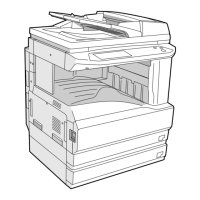
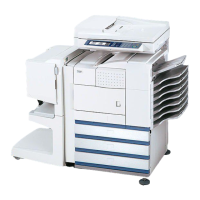
With the RSPF installed
MODEL
AR-M256
AR-M316
HINA
KS1
QSZZ
AR-M256/AR-M316 OPERATION MANUAL (for copier)
ar_m318_uk_cpy.book 1 ページ 2007年1月15日 月曜日 午前11時36分

Table of Contents

Other manuals for Sharp AR-M256

Questions and Answers

  • S
    santiagostephenSep 3, 2025
    What to do if Sharp AR-M256 shows 'UNABLE TO ACCESS THE SERVER. CHECK SERVER ADDRESS ON DEVICE WEB PAGE.'?
    • C
      Courtney StricklandSep 3, 2025
      This message indicates that the server settings are not configured correctly. To fix this, check the server settings.
  • A
    Amanda HudsonSep 1, 2025
    What to do if the scanned image is clipped using Sharp AR-M256?
    • P
      Paul JohnsonSep 2, 2025
      If the scanned image is clipped, it may be because the set original scanning size is smaller than the actual original size. Set the actual original size. If you intentionally selected a size setting smaller than the actual original size, consider the part of the original that you wish to scan when placing the original.
  • H
    Hannah AndradeAug 31, 2025
    What to do if Sharp All in One Printer displays an error 0xXXXXXXXX?
    • S
      shepherdkarenAug 31, 2025
      If your Sharp All in One Printer shows 'An error. [0xXXXXXXXX]', it indicates an unspecified error. Restart the maintenance program after confirming the communication device of your PC (either COM or parallel) is in the right condition.
  • N
    Nancy HillAug 29, 2025
    What to do if Sharp AR-M256 displays error during the download process?
    • E
      Emily HarringtonAug 29, 2025
      If you see the message 'Error during the download process' with an error code (0xXXXXXXXX) on your Sharp All in One Printer, it means there was an issue during the download data file operation. To address this, restart the maintenance program, ensuring the selected download file is not abnormal and is not being used by another application.
  • R
    rodriguezjasonAug 27, 2025
    What to do if Sharp AR-M256 shows communication incoming error?
    • B
      Brittany ManningAug 28, 2025
      If your Sharp All in One Printer displays a 'Communication (incoming) error', this indicates an incorrect download procedure where the printer didn't proceed correctly. Resolve this by restarting the maintenance program, confirming the communication port and cable, and ensuring the PC's communication device (COM or parallel) is in the right condition.
  • D
    Dawn SilvaAug 26, 2025
    Why does my Sharp AR-M256 display a checksum error?
    • M
      moorelisaAug 26, 2025
      A 'Checksum error' on your Sharp All in One Printer means there's a mismatch in the checksum value of the transmitted data, indicating a transmission error. To fix this, restart the maintenance program after ensuring the communication device of your PC (either COM or parallel) is in the correct condition.
  • S
    Susan MartinAug 25, 2025
    What to do if Sharp All in One Printer shows a time out error?
    • M
      Mary LopezAug 25, 2025
      If you encounter a 'Time out error' with your Sharp All in One Printer, it indicates a transmission error where the printer couldn't receive data within a specific timeframe. To resolve this, restart the maintenance program after verifying the communication port and cable.
  • A
    Amy SandersAug 22, 2025
    Why the recipient does not receive data sent by e-mail (Scan to E-mail) from Sharp AR-M256 All in One Printer?
    • B
      Bryan MorrisonAug 23, 2025
      Check the Web page to see if a limit has been set for the size of image files sent using Scan to E-mail (the factory default setting is "Unlimited"). Consult the administrator of the Web page to select a suitable limit.

Summary

BEFORE USING THE MACHINE

PART NAMES AND FUNCTIONS

Identifies external and internal components of the machine.

POWER ON AND OFF

Instructions for turning the machine on and off correctly.

INITIAL SETTINGS

Details the default settings upon first use or reset.

POWER SAVE MODES

Explains energy-saving modes for reduced power consumption.

LOADING PAPER

Procedures for loading paper into various trays.

Special papers

Guidelines for using special types of paper like envelopes.

CHANGING A TRAYS PAPER TYPE AND PAPER SIZE SETTINGS

How to configure paper settings for each tray.

COPY FUNCTIONS

MAIN SCREEN OF COPY MODE

Overview of the copy mode interface and its elements.

NORMAL COPYING

Basic copying procedures from document glass or RSPF.

COPYING FROM THE DOCUMENT GLASS

Steps for copying originals placed on the document glass.

COPYING FROM THE RSPF

Steps for copying originals using the Reversing Single Pass Feeder.

POINTS TO NOTE WHEN MAKING COPIES

Important considerations and limitations for making copies.

AUTOMATIC TWO-SIDED COPYING

Instructions for copying both sides of originals onto one sheet.

EXPOSURE ADJUSTMENT

How to adjust image brightness and contrast for copies.

REDUCTION;ENLARGEMENT;ZOOM

Procedures for resizing copies using automatic or manual ratios.

INTERRUPTING A COPY RUN

How to temporarily pause a copy job to perform another.

CONVENIENT COPY FUNCTIONS

COPY FINISHING FUNCTIONS

Explains output collation like sort, group, and staple functions.

STAPLE SORT (when the finisher (AR-FN5 A) is installed)

Collates and staples sets of copies when a finisher is installed.

SPECIAL MODES

Accesses advanced copying features like margin shift and booklet creation.

MARGIN SHIFT COPY

Shifts image position to create binding margins.

ERASE COPY

Removes unwanted shadows from books or thick originals.

DUAL PAGE COPY

Copies two adjacent pages onto one sheet.

PAMPHLET COPY

Arranges copies for booklet folding and stapling.

JOB BUILD MODE

Combines multiple original sets for copying beyond RSPF capacity.

MULTI SHOT COPY

Copies multiple originals onto a single sheet in various layouts.

ORIGINAL SIZE

Manually specifies original size for accurate copying.

COVER COPY

Adds front, back, or both covers to a document.

CARD SHOT

Copies the front and back of a card onto one sheet.

USER SETTINGS

CUSTOM SETTINGS

Allows configuration of various machine features to user preference.

GENERAL PROCEDURE FOR CUSTOM SETTINGS

Steps to access and navigate the custom settings menu.

SETTINGS

Details on Total Count, Display Contrast, List Print, Clock, Tray Settings, Keyboard Select.

TROUBLESHOOTING AND MAINTENANCE

DISPLAY MESSAGES

Lists error messages and their solutions for user intervention.

TROUBLESHOOTING

Guide to resolving common operational and paper feeding problems.

MISFEED REMOVAL

Detailed instructions for removing paper jams in various locations.

REPLACING THE TONER CARTRIDGE

Steps for replacing the toner cartridge when depleted.

STAPLE CARTRIDGE REPLACEMENT

Instructions for replacing staple cartridges in the finisher.

STAPLE JAM REMOVAL

How to clear jammed staples from the stapler.

CHECKING THE TONER QUANTITY AND TOTAL COUNT

How to view toner levels and total page counts.

CLEANING THE MACHINE

Procedures for cleaning the document glass, RSPF, and paper feed rollers.

PERIPHERAL DEVICES AND SUPPLIES

PERIPHERAL DEVICES

Lists optional hardware accessories for the machine.

FINISHER (AR-FN5 A)

Details about the finisher for collating and stapling copies.

500-SHEET PAPER FEED UNIT; 2 x 500-SHEET PAPER FEED UNIT

Information on paper feed units for increased capacity.

REVERSING SINGLE PASS FEEDER

Details about the RSPF for automatic document feeding.

STORAGE OF SUPPLIES

Recommendations for storing paper and toner.

APPENDIX

SPECIFICATIONS

Technical specifications of the machine models.

Trademark acknowledgments

Connectors

INFORMATION ON DISPOSAL

A. Information on Disposal for Users (private households)

Guidance for private users on disposing of used equipment.

B. Information on Disposal for Business Users.

Guidance for business users on product disposal.

Sharp AR-M256 Specifications

General IconGeneral
FunctionsPrint, Copy, Scan, Fax
Print Resolution600 x 600 dpi
Copy Resolution600 x 600 dpi
Scan Resolution600 x 600 dpi
Fax Modem Speed33.6 Kbps
Paper Capacity250 sheets
InterfaceUSB 2.0, Ethernet
Weight38 kg
DisplayLCD
Print Speed25 ppm
Copy Speed25 cpm
Original SizeA3, A4, A5, B4, B5
Copy SizeA3, A4, A5, B4, B5
Zoom Range25-400%
Scan DestinationsEmail, FTP
Memory64 MB

Videos

How to remove error code F2-02

How to troubleshoot error code L6-10

Related product manuals