NORMAL COPYING
4-12
4
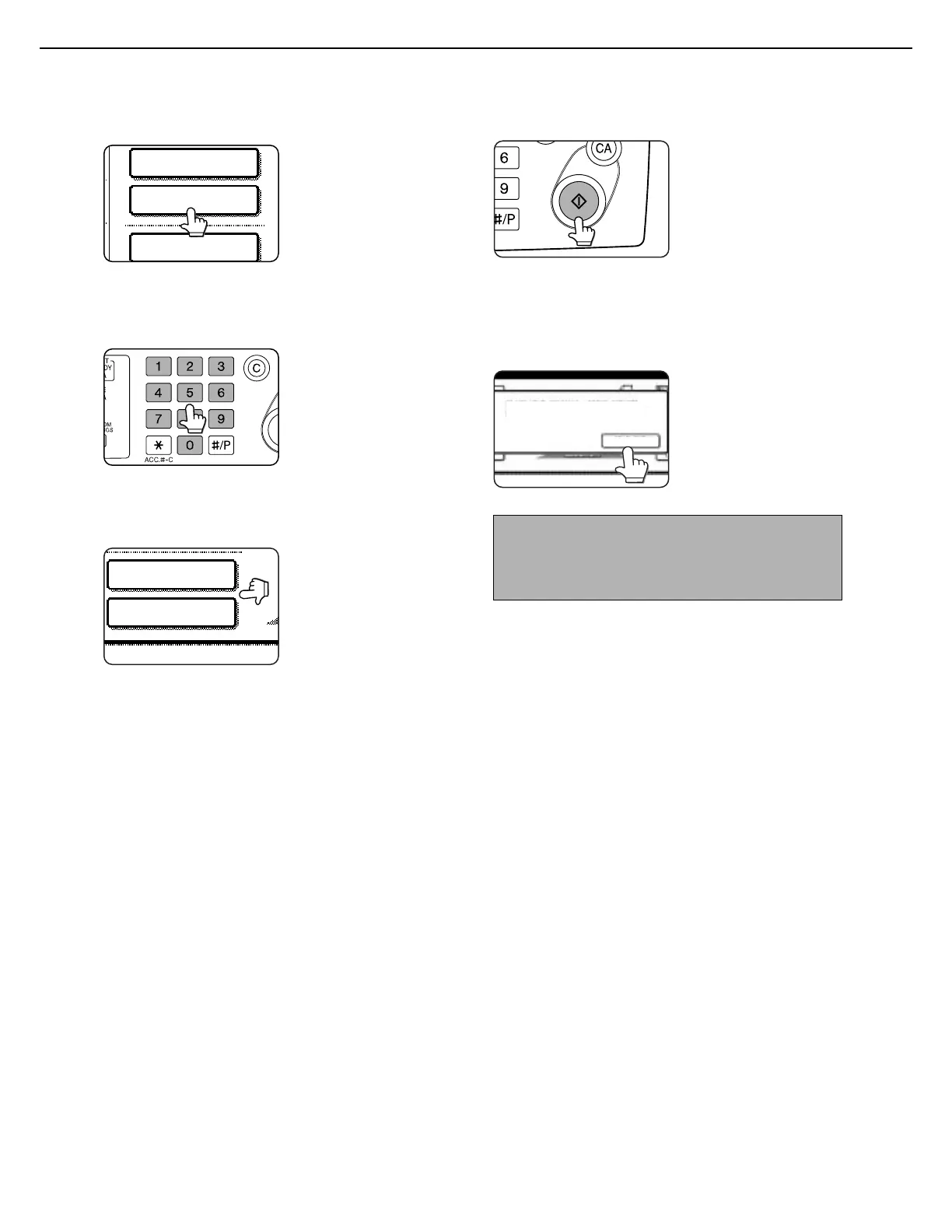
Select the desired output mode. (page 4-
9.)
Group mode is the
default mode.
To select sort mode,
touch the [OUTPUT]
key, touch the [SORT]
key in the screen that
appears, and then touch
the [OK] key.
5
Use the numeric keys to set the desired
number of copies.
Up to 999 can be set.
If you are only making a
single copy, the copy
can be made with the
copy number display
showing "0".
Use the [C] (clear) key to
cancel an entry if a mistake has been made.
6
If needed, touch the [FILE] key or the
[QUICK FILE] key.
Either key can be
touched to store the
scanned document
image on the machine's
hard disk. The stored
image can be re-used
later.
For more information on this function, see
"Document filing function" in chapter 7.
If the [FILE] key is grayed out, only the [QUICK
FILE] key can be selected.
When you touch the [QUICK FILE] key, a
message asking you to confirm the save will
appear. Touch the [OK] key in the message
screen and go to the next step.
If you wish to cancel the save, touch the [QUICK
FILE] key after touching the [OK] key so that the
[QUICK FILE] key is no longer highlighted.
7
Press the [START] key.
Replace the original with
the next original and
press the [START] key.
Repeat this operation
until all originals have
been scanned.
If you selected "Sort" for
the output mode in step 4 and pressed the
[START] key, it is necessary to touch the [READ-
END] key.
8
Touch the [READ-END] key.
To cancel copying...
To cancel a copy job in progress, press the [CA] key.
A confirmation message will appear. Touch the
[YES] key to cancel copying.
READ-END
PLACE NEXT ORIGINAL. PRESS [START].
WHEN FINISHED, PRESS [READ-END].


 To Next Page