Other convenience functions
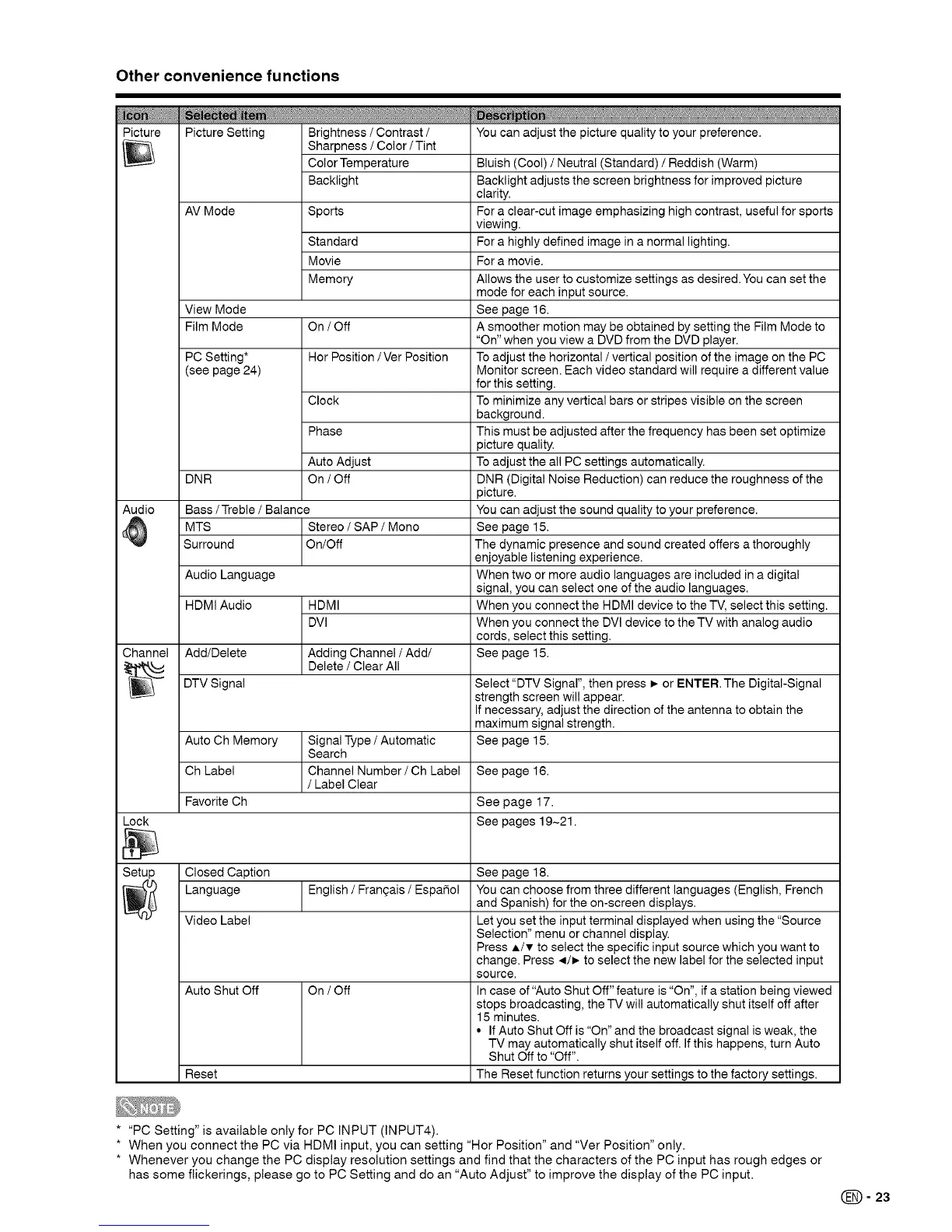
Picture
Picture Setting Brightness / Contrast /
Sharpness / Color /Tint
Color Temperature
Backlight
AV Mode Sports
Standard
Movie
Memory
View Mode
Film Mode On / Off
PC Setting* Hor Position /Ver Position
(see page 24)
Clock
Phase
Auto Adjust
DNR On / Off
Audio Bass / Treble / Balance
MTS Stereo / SAP / Mono
Surround On/Off
Audio Language
HDMI Audio HDMI
DVI
You can adjust the picture quality to your preference.
Channel Add/Delete Adding Channel/Add/
Delete / Clear All
DTV Signal Select "DTV Signal", then press _,-or ENTER. The Digital-Signal
strength screen will appear.
If necessary, adjust the direction of the antenna to obtain the
maximum signal strength.
Auto Ch Memory Signal Type / Automatic See page 15.
Search
Ch Label Channel Number/Ch Label See page 16.
/ Label Clear
Favorite Ch See page 17.
Lock See pages 19-21.
Setup Closed Caption See page 18.
Language English / Frangais / Espai_ol You can choose from three different languages (English, French
and Spanish) for the on-screen displays.
Video Label Let you set the input terminal displayed when using the "Source
Selection" menu or channel display.
Press A/v to select the specific input source which you want to
change. Press 4/_,- to select the new label for the selected input
source.
Auto Shut Off On / Off In case of "Auto Shut Off" feature is "On", if a station being viewed
stops broadcasting, the TV will automatically shut itself off after
15 minutes.
• If Auto Shut Off is "On" and the broadcast signal is weak, the
TV may automatically shut itself off. If this happens, turn Auto
Shut Off to "Off".
Reset The Reset function returns your settings to the factory settings.
Bluish (Cool) / Neutral (Standard) / Reddish (Warm)
Backlight adjusts the screen brightness for improved picture
clarity.
For a clear-cut image emphasizing high contrast, useful for sports
viewing.
For a highly defined image in a normal lighting.
For a movie.
Allows the user to customize settings as desired. You can set the
mode for each input source.
See page 16.
A smoother motion may be obtained by setting the Film Mode to
"On" when you view a DVD from the DVD player.
To adjust the horizontal / vertical position of the image on the PC
Monitor screen. Each video standard will require a different value
for this setting.
To minimize any vertical bars or stripes visible on the screen
background.
This must be adjusted after the frequency has been set optimize
picture quality.
To adjust the all PC settings automatically.
DNR (Digital Noise Reduction) can reduce the roughness of the
picture.
You can adjust the sound quality to your preference.
See page 15.
The dynamic presence and sound created offers a thoroughly
enjoyable listening experience.
When two or more audio languages are included in a digital
signal, you can select one of the audio languages.
When you connect the HDMI device to the TV, select this setting.
When you connect the DVl device to the TV with analog audio
cords, select this setting.
See page 15.
* "PC Setting" is available only for PC INPUT (INPUT4).
* When you connect the PC via HDMt input, you can setting "Hor Position" and "Ver Position" only.
* Whenever you change the PC display resolution settings and find that the characters of the PC input has rough edges or
has some flickerings, please go to PC Setting and do an "Auto Adjust" to improve the display of the PC input.
(_- 23




 To Next Page