Other convenience functions
¸i
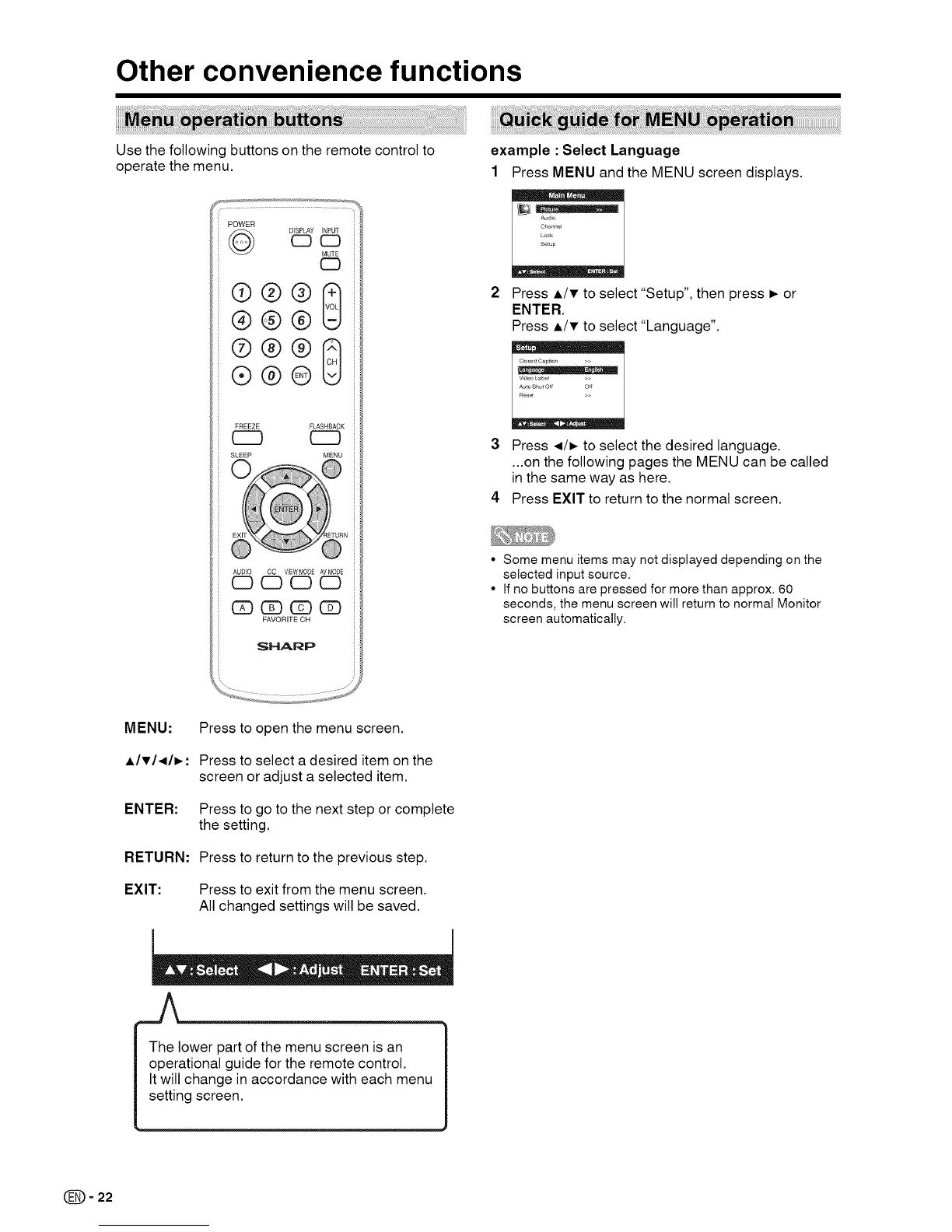
Use the following buttons on the remote control to
operate the menu,
POWER
DISPLAY INPUT
CDCD
MUTE
®®®8
@@@
@@@8
®@@
FREEZE FLASHBACK
SLEEP MENU
G3 (Z) C_ @
FAVORITE CH
SHARP
example : Select Language
1 Press MENU and the MENU screen displays,
Audio
Channel
Lock
Setup
Press A/T to select "Setup", then press _ or
ENTER.
Press A/T to select "Language",
C_osed Caption >>
Video Label
Auto ShutOff Off
Res_
3 Press ,,_/_ to select the desired language.
...on the following pages the MENU can be called
in the same way as here.
4 Press EXIT to return to the normal screen.
• Some menu items may not displayed depending on the
selected inputsource.
• If no buttons are pressed for more than approx. 60
seconds, the menu screen wil! return to normal Monitor
screen automatically.
ENTER:
RETURN:
EXIT:
Press to open the menu screen.
Press to select a desired item on the
screen or adjust a selected item,
Press to go to the next step or complete
the setting.
Press to return to the previous step,
Press to exit from the menu screen,
All changed settings will be saved.
I The lower part of the menu screen is an
operational guide for the remote control.
It will change in accordance with each menu
setting screen.
(_= 22





 To Next Page