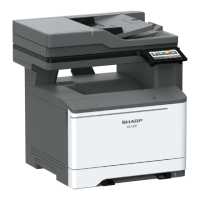
3. Install the USB Memory containing the required MX-C301W series firmware into the USB slot:-
4. Power ON the MFP device - the boot menu should appear after approx 10 seconds, followed by
Version Check information:-.
5. Select FIRM UPDATE Mode by using the [Menu] & [Back] keys. Using the [UP] and [DOWN] keys,
navigate and select the required firmware SFU.
Note:
Use the [OK] key when a directory name is selected to browse through to the sub folder(s) or
the [BACK] key to return to the parent folder(s).
6. Press [OK] to commence Firmware Update. – It may take approx. 1-2 minutes to read the SFU file.
After reading is completed, the firmware update (writing) will commence automatically.
Note:
The abbreviated name/location of the firmware that is being updated will appear in the upper
right corner.
7. If the firmware upgrade completes successfully, RESULT OK will be displayed:-
8. Power off the MFP and return the MFP PWB UPDATE DIP-SWs back to Default setting.
9. Power ON the MFP, and confirm that the machine boots up normally.
10. Power OFF the MFP and refit the cabinet & MFP PWB cover.
CN UPDATE - Firmware Recovery Procedure is now complete.


 To Next Page