EasyManua.ls Logo

Sharp VC-H820U - User Manual

Sharp VC-H820U
38 pages
Print Icon
To Next Page IconTo Next Page
Loading...
1
Dimensions: 257 182 mm
FLE (M) Sdn. Bhd.VC-A410U/420U(E) (01-05)
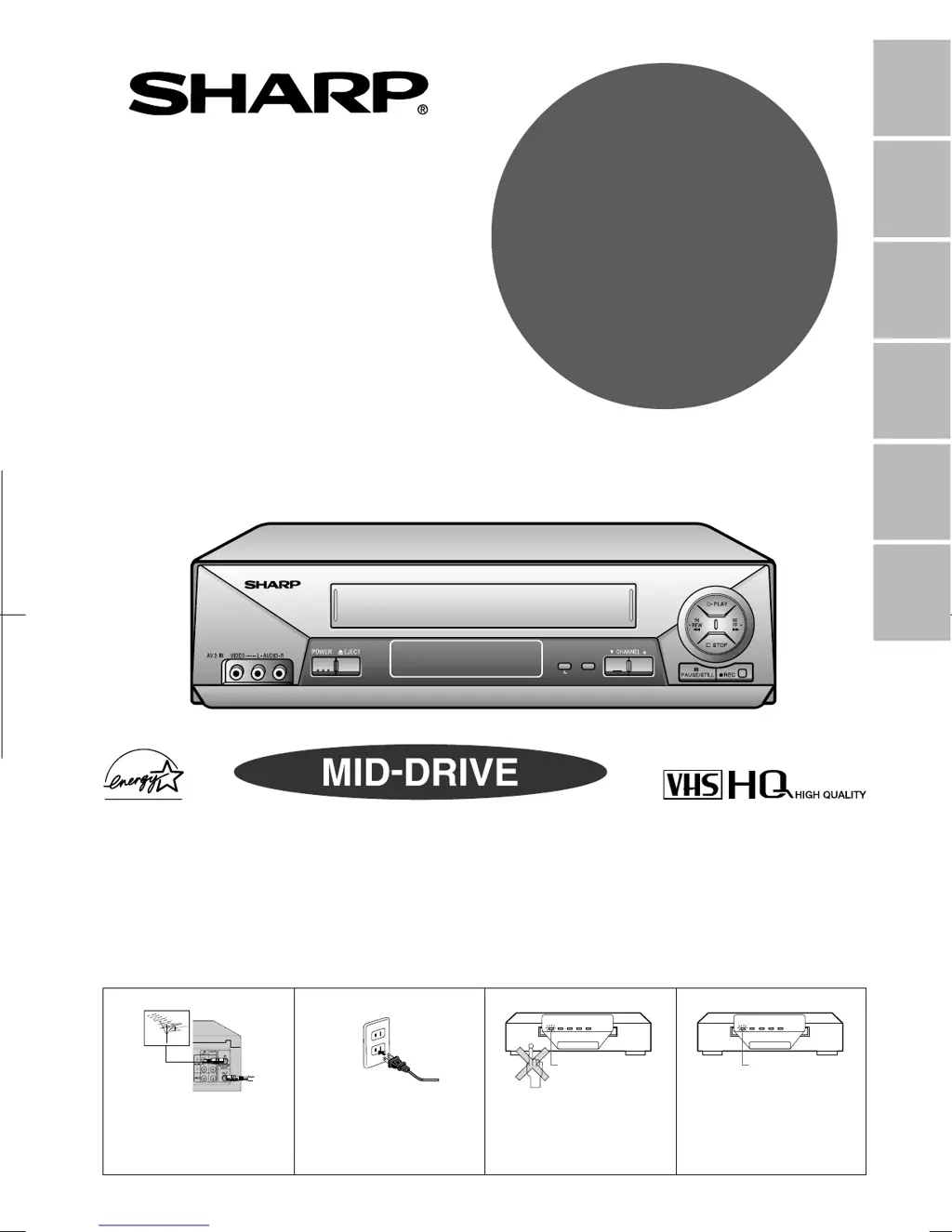
VIDEO CASSETTE RECORDER
OPERATION MANUAL
Please read this operation manual carefully
before using the VCR.
General
Information
Setting Up
Basic
Operations
Special
Functions
Helpful
Hints
Recording
MODEL
VC
-
A410U
VC
-
A411U
VC
-
A420U
VC-H810U
VC-H811U
VC-H820U
Detail: Please see page 15
[IMPORTANT]
EZ SET UP (AUTO CHANNEL/CLOCK SET UP)
! Connect Antenna/Cable
to VCR first.
@ Then, plug into AC
Power Outlet.
# Do not press the POWER
button until completion of
EZ SET UP.
$ EZ SET UP complete.
POWER VCR REC
REMOTE SENSOR
TAM PE R
PROOF
TIMER
Flash slowly
POWER VCR REC
REMOTE SENSOR
TAM PE R
PROOF
TIMER
Flashing
POWER VCR REC
REMOTE SENSOR
SET MENU
S.PICTURE
TAMPER
PROOF
TIMER
(VC-H820U)

Table of Contents

Questions and Answers

  • T
    timothy68Aug 21, 2025
    How to fix no power on my Sharp VC-H820U?
    • W
      walljonathanAug 21, 2025
      If your Sharp VCR has no power, first ensure the power cord is securely plugged in. Then, check the outlet, fuse, or circuit breaker to confirm they are functioning correctly.
  • D
    Donald WhiteAug 25, 2025
    What to do if Sharp VC-H820U does not operate?
    • K
      Kimberly JonesAug 25, 2025
      If your Sharp VCR is not operating, ensure the power is turned on. Try pressing the EJECT button multiple times. If it still doesn't work, the safety device might be activated; unplug the VCR, wait a few minutes, and then plug it back in.
  • L
    Louis MorrisAug 26, 2025
    Why is there no picture during playback on my Sharp VCR?
    • A
      April ThomasAug 26, 2025
      If no picture appears during playback on your Sharp VCR, ensure the TV is set to the same channel as the VCR’s 3 or 4 OUTPUT CHANNEL selector. Also, check all connecting cables to make sure they are properly connected.
  • R
    Ralph GibbsAug 27, 2025
    Why is there no color or poor TV picture during normal viewing on my Sharp VC-H820U?
    • A
      Alyssa GallagherAug 27, 2025
      If you experience no color or a poor TV picture during normal viewing with your Sharp VCR, first ensure that the “TV” option has been selected by pressing the TV/VCR button. Also, verify that all cables are connected properly.
  • J
    Jose ClarkAug 30, 2025
    What to do if the Sharp VCR cassette cannot be loaded?
    • B
      benjaminjeffreyAug 30, 2025
      If a cassette cannot be loaded into your Sharp VCR, first ensure that there is no other cassette already inside. Then, make sure the cassette is properly positioned and reinsert it. Also, verify that the “TAMPER PROOF” mode is not engaged.
  • N
    nicole87Sep 1, 2025
    Why is there no tape movement in my Sharp VC-H820U?
    • J
      James MichaelSep 1, 2025
      If there is no tape movement in your Sharp VCR, ensure that the VCR is not in PAUSE/STILL mode. Also, check whether the tape has reached the end or the beginning.
  • A
    Ashley JonesSep 3, 2025
    Why does my Sharp VC-H820U VCR stereo TV puts out monaural sound only?
    • D
      Douglas NunezSep 3, 2025
      If your stereo TV outputs only monaural sound when playing Hi-Fi stereo cassettes on your Sharp VCR, use RCA pin type connection cables (not the supplied coaxial cable) to connect the TV to the VCR, and set the TV to external video input mode. You might also try adjusting the tracking or using another Hi-Fi stereo cassette.
  • C
    Carrie ColemanSep 5, 2025
    What to do if picture or sound is not stable during playback on Sharp VCR?
    • M
      Ms. Desiree LevySep 5, 2025
      If the picture or sound is unstable during playback on your Sharp VCR, keep the VCR away from electrical and magnetic appliances. Position your VCR at least 8 inches away from your TV or video monitor.
  • D
    Derrick GarciaSep 7, 2025
    How to fix Sharp VC-H820U not receiving CATV channels?
    • N
      Nancy RodriguezSep 7, 2025
      To fix your Sharp VCR not receiving CATV channels, use the CHANNEL PRESET screen to change from AIR mode to CATV.
  • A
    Andrew LevySep 9, 2025
    How to resolve noise on the screen when the automatic tracking control system is operating on my Sharp VC-H820U VCR?
    • A
      Ashley KingSep 10, 2025
      To resolve noise on the screen when the automatic tracking control system is operating on your Sharp VCR, manually adjust the tracking by pressing CH ?/ƒ. Note that in some cases, with a worn or damaged tape, noise cannot be completely eliminated.

Summary

Safety and Precautions

IMPORTANT SAFEGUARDS AND PRECAUTIONS

Essential safety warnings and precautions for VCR operation.

INSTALLATION

Instructions for safely installing the VCR and its components.

OPERATION;CLEANING

Guidelines for safe VCR operation and cleaning.

OUTDOOR ANTENNA GROUNDING AND POWER LINES

Safety procedures for grounding outdoor antennas and handling power lines.

SERVICE

Information regarding professional service and repairs for the VCR.

Features, Components, and Remote Control

Features

Overview of the VCR's capabilities and functionalities.

Accessories

List of included accessories provided with the VCR.

Major Components of Your VCR

Identification of the VCR's front and rear panel components.

[Front]

Description of the VCR's front panel controls and indicators.

[Rear]

Description of the VCR's rear panel connection terminals.

Remote Control

Explanation of the VCR's remote control functions and operation.

Inserting the Batteries

Steps for correctly installing batteries in the remote control.

Setup and Connections

Connecting the VCR

Step-by-step instructions for connecting the VCR to a TV.

RF Connection (for connection to a TV without AV terminals)

Guide for connecting the VCR using RF signals.

AV Connection (for connection to a TV with AV terminals)

Guide for connecting the VCR using AV signals.

Setting the 3 ↔ 4 Output Channel Selector

How to set the VCR's output channel for TV compatibility.

Cable TV Connections

Instructions for connecting the VCR to a cable TV system.

B Connection with cable box

Procedure for connecting the VCR to a cable TV box.

C Connection with cable box, A;B switch and splitter

Connecting VCR with cable box, A/B switch, and splitter.

D Connection with two cable boxes, A;B switch and splitter

Advanced connection for recording/viewing cable TV with multiple boxes.

Menu Screen

Navigating the VCR's on-screen menu for settings and functions.

OSD (On Screen Display)

Understanding the VCR's On Screen Display information.

EZ Set Up (With Auto Clock Setting)

Detailed procedure for the initial automatic VCR setup process.

Setting the Language

How to select the display language for the VCR menu.

Setting the Clock

Guide to setting the VCR's internal clock.

Auto Clock Setting (If you DO know a channel that carries EDS signals)

Using EDS signals to automatically set the VCR clock.

Manual Clock Setting

Procedure for manually setting the VCR's clock.

Setting the Channels

Instructions for tuning and storing TV channels.

Adding Channel Memory;Erasing Channel Memory

Manually adding or removing channels from memory.

Mode Selection

Selecting various operational modes like Auto Repeat and Blue Screen.

Playback and Recording Operations

Playback

Basic steps for inserting a cassette and playing tapes.

Inserting a Video Cassette

How to properly insert a video cassette into the VCR.

Fast Forward and Rewind

How to fast forward and rewind video tapes.

Video Search

Locating specific sections of a tape during playback.

Still Picture and Frame Advance

Freezing frames and advancing one frame at a time.

Automatic Tracking Control System

How the VCR automatically adjusts tape tracking for clear playback.

Audio Output Mode

Selecting audio output for Hi-Fi stereo and linear tracks.

Recording a TV Program

Guide to recording television programs directly from the VCR tuner.

Without a Cable Box or Digital Satellite Receiver

Recording TV programs without external devices.

Recording Hi-Fi Stereo Sound

Recording and playback of Hi-Fi stereo audio.

Tape Dubbing Connection Instructions

Connecting the VCR for dubbing video from other devices.

Simple Recording Timer

Setting a simple timer for recording specific program durations.

Recording with the Timer

Programming the VCR to record shows at scheduled times.

Confirming Timer Programs

Viewing currently set timer recording programs.

Advanced Features and Reference

Special Functions

Overview of advanced VCR features.

Sharp Super Picture

Enhancing picture quality during playback.

DPSS (Digital Program Search System)

Quickly locating recorded programs using index signals.

Skip Search

Fast-forwarding through recorded material in set intervals.

Tamper Proof

Locking VCR modes to prevent accidental changes.

Specifications

Technical details and dimensions of the VCR.

Troubleshooting

Solutions for common VCR problems and issues.

Service Information

Contact details for obtaining professional VCR service.

LIMITED WARRANTY

Details of the product's limited warranty coverage.

Sharp VC-H820U Specifications

General IconGeneral
TypeVCR
BrandSharp
ModelVC-H820U
Video FormatVHS
Number of Heads4
TunerYes
Remote ControlYes
Recording SpeedSP, LP
Playback SpeedsSP, LP
InputsComposite Video, Audio
OutputsComposite Video, Audio
ConnectionsRF

Related product manuals