EasyManua.ls Logo

Sharp VC-H810U - User Manual

Sharp VC-H810U
38 pages
Print Icon
To Next Page IconTo Next Page
Loading...
1
Dimensions: 257 182 mm
FLE (M) Sdn. Bhd.VC-A410U/420U(E) (01-05)
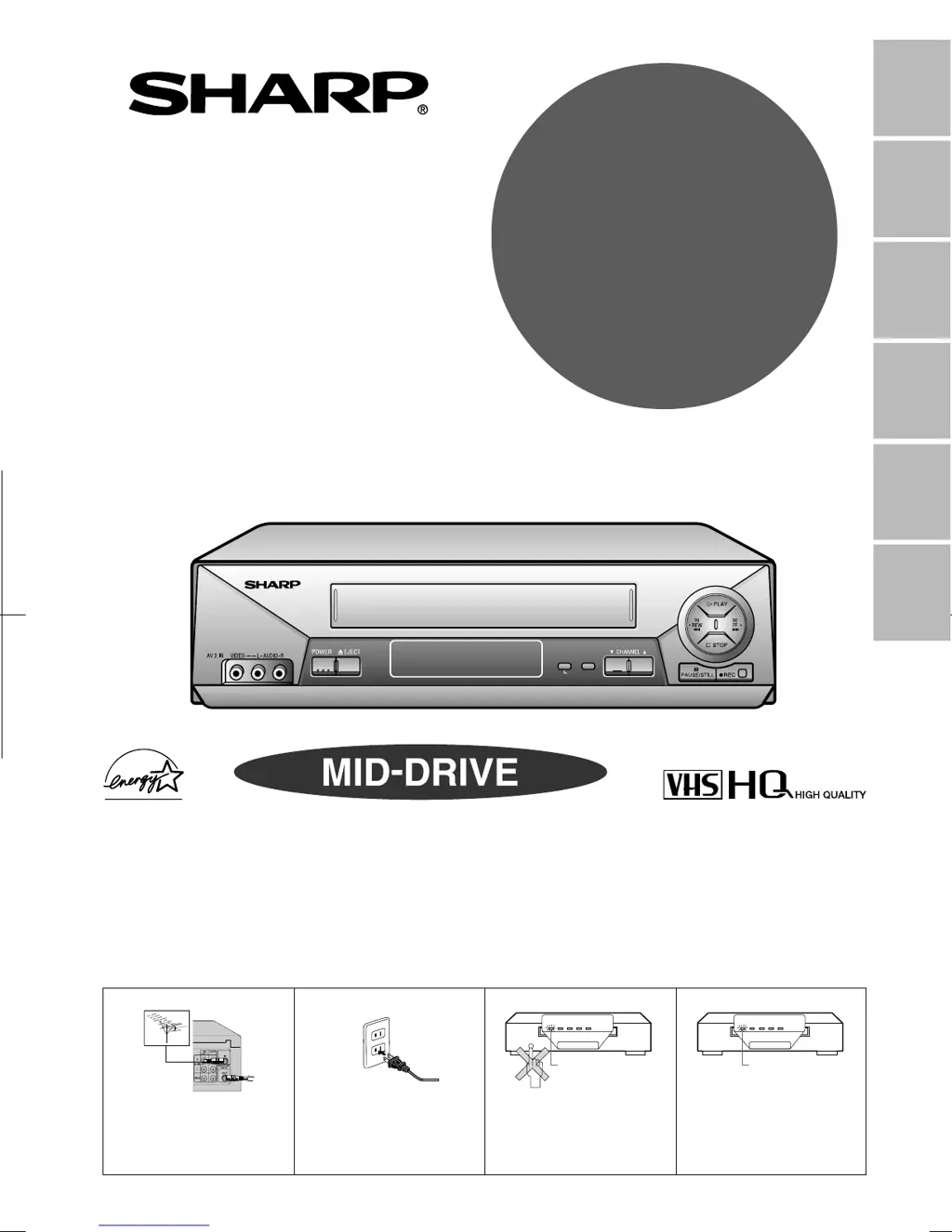
VIDEO CASSETTE RECORDER
OPERATION MANUAL
Please read this operation manual carefully
before using the VCR.
General
Information
Setting Up
Basic
Operations
Special
Functions
Helpful
Hints
Recording
MODEL
VC
-
A410U
VC
-
A411U
VC
-
A420U
VC-H810U
VC-H811U
VC-H820U
Detail: Please see page 15
[IMPORTANT]
EZ SET UP (AUTO CHANNEL/CLOCK SET UP)
! Connect Antenna/Cable
to VCR first.
@ Then, plug into AC
Power Outlet.
# Do not press the POWER
button until completion of
EZ SET UP.
$ EZ SET UP complete.
POWER VCR REC
REMOTE SENSOR
TAM PE R
PROOF
TIMER
Flash slowly
POWER VCR REC
REMOTE SENSOR
TAM PE R
PROOF
TIMER
Flashing
POWER VCR REC
REMOTE SENSOR
SET MENU
S.PICTURE
TAMPER
PROOF
TIMER
(VC-H820U)

Table of Contents

Other manuals for Sharp VC-H810U

Questions and Answers

  • A
    Amanda JonesAug 19, 2025
    What to do if my Sharp VC-H810U does not record?
    • R
      Richard RayAug 19, 2025
      If your Sharp VCR isn't recording, ensure a cassette is loaded. Also, check the cassette erasure protection tab; if it's removed, either use a different cassette or cover the tab opening with adhesive tape.
  • T
    Tammy KingAug 21, 2025
    How to fix no power on my Sharp VCR?
    • A
      Amy CooperAug 21, 2025
      If your Sharp VCR has no power, first ensure the power cord is securely plugged in. Then, check the outlet, fuse, or circuit breaker to confirm they are functioning correctly.
  • R
    Robert MarshAug 23, 2025
    What to do if Sharp VC-H810U does not operate?
    • S
      Sheri RubioAug 25, 2025
      If your Sharp VCR is not operating, ensure the power is turned on. Try pressing the EJECT button multiple times. If it still doesn't work, the safety device might be activated; unplug the VCR, wait a few minutes, and then plug it back in.
  • C
    Christopher YoungAug 26, 2025
    Why is there no picture during playback on my Sharp VC-H810U VCR?
    • M
      Marvin JonesAug 26, 2025
      If no picture appears during playback on your Sharp VCR, ensure the TV is set to the same channel as the VCR’s 3 or 4 OUTPUT CHANNEL selector. Also, check all connecting cables to make sure they are properly connected.
  • P
    Patrick TurnerAug 28, 2025
    Why is there no color or poor TV picture during normal viewing on my Sharp VCR?
    • T
      Thomas PonceAug 28, 2025
      If you experience no color or a poor TV picture during normal viewing with your Sharp VCR, first ensure that the “TV” option has been selected by pressing the TV/VCR button. Also, verify that all cables are connected properly.
  • C
    Corey NguyenAug 30, 2025
    What to do if the Sharp VC-H810U VCR cassette cannot be loaded?
    • D
      Desiree FlynnAug 30, 2025
      If a cassette cannot be loaded into your Sharp VCR, first ensure that there is no other cassette already inside. Then, make sure the cassette is properly positioned and reinsert it. Also, verify that the “TAMPER PROOF” mode is not engaged.
  • B
    Brent WilliamsSep 1, 2025
    Why is there no tape movement in my Sharp VC-H810U?
    • A
      alexandermyersSep 1, 2025
      If there is no tape movement in your Sharp VCR, ensure that the VCR is not in PAUSE/STILL mode. Also, check whether the tape has reached the end or the beginning.
  • R
    Rebecca VelazquezSep 3, 2025
    Why does my Sharp VC-H810U stereo TV puts out monaural sound only?
    • B
      Belinda AndersonSep 3, 2025
      If your stereo TV outputs only monaural sound when playing Hi-Fi stereo cassettes on your Sharp VCR, use RCA pin type connection cables (not the supplied coaxial cable) to connect the TV to the VCR, and set the TV to external video input mode. You might also try adjusting the tracking or using another Hi-Fi stereo cassette.
  • C
    Courtney MorganSep 5, 2025
    What to do if picture or sound is not stable during playback on Sharp VCR?
    • M
      melissa43Sep 5, 2025
      If the picture or sound is unstable during playback on your Sharp VCR, keep the VCR away from electrical and magnetic appliances. Position your VCR at least 8 inches away from your TV or video monitor.
  • A
    adamsmithSep 7, 2025
    How to fix Sharp VCR not receiving CATV channels?
    • M
      Mrs. Jackie Chambers DVMSep 7, 2025
      To fix your Sharp VCR not receiving CATV channels, use the CHANNEL PRESET screen to change from AIR mode to CATV.

Summary

General Information

Important Safeguards and Precautions

Covers critical safety instructions for VCR installation, operation, and maintenance.

Product Features

Details the comprehensive features and capabilities of the VCR, including model-specific functions.

Included Accessories

Lists and illustrates all accessories provided with the VCR for setup and operation.

VCR Component Overview

Identifies and explains the front and rear physical components and indicators of the VCR.

Remote Control Guide

Explains the functions of each button on the remote control and battery installation.

Setting Up Your VCR

Connecting the VCR

Provides instructions for connecting the VCR to a TV via RF or AV inputs.

Cable TV Connections

Details various connection methods for cable TV, including use of cable boxes and splitters.

Menu and On-Screen Display

Guides users through accessing the menu screen and understanding on-screen display indicators.

Initial EZ Setup Process

Describes the automatic channel and clock setting procedure for initial VCR setup.

Language and Clock Settings

Explains how to set the display language and configure the VCR's clock.

Channel Presetting

Instructs on how to preset channels for memory and automatic tuning.

Mode Selection Guide

Details how to select operational modes for features like Auto Repeat and Blue Screen.

Basic Operations

Video Cassette Playback

Covers inserting a cassette and starting playback, including automatic tracking.

Tape Navigation Functions

Explains controls for fast forward, rewind, video search, slow motion, and frame advance.

Tracking Control Adjustment

Provides methods for automatic and manual adjustment of tape tracking for optimal picture.

Playback Enhancement Features

Describes features like Blue Screen Noise Elimination and Audio Output modes for better playback.

Recording Functions

Recording TV Programs

Guides on recording broadcasts from TV, with or without a cable box, and how to pause.

Recording Preparation

Covers essential steps like cassette erase protection and selecting recording speeds.

Hi-Fi and Multi-Channel Audio Recording

Details recording stereo Hi-Fi sound and multi-channel TV sound broadcasts.

Tape Dubbing Connections

Explains how to connect the VCR to other devices for copying video content.

Special Functions

Timer Recording Setup

Explains setting simple and programmed timers for unattended recording.

Managing Timer Programs

Covers confirming, correcting, and cancelling programmed timer recordings.

Playback and Picture Enhancements

Details features for improved picture quality and automatic playback functions.

Advanced Tape Search

Describes functions like DPSS, Skip Search, and Instant Replay for quick tape navigation.

Tamper Proof Security

Explains how to lock VCR modes to prevent accidental changes or unauthorized use.

Helpful Hints and Support

Technical Specifications

Lists the technical details, dimensions, and operating parameters of the VCR.

Troubleshooting and Service

Provides solutions for common VCR issues and information on obtaining professional service.

Limited Warranty Information

Warranty Periods Summary

Outlines the warranty duration for the VCR and other consumer electronics products.

Sharp VC-H810U Specifications

General IconGeneral
BrandSharp
ModelVC-H810U
CategoryVCR
LanguageEnglish

Related product manuals