BASIC OPERATIONS
IPICTURE
TONE
o
SOFT
HARD
u • -,->.._-
Picture
with
off-
tracking
bar
~
EDIT OFF ON
AUTO
PICTURE
(I)
Auto
Tracking 1
~
11
~
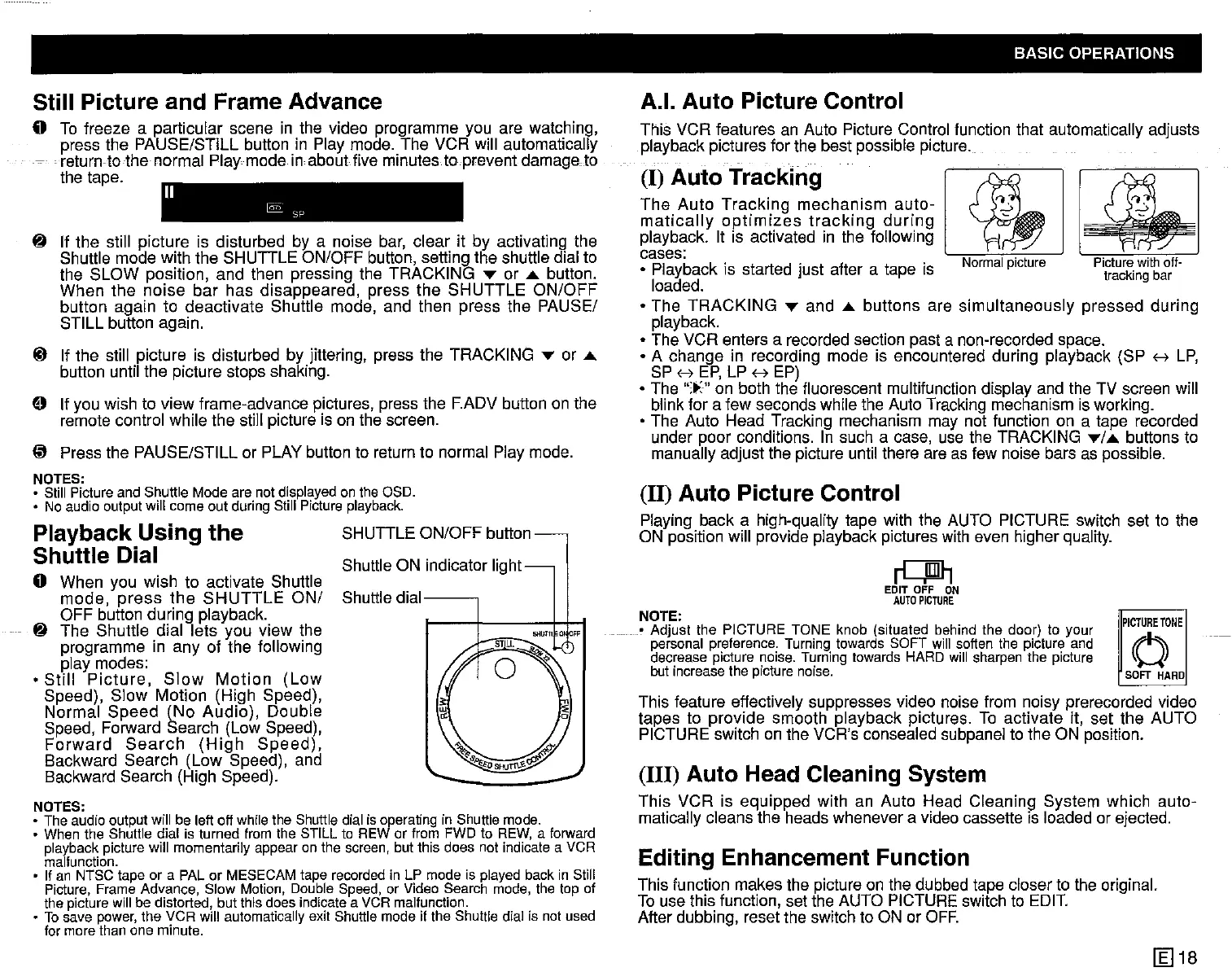
The
Auto Tracking mechanism auto-
'S
~
matically
optimizes
tracking
during
~
~
playback. It is activated in the following
cases:
• Playback is started just after a tape is
I\lUlllldl
IJlljlUIt:
loaded.
• The TRACKING
... and
....
buttons are simultaneously pressed during
playback.
• The VCR enters a recorded section past a non-recorded space.
• A change in recording mode is encountered during playback (SP
H
LP,
SP H
EP,
LP H EP)
• The
":t:" on both the fluorescent multifunction display and the TV screen will
blink for a few seconds while the Auto Tracking mechanism is working.
• The Auto Head Tracking mechanism may not function on a tape recorded
under poor conditions. In such a case, use the TRACKING
.../
....
buttons to
manually adjust the picture until there are as few noise bars as possible.
(11) Auto Picture Control
Playing back a high-quality tape with the AUTO PICTURE switch set to the
ON position will provide playback pictures with even higher quality.
(Ill)
Auto Head Cleaning System
This VCR is equipped with an Auto Head Cleaning System which auto-
matically cleans the heads whenever a video cassette is loaded or ejected.
A.I. Auto Picture Control
This VCR features an Auto Picture Control function that automatically adjusts
playback pictures for the best possible picture.
This feature effectively suppresses video noise from noisy prerecorded video
tapes to provide smooth playback pictures. To activate it, set the AUTO
PICTURE switch on the VCR's consealed subpanel to the ON position.
Editing Enhancement Function
This function makes the picture on the dubbed tape closer to the original.
To use this function, set the AUTO PICTURE switch to
EDIT.
After dubbing, reset the switch to ON or
OFF.
NOTE:
_.
Adjust the PICTURE TONE knob (situated behind the door) to your
personal
preference.
Turning
towards
SOFT
will
soften
the
picture
and
decrease
picture
noise.
Turning
towards
HARD
will
sharpen
the
picture
but
increase
the
picture
noise.
SHUTTLE ON/OFF button
Shuttle
dial--,
Shuttle ON indicator light
11
~
SP
Playback Using the
Shuttle Dial
o When you wish to activate Shuttle
mode,
press
the
SHUTTLE
ON/
OFF button during playback.
~
The Shuttle dial lets you view the
programme in any of the following
piay modes:
•
Still
Picture,
Siow
Motion
(Low
Speed), Slow Motion (High Speed),
Normal Speed (No Audio), Double
Speed, Forward Search (Low Speed),
Forward
Search
(High
Speed),
Backward Search (Low Speed), and
Backward Search (High Speed).
NOTES:
• The audio output will be left off while the Shuttle dial is operating in Shuttle mode.
• When the Shuttle dial is turned from the STILL to REW or from FWD to REW, a forward
playback
picture
will
momentarily
appearon the
screen,
butthisdoes not
indicate
a VCR
malfunction.
• If an NTSC tape or a PAL or MESECAM tape recorded in LP mode is played back in Still
Picture, Frame Advance, Slow Motion, Double Speed, or Video Search mode, the top of
the picture will be distorted, but this does indicate a VCR malfunction.
• To save power, the VCR will automatically exit Shuttle mode if the Shuttle dial is not used
for
more
than
one
minute.
Still Picture and Frame Advance
o To freeze a particular scene in the video programme you are watching,
press the PAUSE/STILL button in Play mode. The VCR will automatically
.return-lothe normal Play mode in about five minutes to prevent damage to
the tape.
~
If the still picture Is disturbed by a noise bar, clear it by activating the
Shuttle mode with the SHUTTLE ON/OFF button, setting the shuttle dial to
the SLOW position, and then pressing the TRACKING ... or
....
button.
When the noise bar has disappeared, press the SHUTTLE ON/OFF
button again to deactivate Shuttle mode, and then press the PAUSE/
STILL button again.
4D
If the still picture is disturbed by jittering, press the TRACKING ... or
....
button until the picture stops shaking.
o If you wish to view frame-advance pictures, press the F.ADV button on the
remote control while the still picture is on the screen.
(it
Press the PAUSE/STILL or PLAY button to return to normal Play mode.
NOTES:
• Still Picture and Shuttle Mode are not displayed on the OSD.
• No audio output will come out during Still Picture playback.
1Il18


 To Next Page
 Loading...