Useful Features
Playback and Editing
Recording from an External
Source
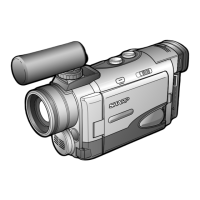
You can use this VIEWCAM to record or edit video
from another source, such as a VCR, TV. or video
disc player.
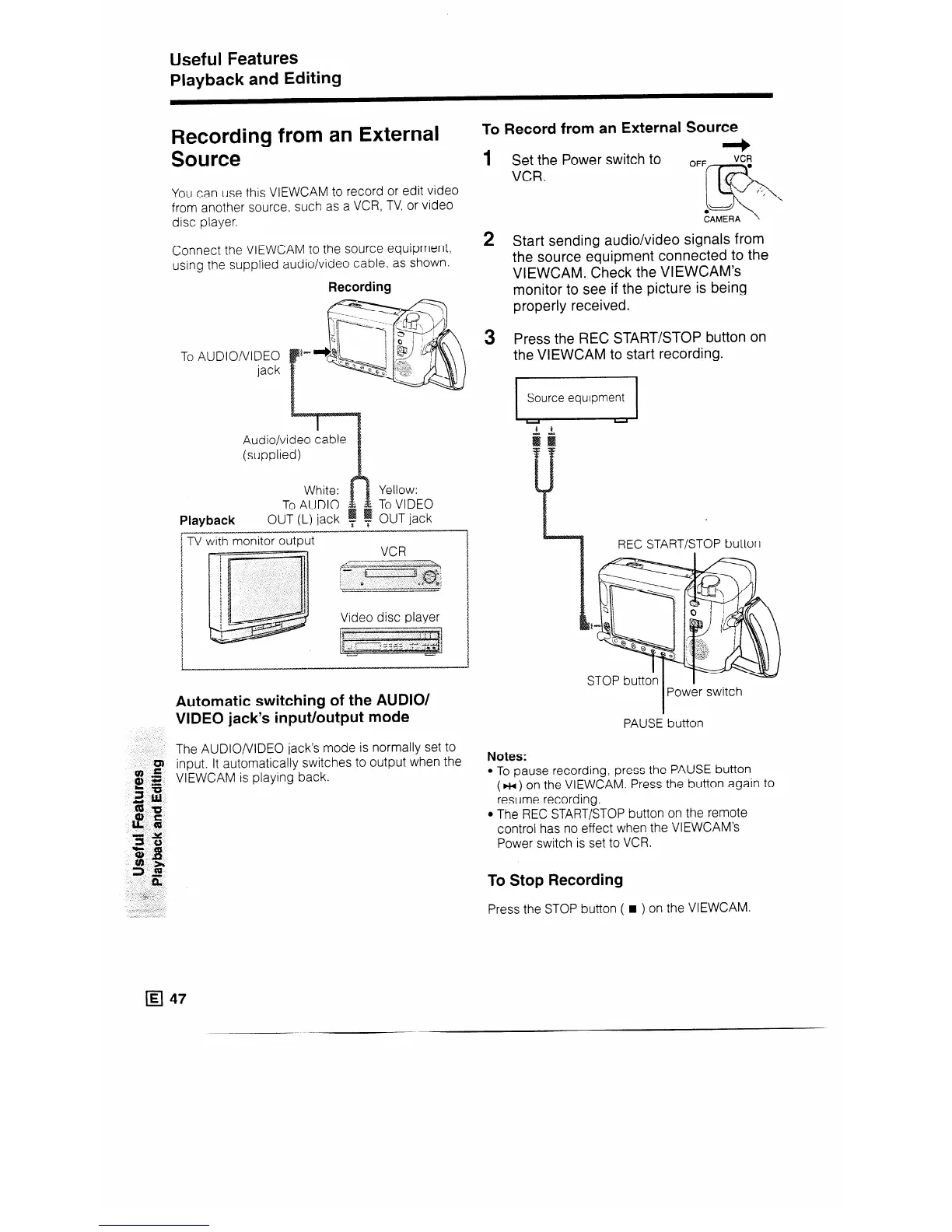
Connect the VIEWCAM to the source equipment,
using the supplied audio/video cable, as shown.
Recording
To AUDIO/VIDEO
jack
Audio/video cable
Playback
TV with monitor output
VCR
Video disc player
-1
Automatic switching of the AUDIO/
VIDEO jack’s input/output mode
The AUDIO/VIDEO jack’s mode is normally set to
input. It automatically switches to output when the
VIEWCAM is playing back.
To Record from an External Source
1
2
3
Set the Power switch to
VCR.
.-\ ’
CAMERA ’
Start sending audio/video signals from
the source equipment connected to the
VIEWCAM. Check the VIEWCAM’s
monitor to see if the picture is being
properly received.
Press the REC START/STOP button on
the VIEWCAM to start recording.
REC START/STOP button
PAUSE button
Notes:
l To pause recording, press the PAUSE button
(FM) on the VIEWCAM. Press the button again to
resume recording.
l The REC START/STOP button on the remote
control has no effect when the VIEWCAM’s
Power switch is set to VCR.
To Stop Recording
Press the STOP button ( w ) on the VIEWCAM.



 To Next Page