INSTALLATION OF IP607W
Quickly view the installation manual, after finishing the procedures step by step, IP607W will work
accordingly. IP607W can be used in LAN, you will find the IP address in LAN by carrying out IP Camera
Tool program on PC,then input this IP address into the IE browser address field ( such as http://192.168.
1.100/),so it can connect IP607W and camera interface can be shown on browser page. For external
network visit, a prior suitable configuration of IP camera in LAN is required, please refer to the instructions
in the following chapters.
2.1 INSTALLATION PREPARATION
Please make sure you have already read the user manual carefully and know well about the functions
and configurations of IP607W before installation. Then, use the enclosed network cables to connect
IP607W to Internet, via router or switch. Please prepare the router and switch by yourself.
2.2 HARDWARE INSTALLATION
This part is for introducing how to finish hardware installation and physical connection of IP607W. After
it, please connect power supply, IP607W will start work and the indicator light will shine.
1Install the IP camera at the place where monitoring required.
2connect network
Connect IP camera with hub (10ˋ100M) or switch (10ˋ100M), insert one end of the network cable into
RJ45 port, the other end into router or switch. Indicator light at RJ45 port will flash under normal condition
3connect to the power supply
Pleaser use the enclosed power adapter in package to connect the IP camera and power supply,
otherwise you will damage the hardware
1. Make sure the length of the network cable is within validity range, If over 100M, Please
use signal amplifier.
2. Please use the power adapter we supply, otherwise you will damage the hardware.
3.If you connect PC to IP607W directly, please make sure the crossover cable is used.
4check LED light
After connect to the power supply, IP camera will start work and the small yellow light at the back of it
will shine. In dark condition, you will see the light at the front of camera. Four infrared lights will be as
lamp-house to let you see clear picture in dark.
2.3 SOFTWARE INSTALLATION
Please use the enclosed IPCAMSETUP.EXE software to start initial installation on your PC. After it, IP
Camera Tool will search all IP addresses of IP607W in the same network space automatically.
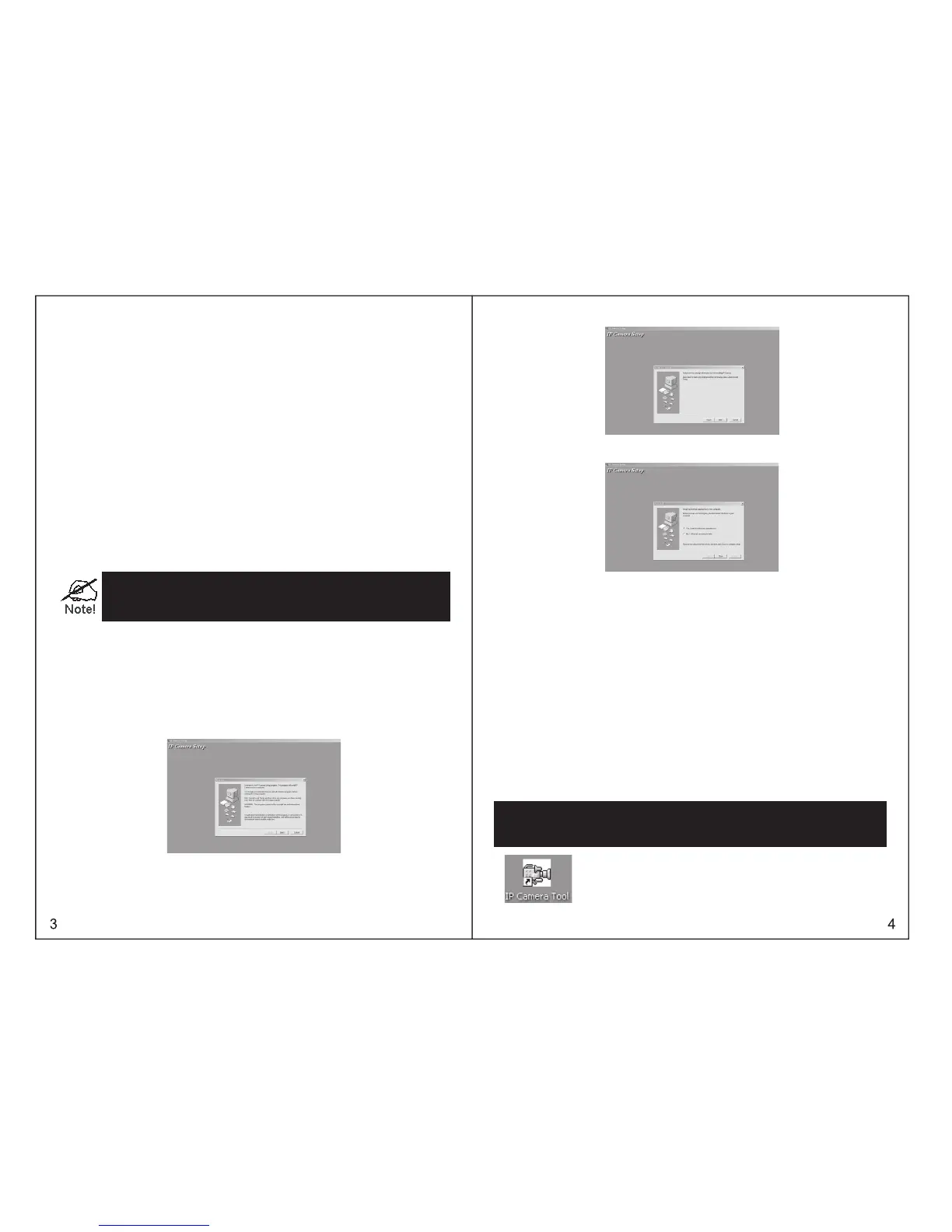
1Please use the enclosed driver, then you will see the welcome interface of installation program.
2Introduction interface of installation will be shown. After read it, press” Next” to continue installation.
Please refer to Picture 2.4
Picture 2.4: Installation interface 1
3. Installation guidance will help you to finish the installation. Please press “NEXT” buttons in turn,
pleaser refer to Picture 2.5
Picture 2.5: continue the installation
4When finish the installation, please restart your computer. Please refer to Picture 2.6 .
After finish the 2nd chapter, IP607W can work in LAN. We can find the IP address of IP607W by IP
camera Tool program and visit IP607W by browser. (input IP address and port number of IP607W into the
IE browser address field, such as “http://192.168.1.112:100”ˈthen press” enter”. If the port number is 80,
then you can input IP address http://192.168.1.112 directly, without port number), Please note that our
factory default setting of the port number is 80 .
Now we can configure IP607W by operating web configuration page . If you want to view the monitoring
picture by browser, or to operate IP607W web configuration page, you should know the IP address and
port number of IP607W.
We supply IP Camera Tool Program, which is used for searching IP address and port number of IP-607W
in LAN only (both IP607W and our PC are in the same network space), but not for searching IP address
and port number of IP607W in external network( IP607W and our PC are not in the same network space).
If we want to visit IP607W through external network, we must configure IP607W in LAN at first.
About how to make a external network visit or detail information of setup, please refer to the following
descriptions.
3.1 GET IP ADDRESS OF IP607W IN INTERNAL NETWORK
Please pay attention to the below instruction before getting IP address
Picture 2.6 : finish installation
THE 3RD CHAPTER
CONFIGURATION OF IP607W
Ɣke sure the device has connected to the power supply and network connection is correct
Ɣhe LAN or PC should support DHCP(Dynamic IP Distribution), because the IP camera has been set
up to get dynamic IP address; if no this function, you will not search out the camera (Please refer to
the dialog box for operation)
1double press IP Camera Tool.



 To Next Page