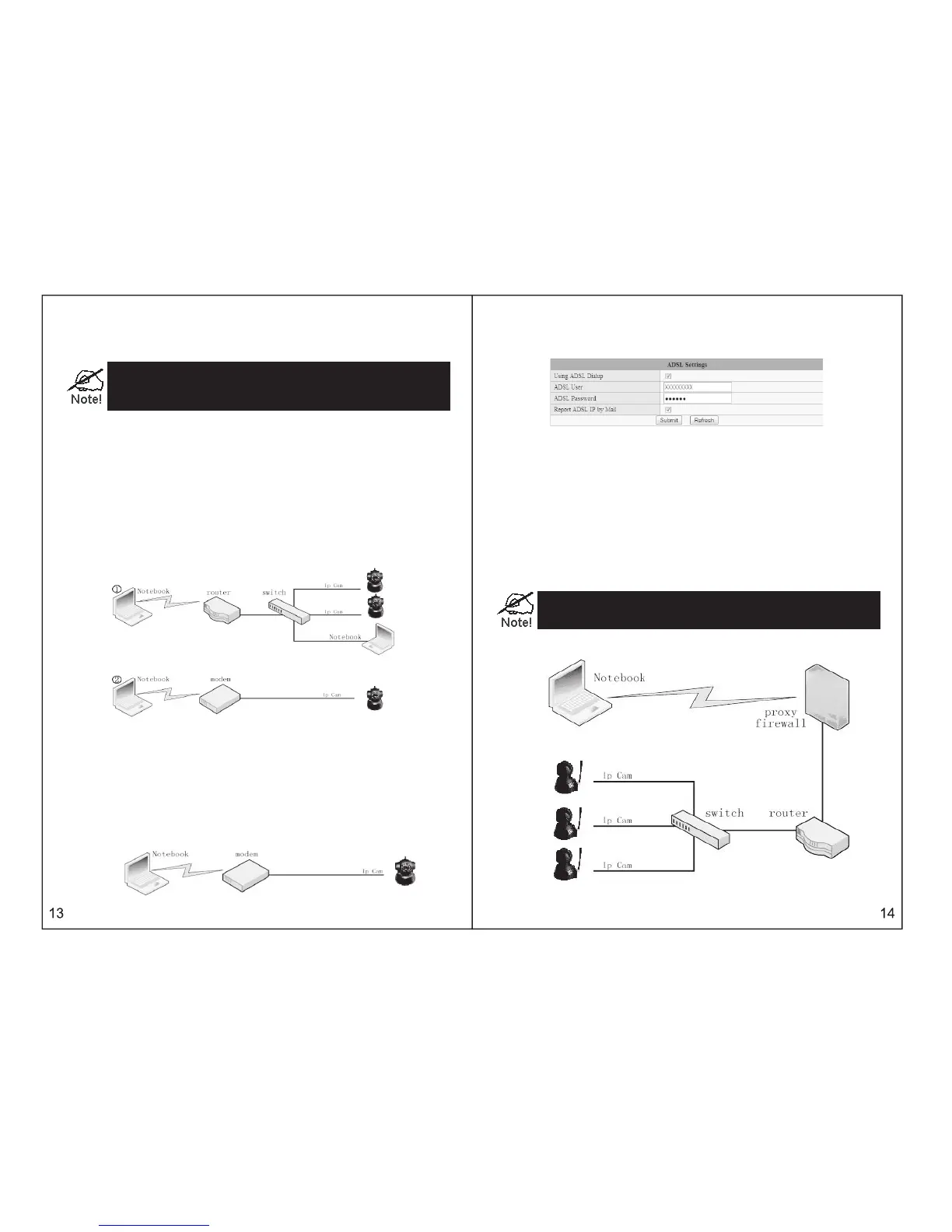
Under this mode, PC and IP607W is in the same LAN, both of them can be connected with each other
by network cable, or hub, or switch. IP address is a private one(like192.168.1.*), subnet mask: 255.255.
255.0.
1. if you choose the connection like 4.1.ķ (in sketch map of LAN view), please make
sure you will use crossover cable; if not, you can not connect it to your IP607W normally.
2. Hub and switch in picture 4.1.ĸ and Ĺ(in sketch map of LAN view), can replace each
other, there is no difference!
Firstly, finish the installation of IP Camera Tool as the steps above-mentioned (anyway, you should have
to install the IP Camera Tool well at first, then you can find the IP address, and make the other advanced
operations)
view via “IP camera tool”
After run IP Camera Tool of IP607W,it will search the IP607W in LAN automatically and show IP address
and name on the window, you just need to double click this IP address, then PC will display IE browser
window and the login interface, input user and password, you can enter into monitoring page for view.
Please remember the IP address, it is surely required if you hope to use web browser for view.
nput IP address into IE browser address field for direct view
Input the IP address and port number of IP607W into IE browser address field , click “enter”, input
account no. and relative password, then you can see images on web,
Note: if port no. is 80, you can input IP address directly!
4.2 INTERNET VIEW
4.2 IP607W PICTURE 4.2 VIEW FROM INTERNET
When PC and IP camera is not in the same network space, it is set at the two ends of internet, show
as picture4.2, this requires to set up IP607W correctly, based on the connection method between IP607W
and Internet
4.2.1 CONNECT INTERNET THROUGH ADSL DIRECTLY
When IP607W connects to internet through the dial-up of ADSL (show as follows), its IP address is
dynamic and changeable . Every connection to Internet via the dial –up of ADSL,IP camera will get a
temporary and different IP address from ISP
For this case, we can fill ADSL’s user name and password on IP607W interface, and choose the option
of “use dial-up of ADSL for connection”, and the option of “use email to inform ADSL’s IP address” , picture
as below.
When camera is powered, the dial-up of ADSL will automatically run to connect Internet, ISP will assign
a dynamic IP address to the camera while send this address to user by email. User can use IP address
and port no. to visit IP camera and monitor the images, via IE browser.
As the IP address of Internet is changeable, namely, ISP will assign a new IP address to router for each
dial-up, obviously it is not easy for users to remember it. So, we can make use of DDNS to bind the IP
address with a domain name together, which is applied by user and easy to remember, then it becomes
simple for us to input domain name and port no. in browser.
How to use DDNS
1. Register DDNS service with the supplier, then you will get a domain name, together with an account
and a password.
2. Input correct DDNS settings on the page of IP607W
3. When the Internet IP address is changed, IP607W will connect to DDNS server automatically, advising
itself the new IP address.
4. User only need to input domain name assigned by DDNS server into IE browser address field, browser
will connect IP607W automatically.
1.you need to apply for this service at DDNS server.
2. you need to operate as DDNS service supplier says
4.2.2 CONNECT INTERNET BY LAN



 To Next Page