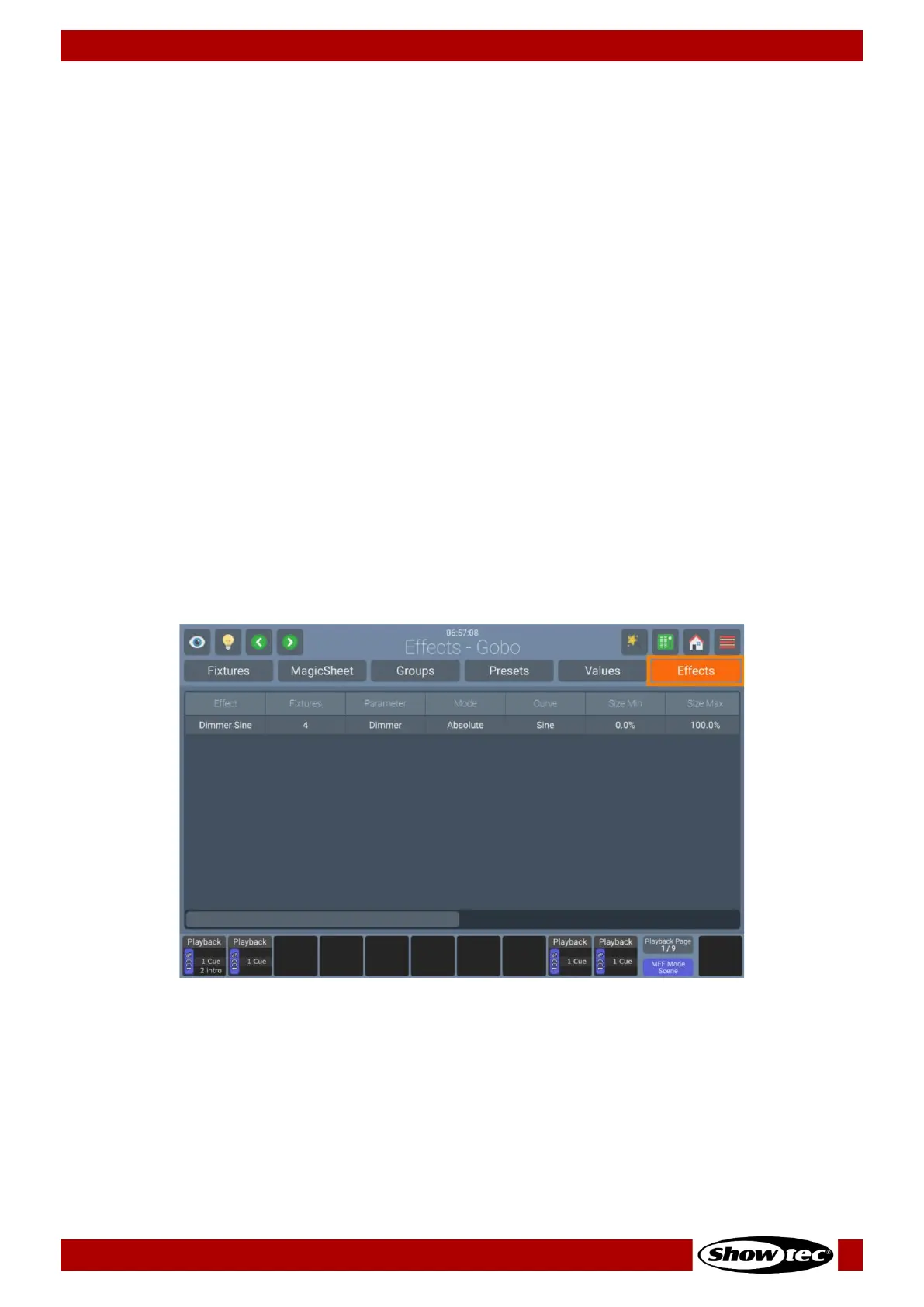
8.5.6. The Effects View
Effects are applied to attributes using an effect table that applies mathematical functions (such as a
sine- or cosine wave) to values against time. Each of these effects is displayed as one row within the
Effect Programmer.
Effects created on the LAMPY control console are stored into Playbacks, Scenes or Executors. If a
Playback contains multiple cues effects will be tracked through the Playback in the same way as regular
values are.
If a cue with new effects starts, the LAMPY console will determine all effects that are running and will
crossfade from them to the new effects and hence, turn off all previously started effects from previous
cues running on the same attribute. To stop an effect running on a parameter for good, you would need
to add an “Off Effect” curve, which is basically just a flat effect form without any size.
Keeping effects in sync is an important functionality, especially when different effects are combined over
multiple parameters to create one “big” effect to create the desired result.
Let’s have a look at a Fly Out Effect, which turns on a fixtures intensity as the tilt parameter fades up, then
turns it off and moves tilt back down in black:
On most traditional consoles it is not possible to have Cue 1 contain just the Tilt part of the effect and Cue
2 contain the intensity part so you can pre-set the movement. LAMPY takes care of this problem since it
will automatically sync these effects, so they always look the same, no matter when Cue 2 is started, as
long as both Cues are in the same Playback. Also, Move in Black can preset effects automatically and
keep them in sync. However, two separate Playbacks are not kept in sync.
To open the Effects View, click on Home and select Effects from the top bar.




 To Next Page