Control with a mobile phone
Downloading APP
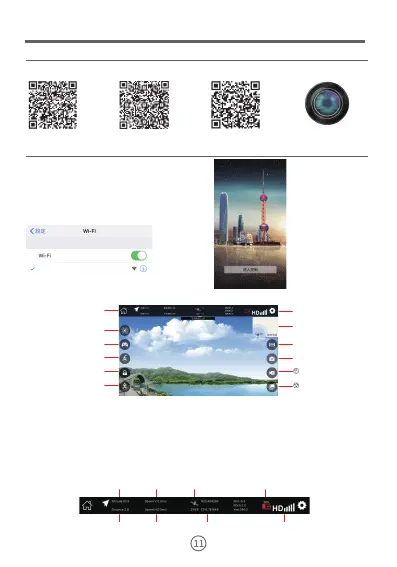
Scanning the QR code below and downloading the software
Foreign Android System Apple System
Android version
LW FPV
Opening and connecting the software on your phone
Enter the “Settings” function of the mobile
phone, open the MF option, find the device
WF name “WIFI-720P-GPS-XXXXXX” and
connect.After the connection is completed
successful, return to the desktop, open the
downloaded application, and enter the
program.
Click "Start Flight" to
enter the control page
Before using the software, you should familiarize the functional meaning of the keys and icons.
Basic keys and information description
① Return to the home page
② Select flight mode
③ Control lever on/off
④ Return / hover
⑤ Unlock / lock
⑥ Takeoff / landing
⑦ Setup menu
⑧ Map / preview
⑨ VR mode
⑩ Take photos.
Video recording.
Album
Return message meaning
Height
(m, distance from the takeoff point)
distance
(m, distance from the takeoff point)
Vertical speed
Longitude and
latitude of the drone
Remaining capacity
of drone
Level speed
Number
of satellites
Signal level for image
transmission
(It is a reference value based on
the distance and speed of the flight)
Function definition
1. Return to the home page 2. Select the flight mode. 3. Turn the control remote on or off. (Only available in the "mobile
phone takeover" mode, please refer to the function of the left and right control levers of remote control unit in the basic
flight.) 4. When the drone is hovering, click this key to execute the "one-click return" function. During the return flight,
click this key to execute the “hovering" function. 5. After the searching satellites and positioning are successfully, click
the key to take over the drone by a mobile phone, click the key again to exit the mobile phone.
(Always keep the remote control turned on) 6. One-click take off and land. 7. Open the settings menu. 8 Switch to map
or image transmission display frame. 9. VR mode (VR glasses are required). 10. Click to take photos. 11. Click this key
to start recording, and click the key again to end recording.
(When the signal is poor or interrupted, the software will automatically end recording and save). 12. Open the album to
view the recorded files.
WIFI-720P-GPS-XXXXXX


 To Next Page