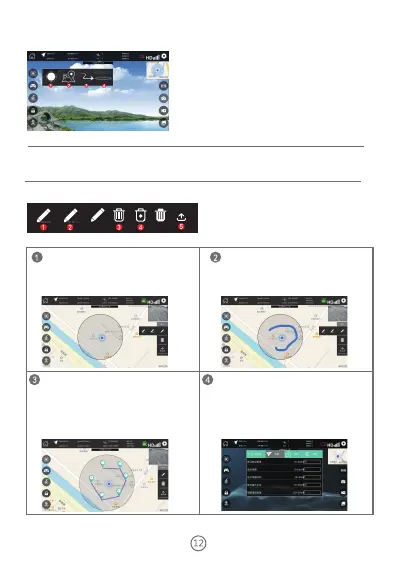
Hover mode
When the drone is in other flight modes, you can press this mode and make the
drone enter normal hover mode.
1. Sketch flight path 2. Set flight waypoints
3. Delete all flight paths and waypoints
4. Delete a single waypoint
5. Send instruction
Track and waypoint mode
Before using this function, you should familiarize the meaning of icons.
The following functions must be used after the
drone has completed the searching satellites and
positioning.
1. Hover mode
2. Track and waypoint mode
3. Follow mode
4. Rotation around a point mode
Figure 1
Figure 2
Figure 3
Figure 4
Click on “flight path and waypoint mode”, the
screen will switch to the map display frame and a
circular area (50m radius) will appear. The blue point
is the location of the phone (as shown in Figure 1).
Open the right setup menu, click the “set flight
waypoints” key, and draw the points you want the
drone to move in the circular area (as shown in
Figure 3), then click “send instruction”, the drone
will fly according to what you have drawn. You can
set 24 waypoints at most. When you want to delete
all or individual waypoints, you can use the delete
function.
You can set the waypoint parameters in the
parameter bar of the setup menu in advance (as
shown in Figure 4).
Open the right setup menu, click the “sketch
flight path” key, and draw the flight path you want
the drone to move in the circular area (as shown in
Figure 2), then click “send instruction”, the drone
will fly according to what you have drawn.


 To Next Page