Shure Incorporated
3/16
Software Installation
1. Insert supplied CD into your CD-ROM drive and follow the on-screen instructions.
2. If installation does NOT start automatically, click on the [Start] button on the Windows taskbar and select
[Run...] from the pop-up menu.
3. Type [D:/setup], where "D" is your CD-ROM drive letter.
4. Click OK and follow the on-screen instructions.
Using the DFR22 Software
Instructions for the DFR22 software are available in PDF format on the CD-ROM included with the system, or on
the Shure web site at www.shure.com.
Register this product by filling out and mailing the enclosed registration card, or register online at the Shure web
site (www.shure.com). Registration allows you to receive information about software updates as they become
available.
Overview
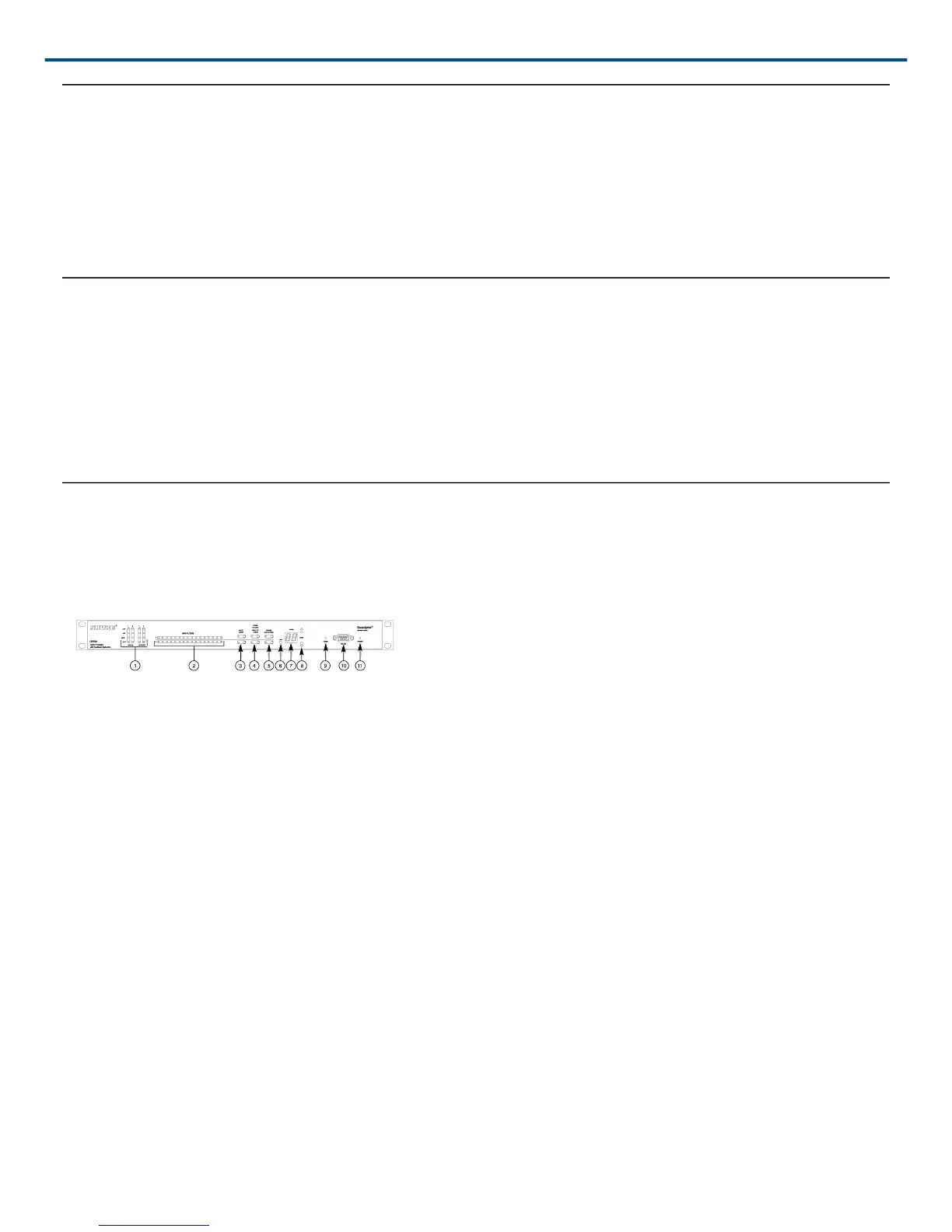
Front Panel
Figure 1: DFR22 FRONT PANEL
1. INPUT/OUTPUT Level Meters:
◦ CLIP. Illuminates at 3 dB below clipping level.
◦ 0 VU. +4 dBu, 10 dBV; software selectable. 0 dB is equal to +4 dBu by default. If the input or output sensi
tivity is changed to -10dBV using the DFR22 software, 0 dB equals -10 dBV.
◦ -20 dB. Illuminates when the signal meets or exceeds the indicated level.
◦ MUTE. Illuminates when input or output is muted.
2. DFR Filter LEDs. Illuminate when individual feedback filters are active. When a filter changes or is added, an
LED flashes, then stays on.
3. AUTO CLEAR Buttons and LEDs. Press and release these buttons to configure Auto Clear mode for each
channel. Press them again to activate Auto Clear. When an Auto Clear LED illuminates, Auto Clear is active on
its corresponding channel.
4. PRESS TO LOCK/HOLD TO CLEAR Button and LEDs. Press this button to lock filters at their current values.
Holding this button down will reset all feedback filters, even if they are locked. The LED lights to indicate that
the lock is active.
5. BYPASS DFR FILTERS Button and LEDs. Press these buttons to suspend feedback reducer operation and
remove feedback filters from the audio path. When a Bypass LED illuminates, feedback reduction is bypassed
on the corresponding channel. Bypass does not affect other processors (such as equalizers, delay, limiters,
etc.).


 To Next Page