Shure Incorporated
9/17
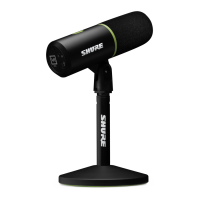
LED modes: Configure and customize multiple LED modes in the MOTIV Mixdesktopapp.Selectbetweenlivemetering,puls
ing, or solid patters and customize the color of the LED panel.
Brightness: LED panel brightness can be set in MOTIV Mix.
Firmware update: While the microphone firmware is updating, the LED panel pulses amber.
Keep the microphone connected while the firmware is updating.
Mounting Instructions
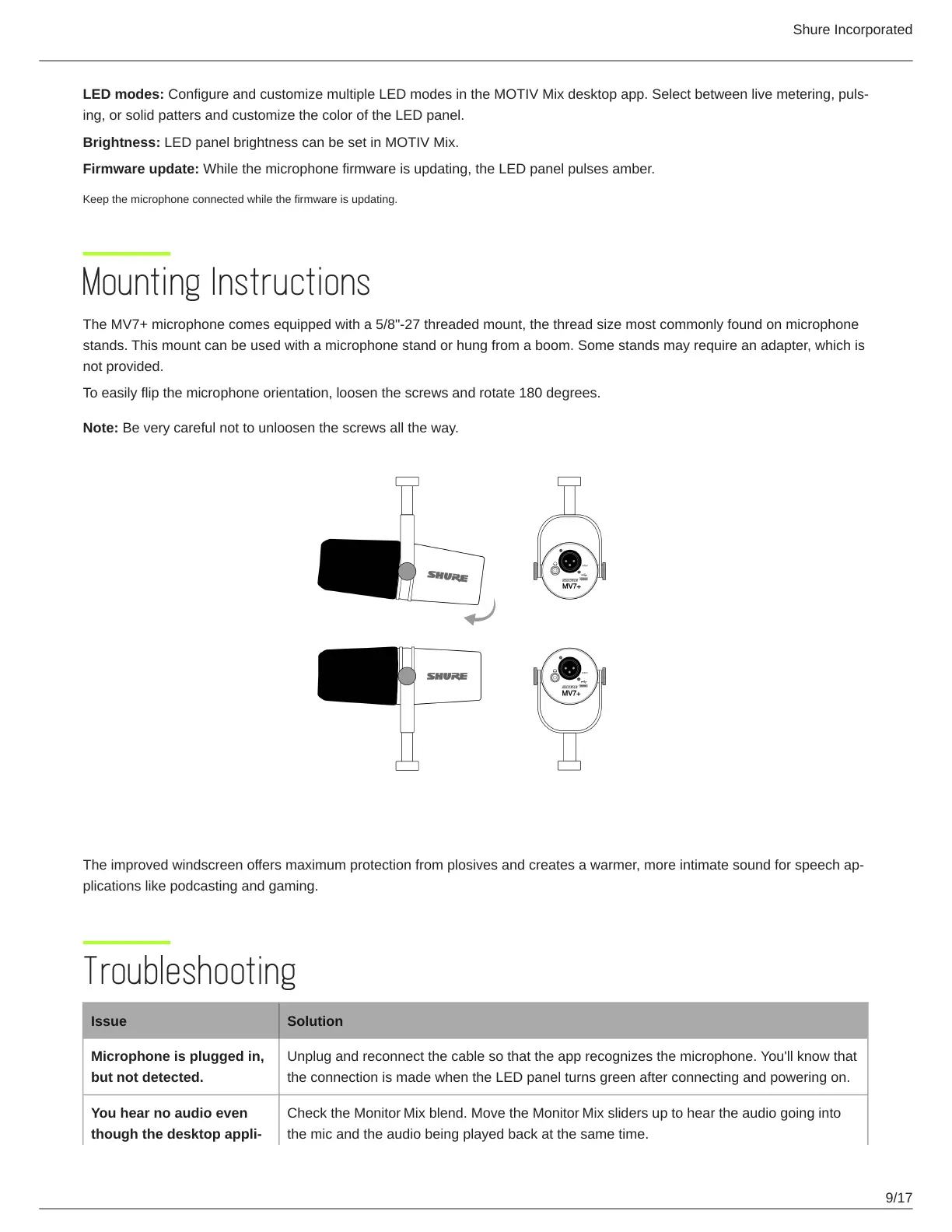
The MV7+ microphone comes equipped with a 5/8"-27 threaded mount, the thread size most commonly found on microphone
stands. This mount can be used with a microphone stand or hung from a boom. Some stands may require an adapter, which is
not provided.
To easily flip the microphone orientation, loosen the screws and rotate 180 degrees.
Note: Be very careful not to unloosen the screws all the way.
Windscreen
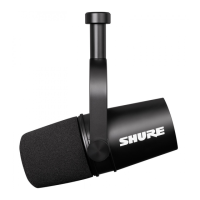
Theimprovedwindscreenoffersmaximumprotectionfromplosivesandcreatesawarmer,moreintimatesoundforspeechap
plications like podcasting and gaming.
Troubleshooting
Issue Solution
Microphone is plugged in,
but not detected.
Unplug and reconnect the cable so that the app recognizes the microphone. You'll know that
the connection is made when the LED panel turns green after connecting and powering on.
You hear no audio even
though the desktop appli
Check the Monitor Mix blend. Move the Monitor Mix sliders up to hear the audio going into
the mic and the audio being played back at the same time.


 To Next Page