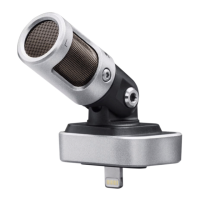
Why is my Shure MV51 Microphone not working with a USB hub?
- KKaitlin EvansJul 27, 2025
The MV51 requires 250 mA per port. Check the USB hub documentation for the current/port specification to ensure it meets the microphone's requirements.
Why is my Shure MV51 Microphone not working with a USB hub?
The MV51 requires 250 mA per port. Check the USB hub documentation for the current/port specification to ensure it meets the microphone's requirements.
Why is the audio too low on my Shure Microphone?
If the audio from your Shure Microphone is too low, check the computer sound control panel settings. When connecting the MV51 to your computer for the first time, make sure to raise the computer volume level.
What to do if the audio is distorted on my Shure MV51 Microphone?
If the audio from your Shure Microphone is distorted, use the audio meter to ensure that volume peaks are within the target range. If the level reaches the red peak indicator on the input meter, reduce the gain.
How to fix unnatural or jittery audio on Shure Microphone?
If the audio from your Shure Microphone sounds unnatural or jittery, make sure that the sample rate and bit depth microphone settings, found in the sound control panel of the computer, are consistent with the sample rate and bit depth selected in your software.
What to do if MV51 Shure Microphone is plugged in but the volume meter does not register a signal?
If the MV51 is plugged in, but the volume meter does not register a signal, edit the privacy setting for the iOS device under SETTINGS>PRIVACY>MICROPHONE to give the recording application permission to use the microphone.
How to fix a Shure Microphone when the display does not illuminate?
If the display of your Shure Microphone does not illuminate, make sure that the MV51 is fully plugged in.
Details on Volume Slider, LED bar, Mute, Mode Selector, and Headphone Volume controls.
Five selectable modes (Speech, Singing, Flat, Acoustic, Loud) optimize settings for different applications.
Toggle limiter on/off to prevent distortion from volume peaks.
Adjust compression (none, light, heavy) for dynamic sound control.
Adjust EQ bands to improve sound clarity, indicated by an EQ icon.
Use Speech mode, speak 2-12 inches away, adjust gain as needed.
Use Acoustic or Singing mode, place 6-12 inches for single source, or 2-10 feet for groups.
Addresses common problems like display, audio quality, and connectivity with solutions.
Details on Volume Slider, LED bar, Mute, Mode Selector, and Headphone Volume controls.
Five selectable modes (Speech, Singing, Flat, Acoustic, Loud) optimize settings for different applications.
Toggle limiter on/off to prevent distortion from volume peaks.
Adjust compression (none, light, heavy) for dynamic sound control.
Adjust EQ bands to improve sound clarity, indicated by an EQ icon.
Use Speech mode, speak 2-12 inches away, adjust gain as needed.
Use Acoustic or Singing mode, place 6-12 inches for single source, or 2-10 feet for groups.
Addresses common problems like display, audio quality, and connectivity with solutions.
| Transducer Type | Condenser |
|---|---|
| Polar Pattern | Cardioid |
| Maximum SPL | 130 dB SPL |
| A/D Converter | 24-bit |
| Sampling Rate | 44.1/48 kHz |
| Adjustable Gain Range | 0 to +36 dB |
| Headphone Output | 3.5 mm |
| Housing | All-metal construction |
| Frequency Response | 20Hz - 20kHz |
| Power Requirements | Powered through USB connector |
| Connector Type | Micro-B USB |
| DSP Modes | Acoustic Instrument |
| Sensitivity | -39 dBFS/Pa at 1 kHz |
| Weight | 574 g (1.27 lbs) |
| Dimensions | 86 x 128 x 70 mm (3.39 x 5.04 x 2.76 in.) |