Shure Incorporated
30/36
Now that your file is uploaded to Dropbox, you can store backup copies of your recordings or share them on social
media.
AirDrop with MOTIV
MOTIV supports the ability to AirDrop WAV files to selected contacts.
1. Open the MOTIV app and go to My Recordings.
2. Tap the Select button to choose one or multiple files.
3. Select Share and then More to see your AirDrop contacts.
Save to iTunes
Use iTunes to easily transfer audio files between your desktop computer and iOS device.
1. Connect your iOS device to a computer and open iTunes.
Note: The most current version of iTunes is recommended.
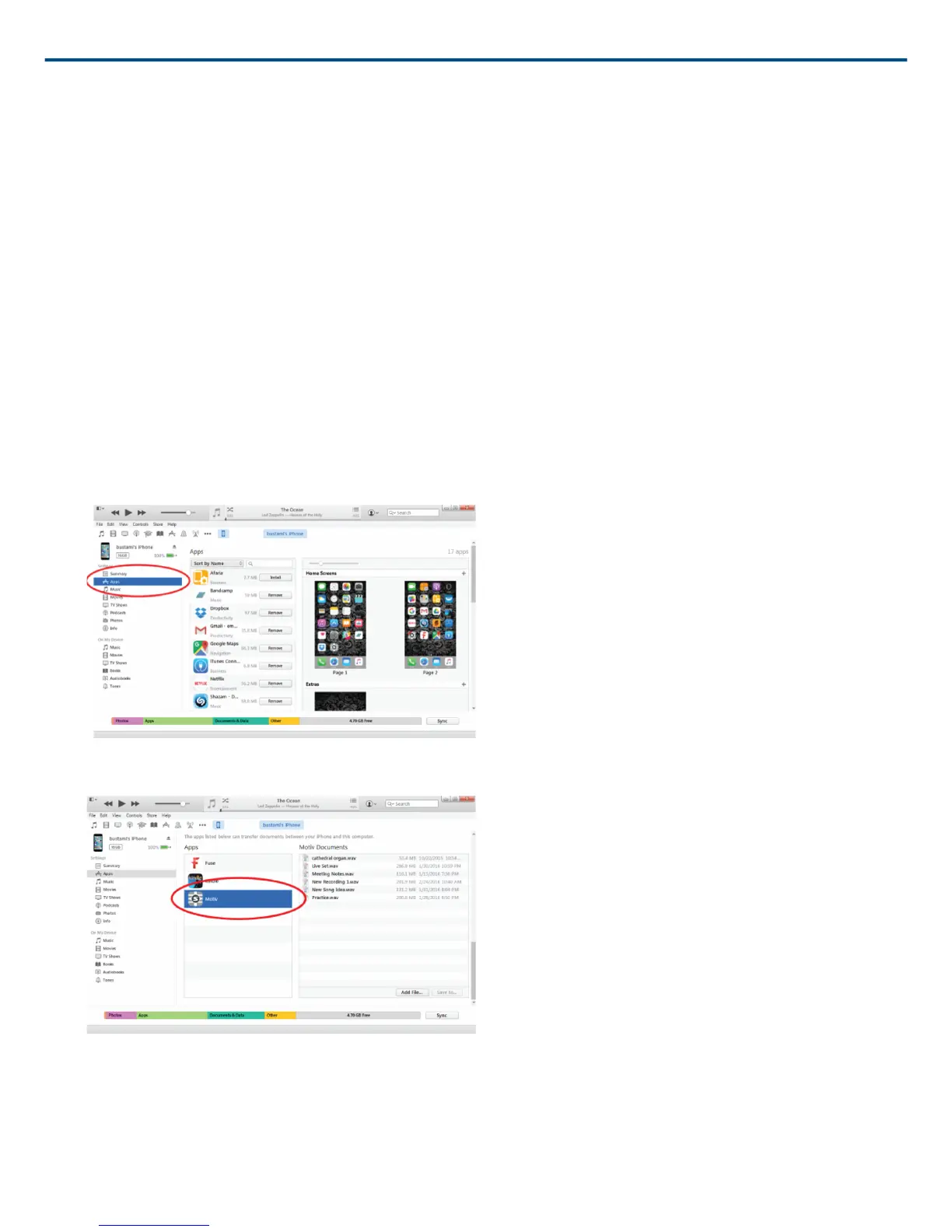
2. Select your device icon and then select "Apps" from the settings column.
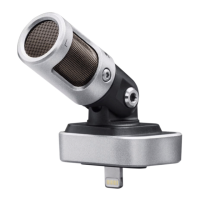
3. Select MOTIV from the file sharing section at the bottom of the screen. You might need to scroll all the way to
the bottom using the far right scroll bar. This will display your MOTIV documents.
4. Highlight the recordings you'd like to save and choose the "Save to" button.
®



 To Next Page