B527
B527 Page 4 840D/828D SINUMERIK Operate
Notes
Section 2
Start-up
2.2 Vertical softkey bar
Display area Description
By pressing the VSK 3 “Change language” you can
adjust the user interface language to the language
of your choice.
By pressing the VSK 6 “Password“ you can switch
to different protection levels of the control by using
different passwords.
Advanced functions can be activated by using a
higher leveled password.
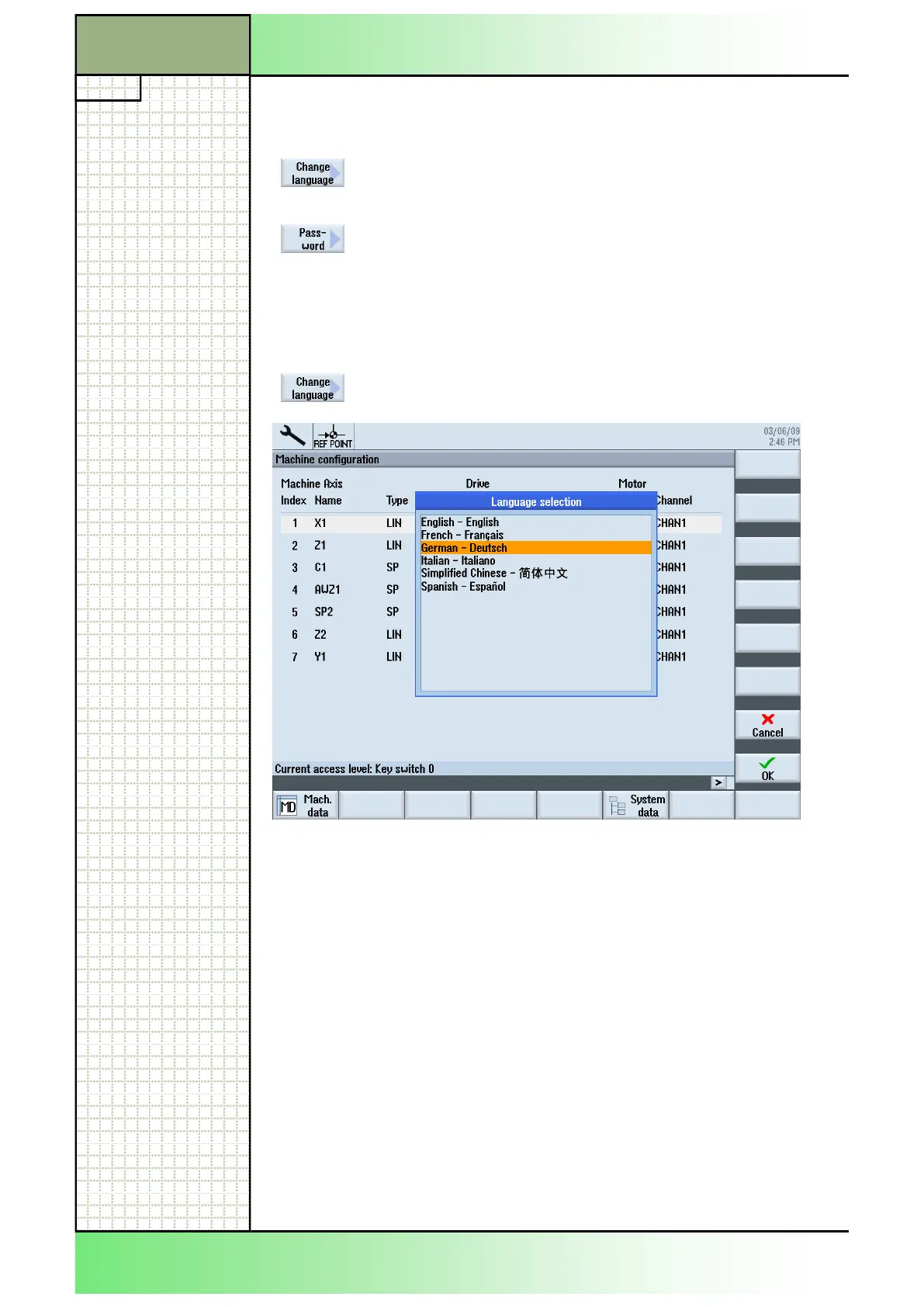
2.4 Changing the user language
1. Press the “MENU SELECT”-key on the operator
panel.
The yellow horizontal softkey bar opens.
2. Press the HSK 6 “Start-up“.
3 Press the VSK 3 “Change language”
The “Language selection” window opens.
4 Move the orange cursor over the language field of
your choice, by using the blue cursor keys.
Accept your selection by pressing the VSK 8 “OK”
or abort with pressing the VSK 7 “Cancel”.
The Sinumerik changes the user interface language
to the language of your choice.
Tip:
You can change the user language of the interface directly at any time by
pressing the “CTRL” and “L” key on the keyboard simultaneously.
2.3 Selecting the function “Change language”
By pressing the VSK 3 “Change language” the
“Language selection”-window opens.





 To Next Page