B605
B605 Page 28 840D/828D SINUMERIK Operate
Notes
6.4 Details
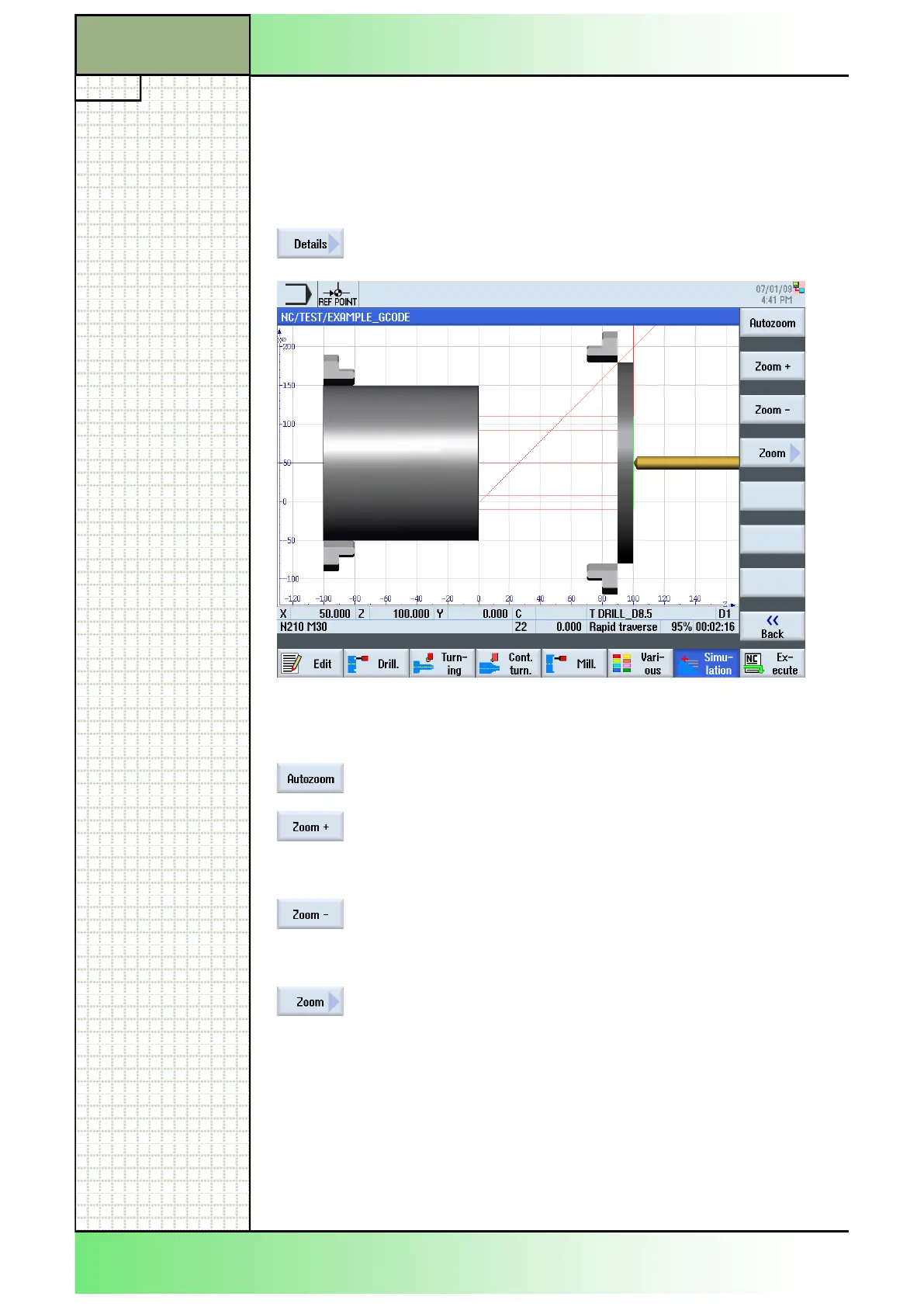
With the function “Details” you can zoom in and out of the workpiece .
6.4.1 Selecting the function “Details”
By pressing the VSK 1.6 “Details“ the following func-
tions are available in a vertical softkey bar.
6.4.2 Vertical softkey bar
Display area Description
By pressing the VSK 1 “Autozoom“ the workpiece
fills out the simulation window in an optimal way.
By pressing the VSK 2 “Zoom +“ you zoom in into
the simulation window.
Alternatively you can press the “+“-key (plus) on the
number block of the keyboard.
By pressing the VSK 3 “Zoom -“ you can zoom out of
the simulation window.
Alternatively you can press the “-“-key (minus) on
the keyboard.
By pressing the VSK 4 “Zoom” a blue frame opens in
the simulation window, that lets you zoom in to the
exent of the frame size.
Press the VSK1 “Zoom +” to increase and the VSK 2
“Zoom -” to decrease the frame size.
Move the frame with the blue cursor keys on the
keyboard.
After adjusting the frame, press the VSK 8 “Accept”
to zoom to the selected extent of the frame or abort
with pressing the VSK 7 “Cancel”.
Section 6
Simulation





 To Next Page