9. Accessing the service menu
Disconnect the pad from the power supply to access the service
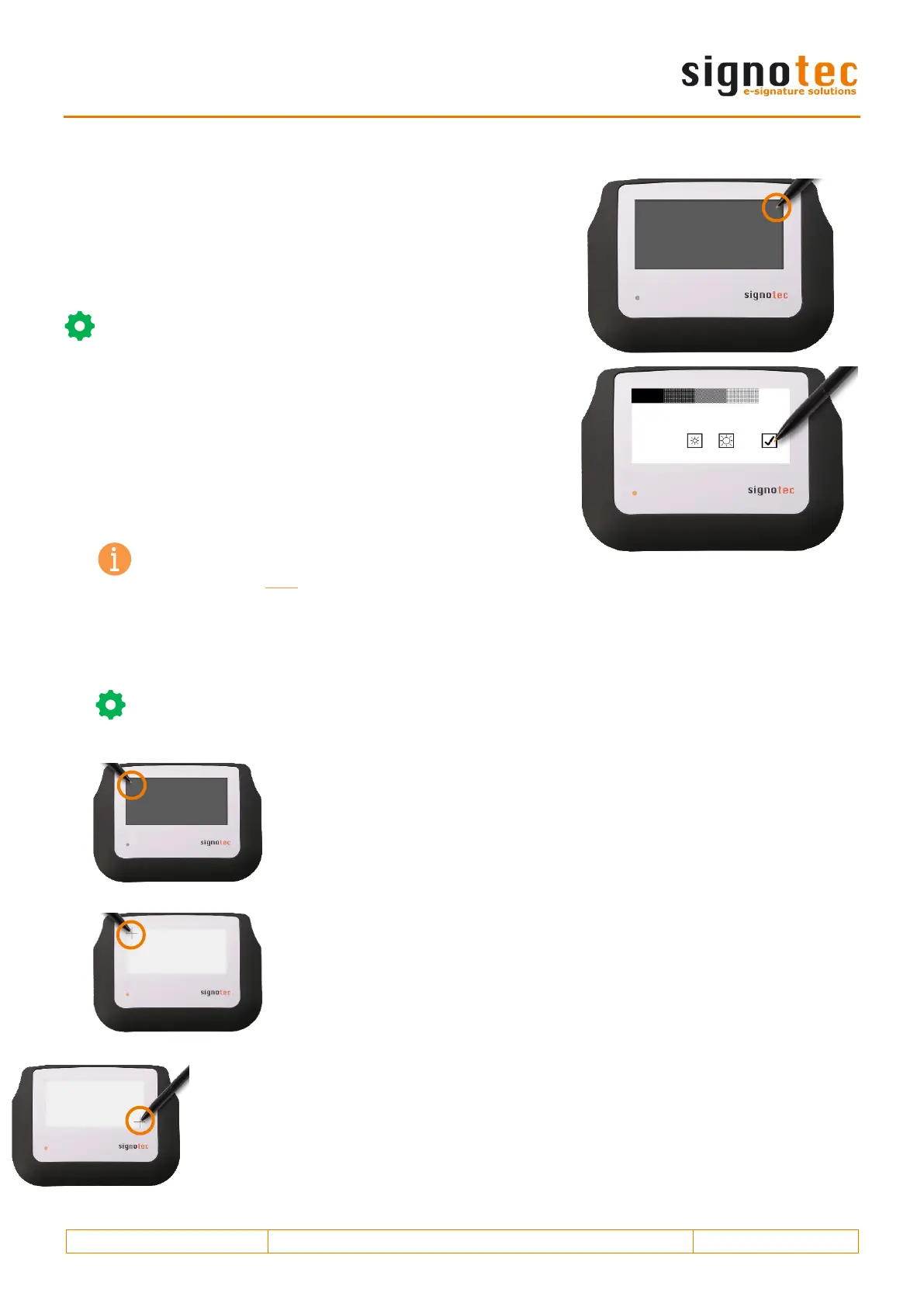
menu of the unit. Touch the upper right corner of the display
with the pen. While holding the pen, reconnect the pad to the
power supply. After rebooting, the LED lights up orange and the
service menu is launched. You can navigate the menu using the
supplied pen.
Tip: As an alternative, you can also access the service
menu with API methods or the signoSign/2 application
software.
9.1. Adjusting the brightness
The brightness of the display is adjusted via the service
menu. Tap the desired setting with the pen. After you have
adjusted the brightness
you can accept the settings by tapping the checkmark. The
pad will then reboot.
Note: The service menu and the option to adjust
the display brightness are only available in signotec
Sigma models with backlight displays (item no. starts with ST-BE105-).
9.2. Recalibrating the sensor
You can recalibrate the sensor if the signature is not situated exactly under the tip of the pen.
Tip: The devices are pre-calibrated by signotec ex-works. It is only necessary to recalibrate
the sensor in extraordinary circumstances or in the event of an error.
Disconnect the pad from the power supply. Touch the upper left corner
of the display with the pen. While holding the pen, reconnect the pad to
the power supply.
As an alternative, you can also recalibrate the device with API methods or
the signoSign/2 application software.
After rebooting, the LED lights up orange. Two intersecting lines (like a
plus sign) will appear on a white background in the upper left corner of
the display.
Use the pen to tap the midpoint of the two intersecting lines.
Afterward, the same symbol appears in the lower right corner. Tap the two inter-
secting lines again.
Recalibration is now successfully completed. The pad reboots.


 To Next Page