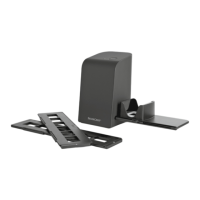
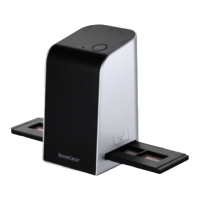
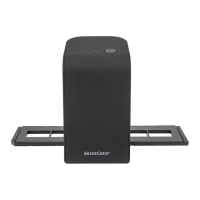
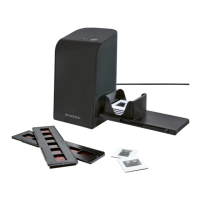
This document describes the SilverCrest Slide and Negative Scanner, model SND 3600 D3, a consumer electronics device designed for the non-commercial scanning and digitizing of film negatives and slides.
Function Description:
The SilverCrest SND 3600 D3 is a dedicated scanner for converting traditional film negatives and slides into digital images. It connects to a computer via a USB 2.0 interface and uses proprietary "ImageScan" software for both Windows (XP/Vista/7/8/10) and Mac OS (10.10 or higher) to manage the scanning process and image adjustments. The device features a single SCAN button for initiating scans and a PWR LED to indicate power status. It utilizes a backlight with three white LEDs as its light source and a 5-megapixel CMOS sensor for image capture. The scanner supports both negative holders and slide magazines, allowing for efficient processing of different film types.
Important Technical Specifications:
- Operating Voltage/Current: 5 V (direct current) / 500 mA (via USB port)
- Interface: USB 2.0
- Operating Temperature: +5 to +40°C
- Humidity (no condensation): ≤ 75%
- Dimensions (W x H x D): approx. 9.4 x 16.9 x 10.4 cm
- Weight (without accessories): approx. 450 g
- Image Sensor: 5 megapixel CMOS sensor
- Focus Range: Fixed focus
- Brightness Control: Automatic
- Colour Adjustment: Automatic
- Resolution:
- Standard: 2592 x 1680 pixels
- Interpolated: 5184 x 3360 pixels
- Scanning Method: Single pass
- Light Source: Backlight (3 white LEDs)
- System Requirements: Windows 10 / 8 / 7 / Vista / XP, Mac OS 10.10 or higher
Usage Features:
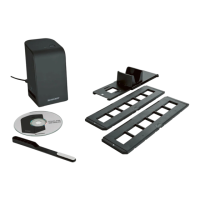
The scanner comes with a slide magazine and two holders for negatives, along with a cleaning brush and a USB cable.
- Connecting to a computer: The scanner connects via a micro-USB port to the computer's USB port. The computer automatically installs the necessary drivers, and the PWR LED illuminates when properly connected.
- Software Installation: The "ImageScan" software is provided on a CD for both Windows and Mac OS. If a CD drive is not available, the software can be downloaded from the manufacturer's website. Users are advised to back up their hard drive before installation due to potential file overwrites.
- Inserting Negatives: To insert negatives, the negative holder (5) is unlocked and opened. The negative strip is placed correctly within the holder, ensuring the holes align with the retaining tabs. The holder is then closed until it clicks. The loaded negative holder is inserted into the slot (4) on the right, with the triangle marking visible at the front, and pushed until it clicks into position. For multiple negatives, the holder is pushed further in for each subsequent negative.
- Inserting Slides: Slides are inserted correctly into the shaft of the slide magazine (6). The magazine can hold approximately 10-12 slides, depending on their size. The slide magazine is then pushed into the slot (4) on the right, with the viewing window and triangle marking visible at the front. A pusher on the side of the slide magazine is used to move slides individually into the scanner. It is important to push the new slide slowly to prevent it from slipping past the viewing range.
- Digitizing Negatives/Slides (Windows/Mac Software):
- The "ImageScan" program is launched from the desktop or start menu.
- Users can select the type of film (negative, slide, or colour/black & white) and the desired output format (JPG or TIFF).
- Resolution can be set to standard (2592 x 1680 pixels) or interpolated (5184 x 3360 pixels).
- The SCAN button (2) initiates the scanning process.
- The software provides options to delete, flip, and rotate scanned images.
- Images can be saved to a selected folder.
- Colour and brightness settings can be adjusted before scanning using sliders for "Brightness" (-64 to 64 for Windows, 0 to 255 for Mac) and "Color Balance" (-6 to 6 for Windows, 0 to 255 for Mac) for RGB values. Default settings can be restored.
- A live view of the inserted negative/slide is displayed in the software.
- After Use: After scanning, the negative holder or slide magazine is removed by pushing it through or pulling it out of the slot. The USB cable is then disconnected from both the computer and the scanner.
Maintenance Features:
- Troubleshooting: The manual provides a troubleshooting guide for common issues such as the PWR LED not lighting up, poor image quality (due to dust), blurred images (due to lens fogging), or the scanner not being recognized by the computer.
- Cleaning:
- The device housing should be cleaned with a soft, damp cloth and a mild detergent, ensuring no moisture penetrates the device.
- The background lighting surface inside the scanner is cleaned using the provided cleaning brush (7). The brush is inserted into the slot (4) on the right with the cleaning surface facing downwards.
- Storage: When not in use, the scanner should be stored in a dry, dust-free environment away from direct sunlight.
- Disposal: The device must not be disposed of with normal household waste. It should be taken to a designated collection point for recycling in accordance with Directive 2012/19/EU. Packaging materials are recyclable and should be disposed of according to local regulations.

 Need help?
 General

 To Next Page