SFX-10 Video Mixer Basic Operations
17
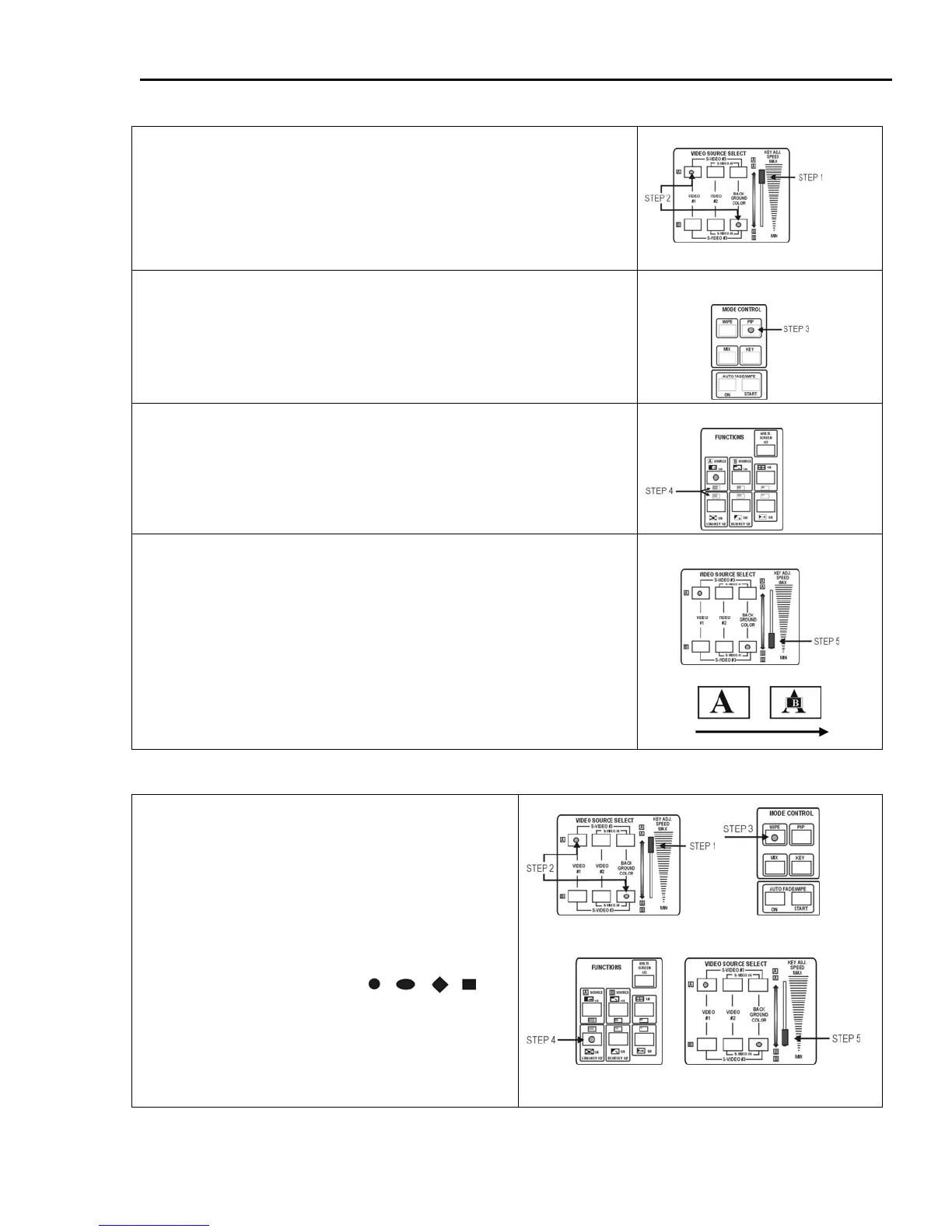
Typical PIP (Picture - In - Picture)
Step 1 Push slide on Video Source Select to the top “A” position.
Step 2 Select video inputs for Source A and Source B by pushing the
appropriate button(s). Note: Source A will always be the main
picture and Source B will always be the inserted picture.
TIP: Remember – If the MODE button is set for WIPE or FADE, you can
view the two source images by moving the slide control between the
“A” and “B” positions.
Source Selection
Step 3 Press the PIP button (green) in the MODE CONTROL panel.
TIP: MODE controls determine the type of transition you want to make
between Source A and Source B. The PIP selection lets you place a
window containing one image into another. The PIP window is
positioned by using the joystick control.
Mode Selection
Step 4 Select a PIP window pattern from the FUNCTIONS control
panel.
TIP: PIP window options are color-coded in green. PIP windows can have
a colored border or no border. There are three sizes of PIP windows
to select.
PIP Selection
Step 5 Move the slide control from “Source A” to “Source B” to make
the transition.
TIP: The PIP window image can appear smoothly and gradually by
controlling the Video Source Select slide or by using the AUTO
FADE/WIPE mode.
PIP
To Try a Typical Center Wipe
Step 1 Push the slide on Video Source Select to the
top “A” position.
Step 2 Select inputs for Video Source A and Source B
by pressing the appropriate buttons.
Step 3 Press the WIPE button in the MODE
CONTROL panel.
Step 4 Press the CENTER WIPE button in the
FUNCTIONS control panel as shown at right.
This is also a four-step button. Each time you
press it, a different center wipe shape is selected.
The available options are:
Use
the joy stick to position the center wipe window.
Step 5 Move the slide control from “Source A” to
“Source B” to enlarge or reduce the size of the
center wipe window.
TIP: Use the AUTO FADE/WIPE mode to re-size the
Center Wipe gradually and smoothly.


 To Next Page