13
BASIC OPERATIONS AND NAVIGATION
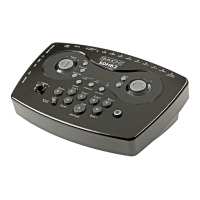
The SD1250 works primarily in the Kit, Song and Utility modes. In Kit
Mode, you select the drum kit you want to play, and edit the kits and
sounds within it.
SELECTING MODES
To select a Mode press the KIT, SONG or UTILITY buttons on the left
side of the module.
SELECTING KITS
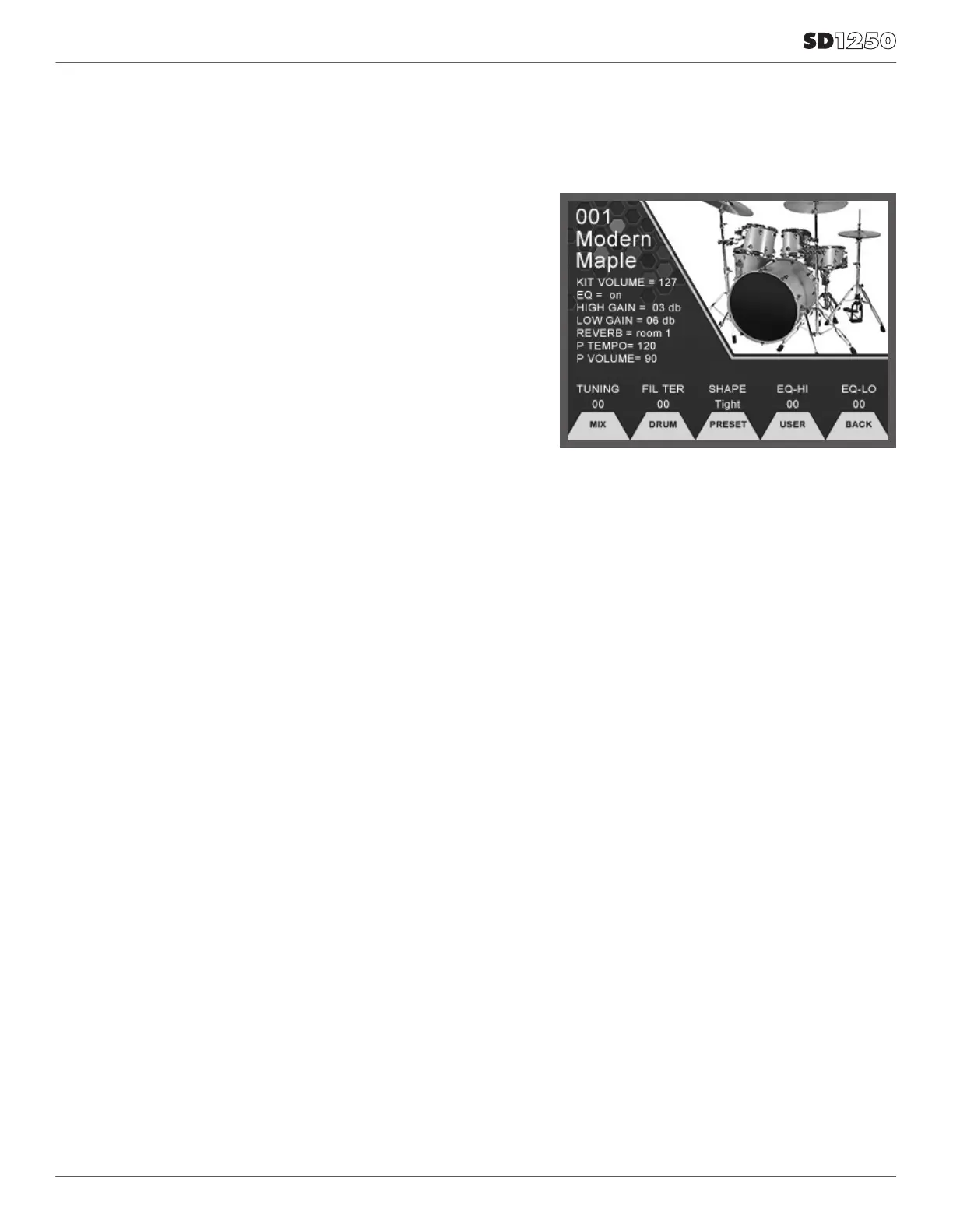
To select Kits make sure you are in the Kit mode by pressing the KIT
button. The LCD screen should display a drum kit.
You can now select a kit by turning the Value knob in the middle of the
module, or you can step through the kits using the –/+buttons that
flank that knob.
ADJUSTING KIT SETTINGS
To change the kit settings shown immediately below the kit name,
press the Cursor down button. The first selection is Kit Volume, which
you can now adjust via the large dial and flanking –/+ buttons. Further
presses of Cursor down or up buttons will select the other settings, or
again select the Kit Name for dial and –/+ control.
JUMPING BACK TO KIT SELECTION
You can quickly jump back to kit selection by pressing the Kit button
anytime, then turn the dial or use the flanking –/+ buttons.
FUNCTION BUTTONS
The Function buttons below the screen allow you to go to other
screens for further editing, or execute other functions related to the
current screen and mode.
ADVANCED OPERATIONS
EDITING A DRUM KIT
All settings in Preset and User Kits can be edited. Edits made or saved
to user kits are always retained, edits to Preset Kits depend on the
setting of “Preset Memory Protect” setting in the Utility menu. When
on, any edits to Preset Kits will be lost when you switch off the power.
When “Preset Memory Protect” is off, your edits are always saved.
KIT REVERB AND EQ SETTINGS
Each kit has its own Reverb and EQ settings. The main settings for the
EQ and Reverb are on the Main screen of Kit mode, shown when you
press the Kit button.
To change the settings use the cursor buttons to move to the setting
you want to change, then use the large dial or the - /+ buttons to
make your adjustment.
P TEMPO AND P VOLUME
This sets the tempo and level settings for any Pattern Play patterns
assigned to the kit.
CHANGING KIT MIX SETTINGS
Each kit has its own Mix settings. On the main Kit screen (shown when
you press the Kit button), the F1 function button is labeled MIX. Press
F1 to see the current volume settings, and press the other function
buttons for access to pan, effects and pattern settings as well.
Please Note: When viewing and changing mix
settings, the kit may be slow to trigger sounds
as you hit drums and cymbals. You can quickly
restore normal responsiveness by pressing F5,
labeled BACK, to return to the main Kit screen.


 To Next Page