17
ADVANCED OPERATIONS
WHAT IS A DRUM?
In the context of the SD1250, a ‘drum’ is made up of a number of
sounds. For example, the ride cymbal has three sounds, one each for
the bell, bow and edge areas of the cymbal. A tom has two sounds,
one when you hit the head and another when you hit the rim. The
hi-hat has four sounds: open, half-open, closed and foot (or pedal).
It’s important to understand that these sounds are saved separately.
So for the ride cymbal, if you change all three sounds, you will have
to save them as three named sounds, e.g., john’s bell 2, john’s bow 2,
john’s edge 2. These sounds can then be used in other kits.
WHAT IS A SOUND?
A sound is a number of samples and a set of parameters that control
the pitch, filtering, decay, and dynamic variance of those samples.
Generally, there are multiple samples, switched by velocity plus ‘round
robin’ samples, which reduces ‘machine gunning’ effects. (A sound is
also sometimes referred to as a ‘voice’.)
SAVING YOUR DRUM SETTINGS
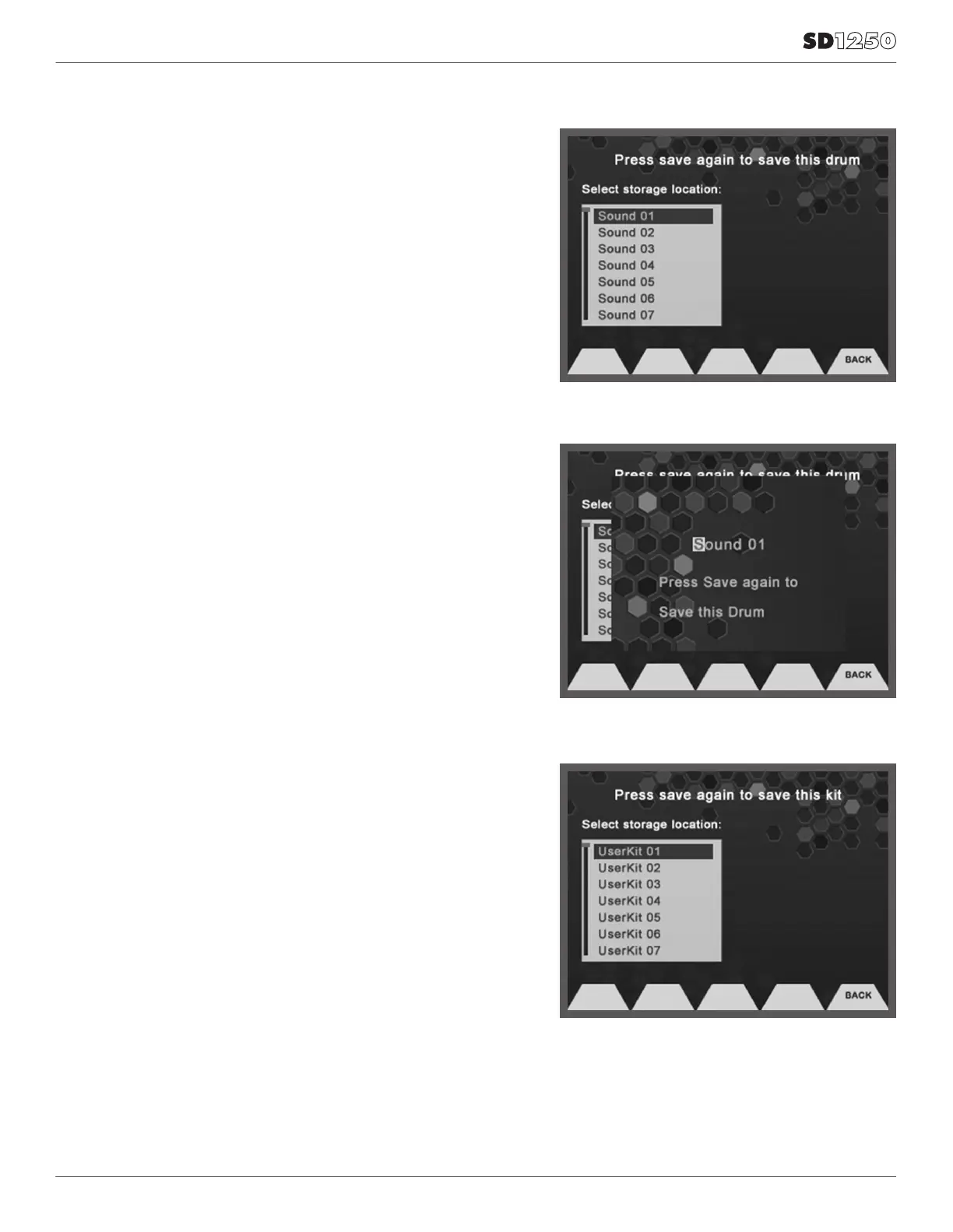
After making your changes you can save them by pressing the Save/
Enter button. The screen will show Available User locations.
1. Select the location with the +/– buttons and then press the
Save/Enter button.
2. You come to a screen where you can name your sound.
3. Use the Value dial to change the character and move to the next
character with the cursor buttons.
4. After you complete changing the characters you then should press
the Save/Enter button. You will come back to the drum sound
screen with the updated name.
SAVING PRESET KITS
The Preset Kits can be edited and retained if you turn off the Preset
Memory Protect function in the Utility mode (see page 25). These
changes will be retained until you reset the module to factory settings.
SAVING YOUR KIT
1. From the main Kit page press the Save/Enter button.
2. You will see a screen where you can name your kit.
3. Use the Value dial to change the character and move to the next
character with the cursor buttons.
4. Press the Save/Enter button.
5. You will come back to the Kit screen showing the User Kit you
just saved.
6. You can go to the User kit by pressing the Function button (F3
User) and highlighting the kit you want to overwrite and then press
the Save/Enter button to select it. (We recommend that when
programming your own kits and sound, you copy one of the preset
kits to the user kit area, then rename it. Then you can simply edit
the mix, effects, drums, sounds and program settings for all the
sounds contained in that kit and they will be automatically stored.)
Note: When saving Kits, any edits you make to the User drums will
also be saved. This may overwrite any User drums that are used in
the Kit.


 To Next Page