BlueConnect
1. Introduction
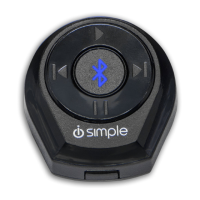
Thank you for purchasing the iSimple BlueConnect as your smartphone connection
solution. BlueConnect uses a Bluetooth connection to provide increased safety and
entertainment. Answer incoming calls or launch Siri or Google Assistant to access
your smartphone’s functions at the press of a button, without handling your phone.
Enjoy your favorite music without the hassle of wires cluttering up your vehicle.
BlueConnect streams your music to your car’s sound system wirelessly and provides
easy playback control; including play and next track.
2. Phone Setup
Bluetooth Pairing
1. To enter discoverable mode and pair a new phone, with no other phones
connected, press and hold the control button for 2 seconds. The LED on the
button should start flashing fast once the modulehas entered discoverable
mode and will time out after 60 seconds.
2. Access your smartphone’s Bluetooth menu and search / scan for devices.
3. Select BlueConnect.
Please note: The BlueConnect remembers the last 8 phones that were paired with it
and sorts them in priority from most frequently used to least. When a 9th phone is
paired, the least used phone will be bumped / removed.
II. Smartphone Application
BlueConnect has a smartphone application designed to provide access to additional
settings and features. Download the App for free for your iPhone from the Apple App
Store, or for your Android smartphone using Google Play.
The BlueConnect app will enable you to change the frequency used by the module to
play back your streaming audio and phone calls through your vehicle. Additionally the
App allows you to clear the list of paired devices from memory. This is useful at the
point of installation.
3. User Operation
The BlueConnect will automatically reconnect with your paired phone when entering
the vehicle. This ensures that your hands-free calls will be routed through the FM
radio in your vehicle.
In order to stream your music through the vehicle you must first engage the
BlueConnect for music streaming. To do this, simply press and hold the control button
for more than 4 seconds. A series of beeps will play through the FM frequency. Now
begin playback on your smartphone by tapping the control button if a music app is
already running, otherwise, launch your music app and press play on the app and the
audio will play through the vehicle.
If you would like to listen to the regular FM station, simply disengage the BlueConnect
by pressing and holding the control button for more than 4 seconds. Note, when
“disengaged” the BlueConnect is still connected to your Bluetooth device for hands
free calling.
Page 3
BlueConnect



 To Next Page