Sinterit LISA X User Manual | 6
2.2 Choosing the le to print
IMPORTANT!
In order to print, you will need a le prepared in Sinterit Studio, which you can download from our
website www.sinterit.com/software.
1. Select
PRINTING from the main menu and press ADD NEW PRINT JOB.
2. Choose the new le (USB) or recently used le (RECENT).
3. The following screen displays some basic information about the processed le (PRINT JOB) as well as the current
status of the printer (PRINTER STATUS). Press
next to the component timer for more information. If at this point
you want to choose another le to print, press CHANGE PRINT JOB. Press DONE.
IMPORTANT!
If any part of the printer requires maintenance or replacement, a corresponding message will
appear on the screen.
2.3 Filling the printer with powder
1. Press UNLOCK LID to release the electrolock and allow the print chamber to be opened.
IMPORTANT!
After 10 seconds the electrolock will activate and it will no longer be possible to lift the lid. If you
still want to open the printer, press the UNLOCK LID button again on the printer screen.
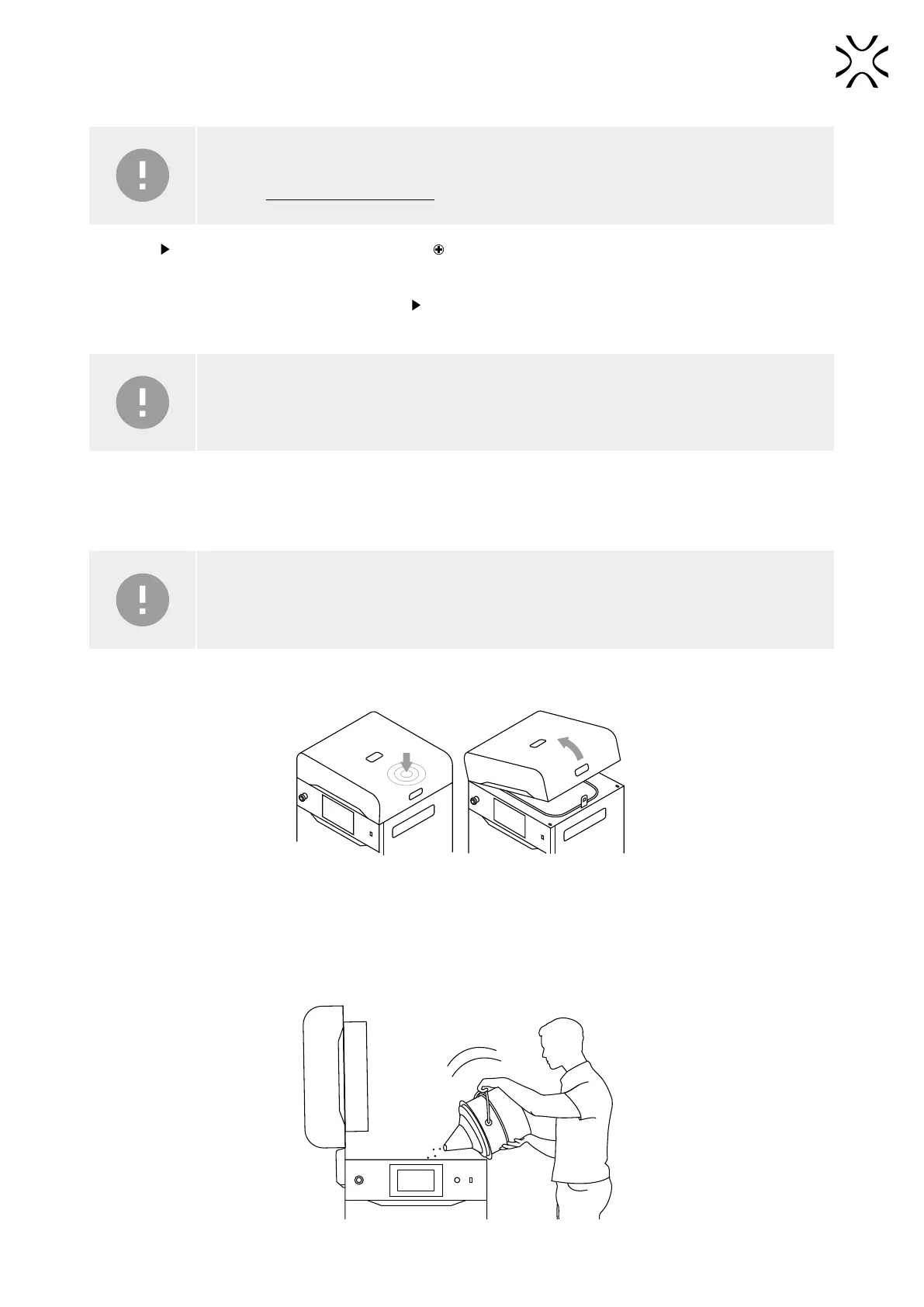
2. Push on the lid and pull it up using the lid handle (g. 2.3).
Fig. 2.3 Lifting the printer lid.
3. Make sure the print chamber is free of any unwanted items that may interfere with moving recoater.
4. Press POSITION BEDS to begin the positioning process of the Beds.
5. Once the positioning process is nished, ll the Feed Bed up with the desired powder. You may use the powder
funnel provided in the Dedicated Powder Tools. Press DONE.
Fig. 2.4 Filling the print chamber with powder using a funnel.


 To Next Page