7
PART II: USING THE AZ-Go2 MOUNT
2.1 Control with a SynScan Hand Control
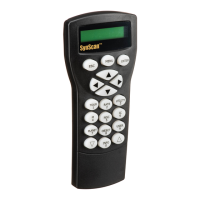
Plug in the SynScan hand control into the hand control port in order to control the telescope
and mount for astronomical observation. Please refer to the SynScan hand control manual
for operation instructions.
Users can download the free “SynScan”App from the App Store( for iOS devices) or Google
Play (for Android Devices) for astronormical observation. Skywatcher will also provide apps
for photography. Please check the stores for availability.
2.2 Control with an Mobile Device
• User must connect to the mount’s Wi-Fi within 15 minutes after turning on power. The Wi-Fi
will be turned off automatically if no connection is estabilished within 15 minutes, .
• By default, the SSID of the built-in Wi-Fi is “SynScan_xxxx” and there is no password. User
can download Skywatcher’s “SynScan” app from App Store or Google Play to congure
the mount’s built-in Wi-Fi.
• Reset Wi-Fi conguration to factory default by turning on the power without the SynScan
hand control connected and no App operations via the Wi-Fi connection for 4 hours.
2.3 Wi-Fi Connection
2.4 Firmware Update
When a new rmware for the control board inside the mount is available, Skywatcher will re-
lease it on www.skywatcher.com. Users can visit this website to download the rmware and
the necessary application to upate the rmware.



 To Next Page