10 USING Sky±HD
GETTING STARTED
Getting started
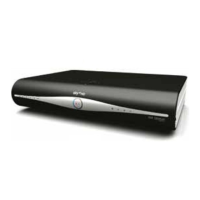
Turning your Sky±HD box on, to standby and off
Press the Sky button on your Sky±HD remote control to turn the box on, and wait for
a few moments for it to start up.
To turn your Sky±HD box to standby, press the standby button on your remote
control.
To turn your Sky±HD box to off, press and hold the standby button for 5 seconds on
your remote control. The standby light on the front panel is red when your Sky±HD
box is plugged into the mains but turned off. The light is green when your Sky±HD
box is on. The light is amber when your Sky±HD box is in standby.
To save power and money, please put your Sky±HD box into standby mode
when you’re not using it.
See Saving energy with Auto Standby (page 79) to read about your
Sky±HD box’s automatic energy saving mode.
Your Sky±HD box must be on or in standby to be able to record programmes, see
Recording with Sky± (page 31) to read about recording programmes.
Your Sky±HD box must be on or in standby for Sky Anytime programmes to be
added, see Enjoying Sky Anytime (page 47) to read about Sky Anytime.
Red = Off
Amber = Standby
Green = On
Use the vol + / - button or mute
for volume control
Sky turns the box on
Standby turns the box to
standby or off



 To Next Page
 Loading...