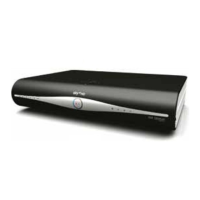
70 USING Sky±HD
TAKING CONTROL
MORE OPTIONS
Changing the picture settings
When your Sky±HD box was installed, your engineer should have set the picture
settings at the right level to suit your equipment, so we recommend you don’t adjust
them here unless you find it absolutely necessary.
Sky’s HD service uses two HD picture formats. The first, 1080i, brings the number
of rows in the frame up to 1080 - that’s over 500 more than a standard PAL image.
The other, 720p, shows 720 rows in each frame and refreshes the screen at twice the
rate of 1080i.
In rare cases, your TV may be able to display only one of these formats. Check your
TV’s settings if you find the picture isn’t as sharp as it should be. Otherwise, you can
change your HD picture settings to find the ideal resolution output.
You can change the resolution setting as follows:
1 Press services, scroll right and select Settings then select the Picture tab.
2 Highlight HD Resolution Output and use the left/right arrow to choose from
Automatic (this is the default and recommended setting), 576 (which is for
programmes other than HD only), 720p and 1080i.
3 Follow the instructions on screen to confirm the changes.
If your TV doesn’t display anything after you confirm the changes, the new setting
is incompatible with the TV. Restart your Sky±HD box as follows to go back to the
previous setting: Switch the box to standby then wait at least 60 seconds before
unplugging it from the mains supply. After another 30 seconds, plug the box back in
to the mains. Wait another 60 seconds before turning the box back on again.



 To Next Page
 Loading...