Need help?
Do you have a question about the SkyZone SKY04O and is the answer not in the manual?
Configure receiver band, channel, and operating mode for optimal signal reception.
Adjust audio volume levels for earbuds, independent of AV OUT.
Activate a buzzer that signals proximity based on RSSI strength.
Explore RF modes, AVIN, HDMI IN, and Playback options.
Configure and initialize the head tracking gyro for immersive control.
Adjust image parameters and configure DVR recording functions.
Customize OSD, RSSI display, luminance, and sleep mode.
Configure power, voltage, language, fan, factory reset, and firmware.
Update goggle firmware via USB connection to a computer.
Update DVR and receiver modules using an SD card or USB.
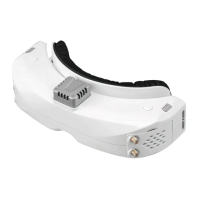
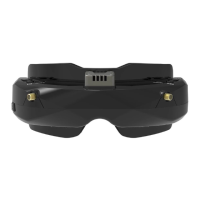
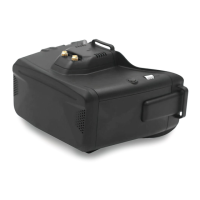
The SKY04O PRO/04X PRO FPV Goggle is a sophisticated and feature-rich device designed to provide an immersive and high-quality first-person view experience for drone pilots. As the first Skyzone goggle with focus adjustment, it aims to deliver vivid colors, high contrast ratios, and exceptional detail, enhancing the racing experience for users. The device incorporates a Steadyview receiver, which merges two signals into one, effectively eliminating image tearing and rolling, thereby ensuring a more stable and clearer image even in challenging flight conditions. This advanced optical design, coupled with a wide field of view, contributes to a more immersive FPV experience.
The goggle features a new operating system that supports 10 languages, making it accessible to a broader user base. The intuitive menu system, combined with a shuttle wheel and a new user interface, allows pilots to adjust all settings without needing to remove the goggle, streamlining the in-flight experience.
To begin, users need to install the antenna and faceplate. Power is supplied by connecting a 2-6 cell LiPo battery using the provided power cables, and the device is turned on by holding the power button. Focus adjustment is achieved by moving the focus adjustment wheel; users should close one eye to adjust the focus, using the OSD menu as a template for clarity, then repeat the process for the other eye. IPD (Interpupillary Distance) adjustment involves moving the IPD slider until a single, clear image is achieved without double vision.
The right wheel is central to RF settings. A short press allows users to change channels by rolling the wheel. Pressing the wheel again switches to Band setting mode, where rolling the wheel changes the band. Another press allows selection between Diversity or Mix mode. If there's no wheel operation for 3 seconds, the RF setting mode automatically exits. To initiate an auto-search, users can hold the right wheel. Once the search is complete, the receiver will lock onto the strongest signal. The right wheel can then be rolled to manually select channels, and holding it again exits the search function. It's important to note that auto-search may not always be perfectly accurate, and manual channel selection might be necessary.
The goggle offers several receiver modes to optimize video quality:
In all preview modes, the left wheel can be rolled to adjust the volume. This setting is only effective for earbuds and does not affect AV OUT volume. The system does not save volume settings, to prevent excessively high volume in AVIN or RF modes upon startup.
To use the drone finder function, a patch antenna should be installed on the RX. Long-pressing the left wheel enables this feature (long-pressing again disables it). The buzzer frequency will synchronize with the RSSI, meaning a stronger RSSI will result in a more rapid buzzer sound, helping to locate a lost drone.
A short press of the left wheel brings up the mode menu.
In playback mode, rolling the right wheel selects DVR files. A short press plays or pauses the selected file. The left wheel adjusts volume. While playing, rolling the right wheel allows for fast-forwarding or fast-backwarding. Pressing the right button exits DVR playback, and pressing the left button deletes the current DVR file.
The head tracking button is located on the right side of the goggles. The gyro requires an initialization period; upon power-on, the goggles must be kept horizontal and stable until a "beep" sound indicates initialization is complete. Holding the HT button resets the PPM signal to the center, accompanied by a beep. Disabling the Headtracker can reduce goggle boot time by saving gyro initialization time.
The image setting menu offers "standard," "bright," "vivid," "soft," and three customizable profiles. Users can adjust brightness, contrast, saturation, hue, and sharpness to suit different environments. The four pre-set files do not allow image setting changes.
The left button serves as both the record and stop button. The built-in DVR uses H264 encoding and supports SD cards up to 128GB (Class10 recommended). SD cards must be formatted to FAT32, which can be done via the system menu. Video recording works in both RF Mode and AV IN Mode. By default, sound recording is enabled, but it can be turned off in the system menu to record only video signals.
The display setting menu allows customization of the top bar OSD (On-Screen Display) time, with options to disable OSD timeout or keep it always on. Users can configure the RSSI icon (Icon + percentage, Icon only, Percentage only, or Disable) and adjust its vertical position. The luminance of the LCOS screen can be adjusted in 8 stages (default is 5), though it's generally not recommended to set brightness too high unless the image is dim.
The goggles have different hardware versions due to global chip shortages. Before flashing firmware, users must check their hardware version in the system menu.
Users are explicitly warned not to expose the goggle lenses directly to sunlight, as this will cause the screen to burn in.
The content of this manual is subject to change, and users are advised to download the latest version from www.skyzonefpv.com for the most up-to-date information.
 General
| Display Type | OLED |
|---|---|
| Field of View | 42 degrees |
| Aspect Ratio | 16:9 |
| DVR | Yes |
| Head Tracker | Yes |
| Refresh Rate | 60Hz |
| Lens Type | Aspherical |
| Battery Life | 2 hours |
| Receiver | Built-in 5.8G receiver |
| Connectivity | HDMI, AV |


 To Next Page