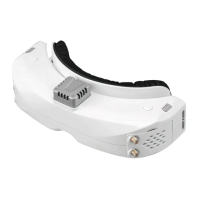
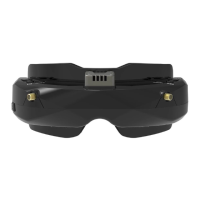
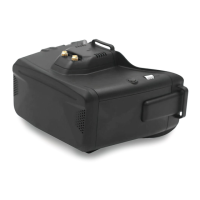
PLAYBACK
· In playback mode, roll right wheel to choose the DVR, short press right wheel to play and pause .
·Left wheel to adjust the volume.
· When playing the DVR, roll the right wheel to fast forward or fast backward.
· .Press the Right button to quit DVR
· Press the Left button to delete DVR.
Setting
Head Tracking
·The head tracking button is on the right side of the goggles.
·The gyro required for an initialization time. When it is powered on, goggles must be kept horizontal
and stable as long as possible. When hearing the sound of a "beep", the initialization is done.
·Hold HT button to reset the PPM signal to the center, goggles will beep when press the button.
Disable the Headtracker can save the gyro initialization time to speed up goggles boot time.
Image
In image setting menu, customer have standard, bright, vivid, soft and 3 customized files to select.
Customer can adjust Brightness, Contrast, Saturation, Hue and Sharpness to suit different environment .
in 3 user 1/2/3, the image setting can not change in 4 pre-set files.
DVR
·Left button is record button and stop button.
·Build in DVR H264 encoding, SD card recommend Class10, SD card can support up to 128GB.
·SD card must be formatted into FAT32 , user can get into system menu to select the Format SD .
·The video recording function can be used in both the RF Mode and the AV IN Mode.
·By default, when recording the video (including: Recording the sound), the "sound recording" function
can be turned off in the system menu, then the video signal can be recorded only.
·Automatic recording: enable this function , if the video signal has been detected, the recording will be
activated automatically. The recording function can also manually be stopped by press the REC button.
MODE MENU
·Short press the left wheel to pop up mode menu.
·RF normal: this mode is normal 48 CH receive mode.
·RF Racing: this mode will make receiver only work on RaceBand.
·RF Third-Party: in this mode, the goggles button cant control the external receiver, also the OSD of
band/channelthe goggles cant read the of the receiver.
·AVIN: When enable the AV IN mode . The NTSC and PAL system format can be supported to be
automatically switched. The receiver module will be automatically turned off to save the power.
·HDMI IN:the receiver module and the video recording module will be automatically turned off to save
the power.
·Playback: in this mode, customer can review the DVR files.
5



 To Next Page
 Loading...