© 2008 SMART Technologies ULC. All rights reserved. SMART Board, Notebook and the SMART logo are trademarks of SMART Technologies ULC. All
other third-party product and company names may be tradmarks of their respective owners. Printed in Canada 03/2008.
Searching for Gallery Content
There are two ways to find Gallery content. You can browse through the
Gallery collections and select a folder, or you can enter a keyword into
the search field, as you would when using an Internet search engine.
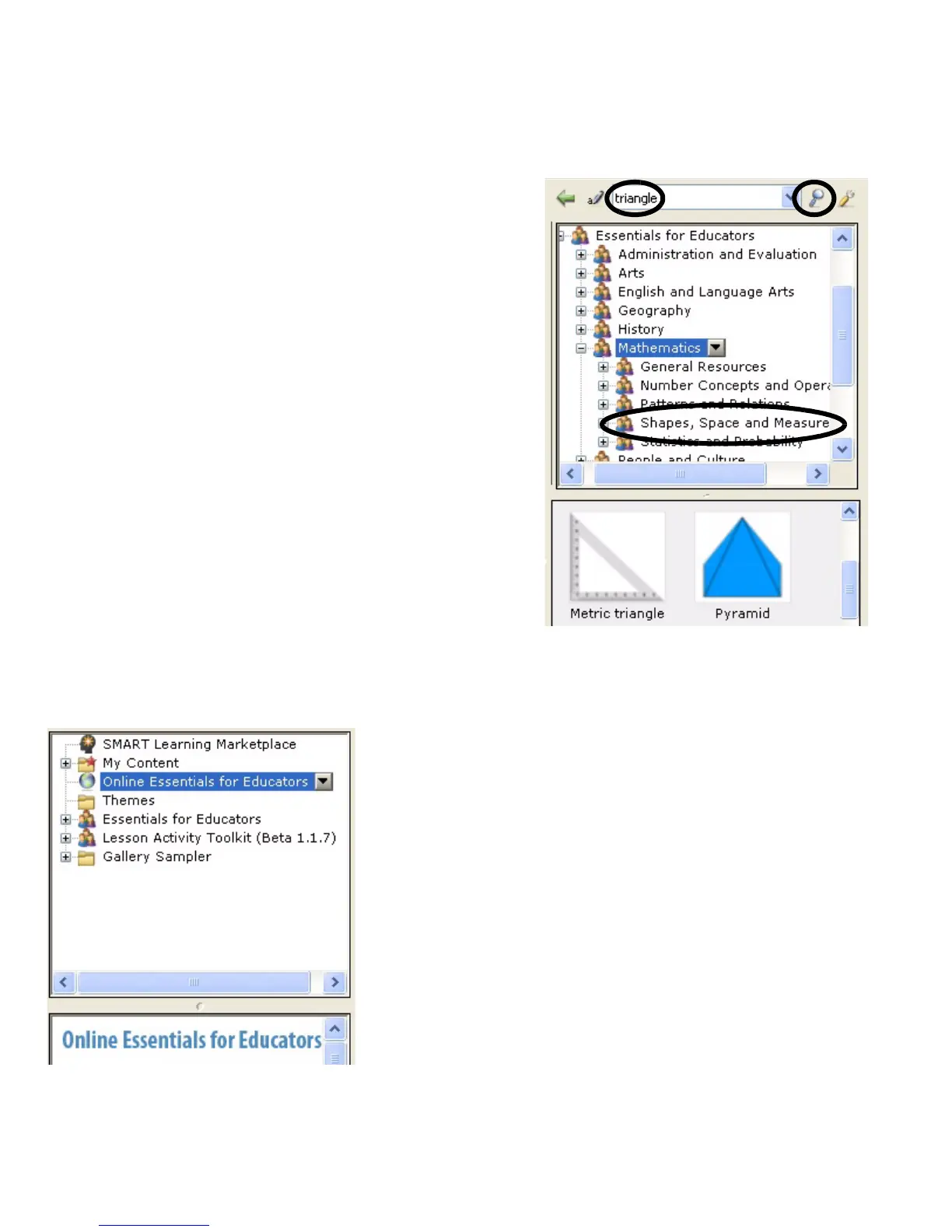
If you were building a mathematics lesson activity about shapes, for
example, you may decide to browse by topic for all Gallery items relating
to Shapes, Space and Measure. However, if you were looking for a
specific shape in the middle of class, you may want to type the keyword
triangle into the search field to save time.
To look for Gallery items using the search field
1 Press once inside the search field
2 Type a keyword related to the type of object(s) you are looking for
3 Press the Search button to display your results
TIP: Press the icon to the left of the search field to use the On-Screen
Keyboard to type your keyword.
Using Online Resources
Select Online Resources to access a list of Internet links to lesson activities, curriculum standards, classroom resources
or additional Gallery content. Instead of interrupting the flow of your presentation by leaving Notebook software, you can
seamlessly launch a Web page with supporting content at the same time you deliver your material.
NOTE: You will require an active Internet connection and a Web browser to
use Online Resources.


 To Next Page