are choosing how your text will appear in Notebook software. For example, Times New Roman, Comic Sans
and Arial all look very different.
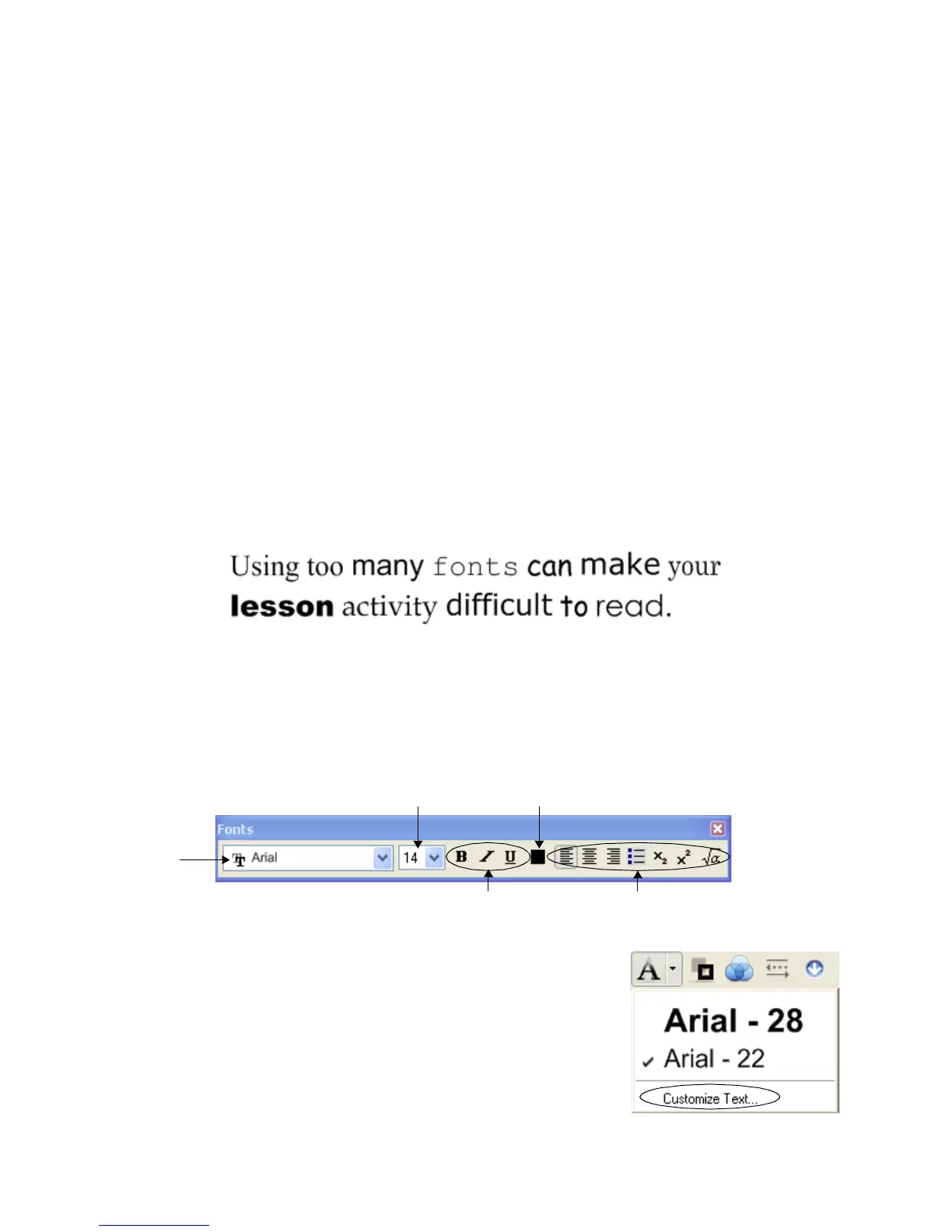
If possible, try using only one font throughout your lesson activity. Too many fonts can be distracting to the
eye and draw attention away from important points.
Consider the size and color of text you will be using throughout your lesson activity. Good choices will make
it easier for all your students to read the text on your Notebook page. Once you have decided what your text
will look like, make sure you keep it consistent to give your lesson a nice flow from one page to another.
General guidelines for choosing fonts for your Notebook software lesson activity include the following:
• Titles should be at least 28 point and a bold type face
• Text used for sentences and paragraphs should be the same font as the header, 22 point and in
a regular type face
• Make sure the font color you choose is easy to read and see against the background color you
have chosen
NOTE: The content of your Notebook software lesson activity is more important than the overall color
scheme. It’s OK to use black text on a white background if you would rather not spend time choosing colors.
Working with fonts in Notebook software
One way to set your font is to select your text and use the functions available from the Fonts toolbar. The
Fonts toolbar appears whenever you are typing on the Notebook page or after you double press a text
object.
If you know you will be using the same font over and over, you may want to
set up a permanent font style under the Text button. To do this, press the
arrow beside the Text button on the Notebook software toolbar and select
Customize Text. The Customize Text dialog box will allow you to tailor the
fonts available from the text button drop-down menu to the styles you will use
most often.
Times New Roman Comic Sans Arial
F F F
Font type
Font size
Bold, italic,
underline
Font color
Alignment, lists, subscript,
superscript and special characters



 To Next Page