Adding interactivity
One of the benefits of Notebook software is the ability to modify objects on the page. This section will focus
on some of the different ways you can engage your students by designing interactive lesson plans.
Reveal
One of the quickest ways to add interactivity to a lesson activity is to hide the answer to a question behind
an object on the Notebook page. The following information will provide three different methods that you can
use to create reveal activities that can easily be integrated into any curriculum.
Move and reveal
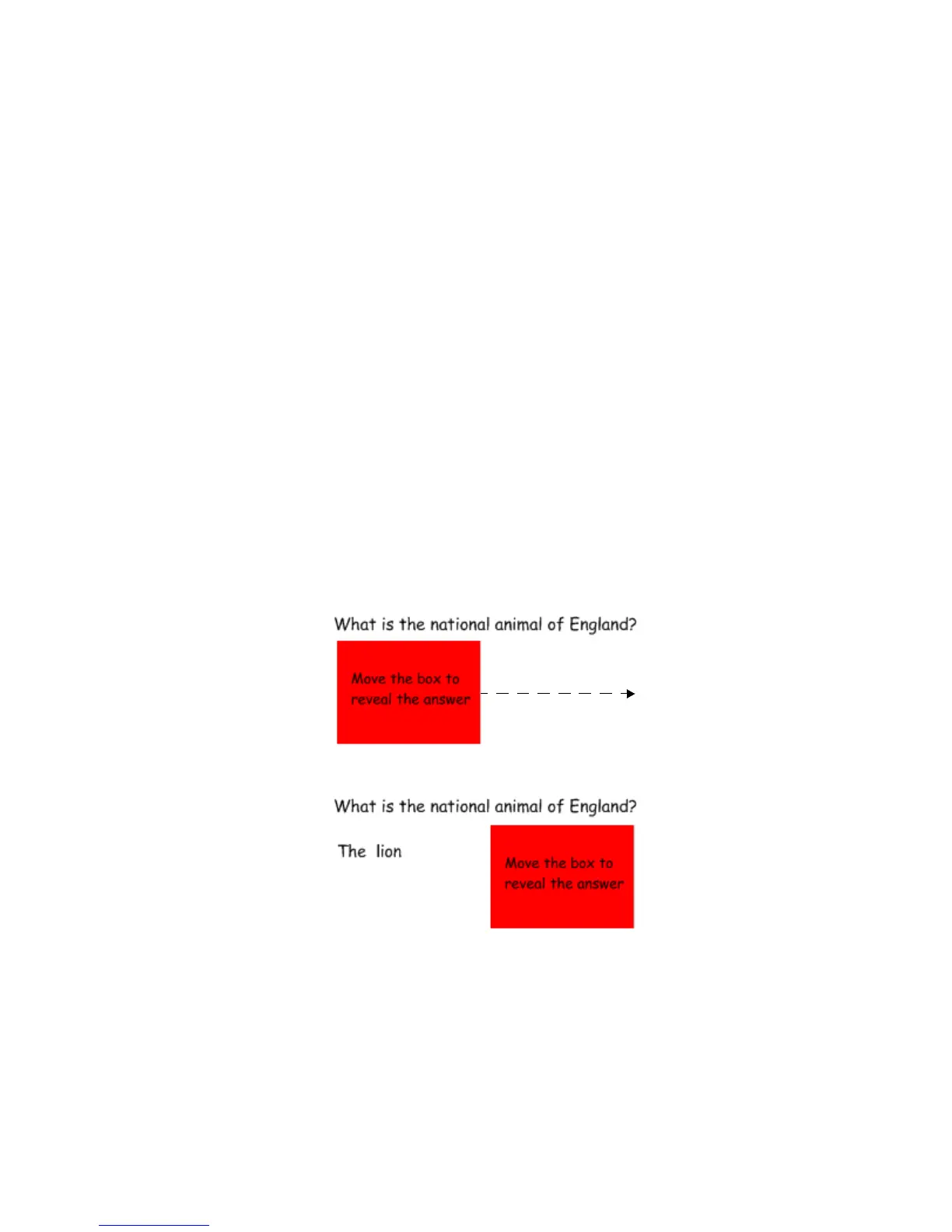
One way to create a reveal activity is to hide an answer behind another object.
1 Type your question and answer
2 Draw a rectangle and fill it with color to hide the answer
3 Double-press the shape for the ability to add text to it – ensure your text is a different color than the
rectangle
4 Type Move the box to reveal the answer – you are adding instructions to the shape so other faculty
members or a substitute teacher will be able to work with the file. Without the instructions, someone
might assume they are supposed to write the answer over the shape instead of moving it to reveal the
answer.
NOTE: It is a good practice to select Order > Bring to Front from the drop-down menu on any object
you will be using to cover an answer. This action will ensure your students don’t see the answer
before it is time for it to be revealed.
5 Move the shape to reveal the answer
Before
After


 To Next Page