Erase and reveal
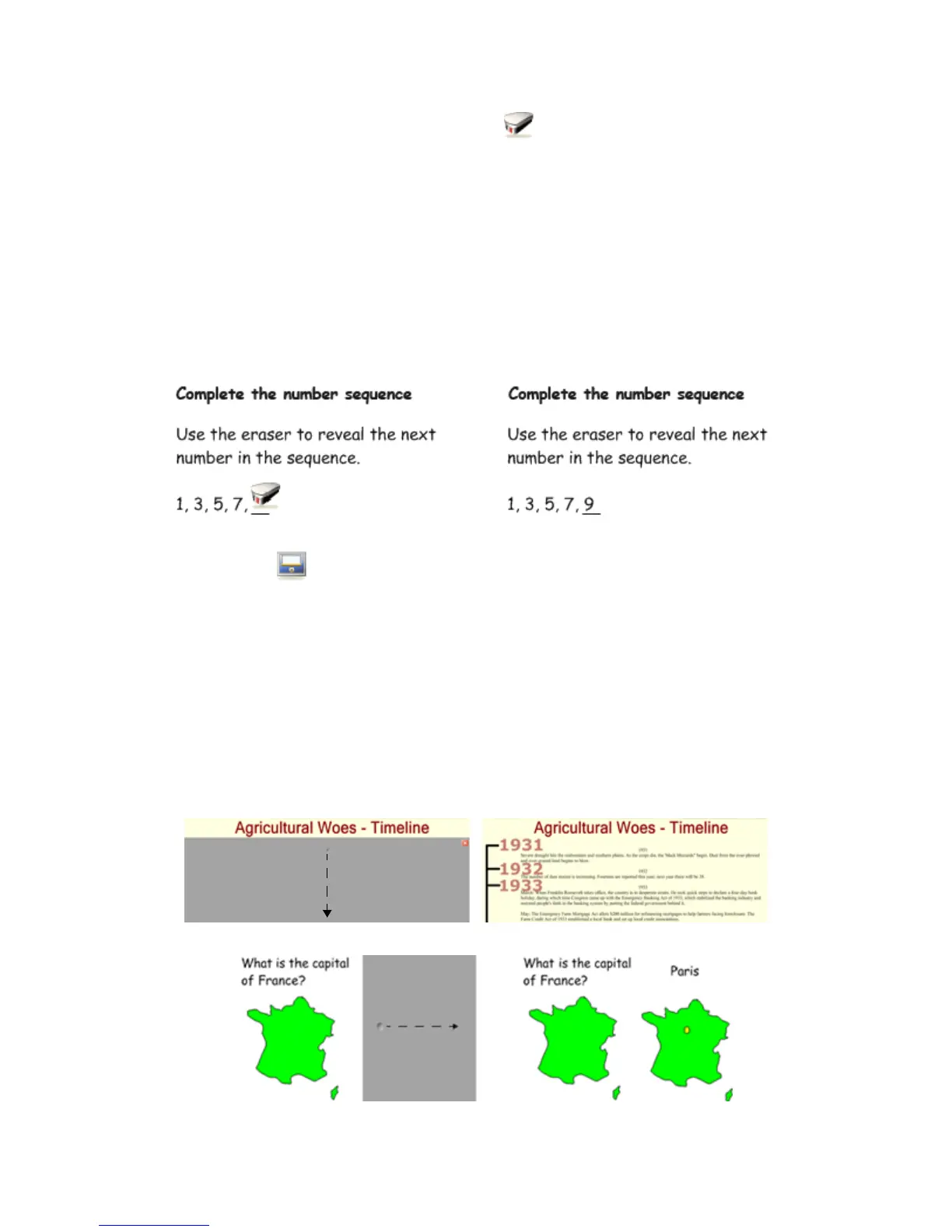
Another way to reveal information is with the Eraser tool.
1 Type your question and answer
2 Use a pen to cover the answer with digital ink
3 Select the digital ink and set it to the same color as the page background. For example, if the page
background is white, then the digital ink should also be white.
4 Select the Eraser tool, and erase the digital ink covering the answer. The Eraser tool will only erase
objects created with digital ink. Anything typed with your keyboard cannot be erased with the Eraser
tool.
TIP: You may want to add instructions that let the class or other teachers know that all they need to do
is to use the eraser.
Screen Shade reveal
The third way you can reveal information is with the Screen Shade tool.
1 Type your question and answer
2 Press the Screen Shade button on the Notebook software toolbar
3 Drag the Screen Shade so only the answer to your question is covered
4 When you are ready, drag the Screen Shade so it no longer covers the answer. This action is similar
to using paper to cover answers that would be displayed through an overhead projector.
NOTE: When you open a Notebook file, the Screen Shade will be covering the same area it was hiding,
and you will be able to start discussing the content in your file from exactly where you left off.
Before
After
Before
After
Before
After


 To Next Page